
Learn Cana
See what you can do.
Every part of Cana, explained the way you work: what it does, how to use it the first time, and real examples. Pick who you are to see it from your side.
Getting started
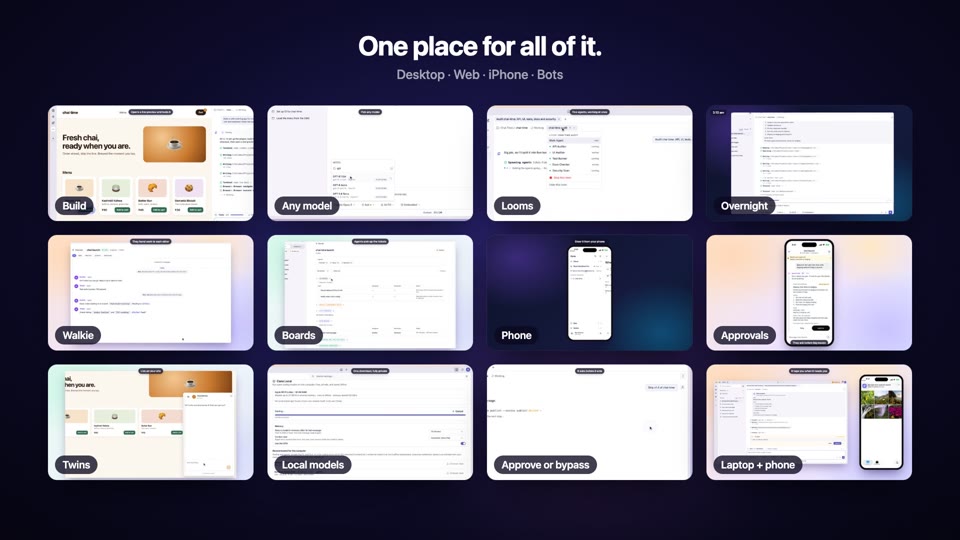
Cana Super Intelligence
AI's frontier has moved from one smarter model to organisations of agents that split hard problems, work for days and check each other; Cana puts that in your hands, with people deciding.
Get started with Cana Desktop
Install Cana Desktop on your Mac or Windows PC, sign in, open a folder and give an agent its first job in plain words.
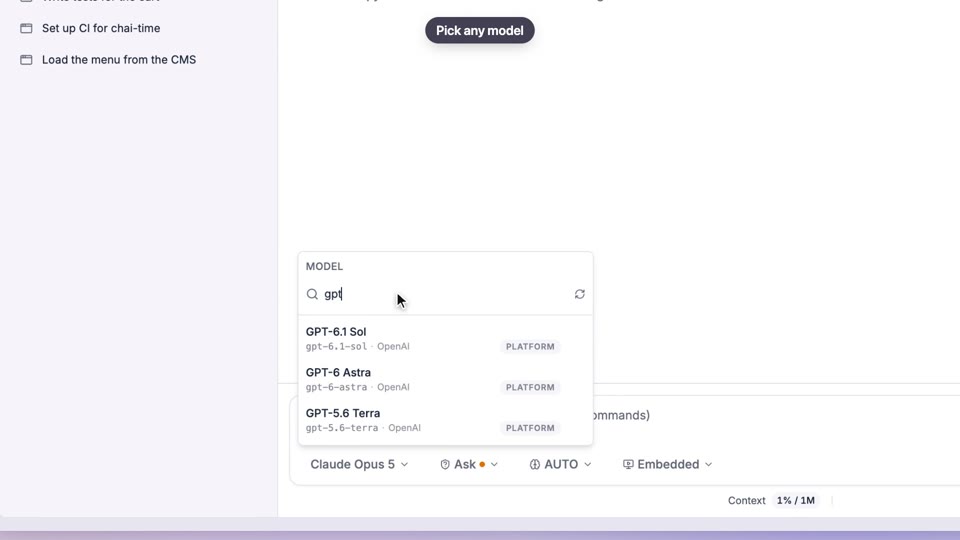
Choose your model
Pick which leading AI model answers each chat, add your own provider keys, or run an open model on your own computer so the work never leaves it.
Cana Desktop
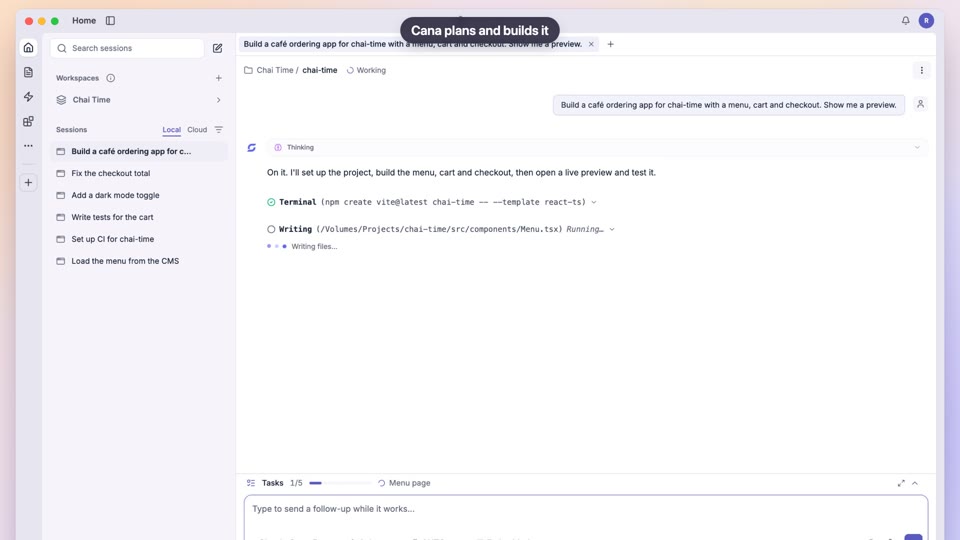
Build an app from one prompt
Describe the app you want in plain words; an agent in Cana Desktop plans it, writes the code, runs it in a built-in browser and checks its own work before you ship.
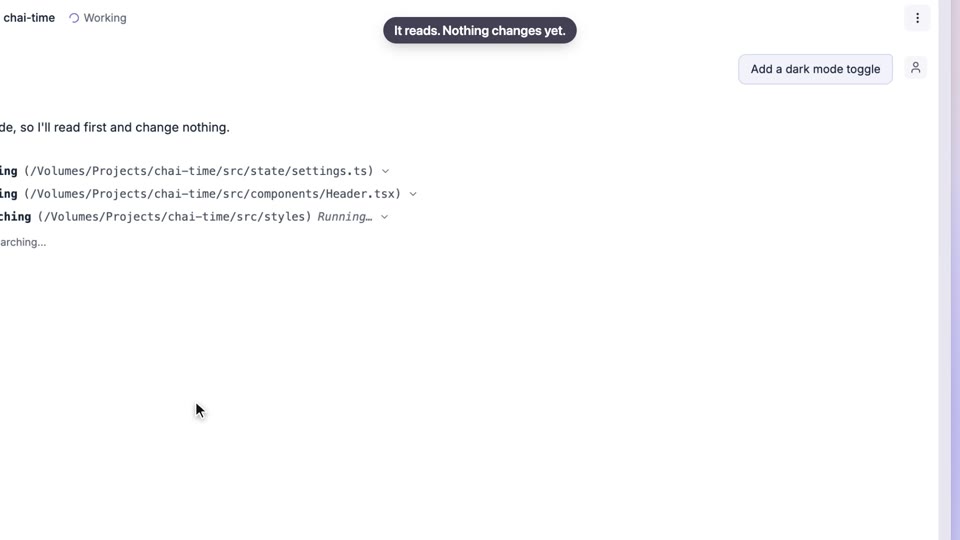
Plan first, then build
Before it changes anything, the agent researches your project and drafts a plan you can read, edit and approve, then works through a task list that ticks off only when each check passes.
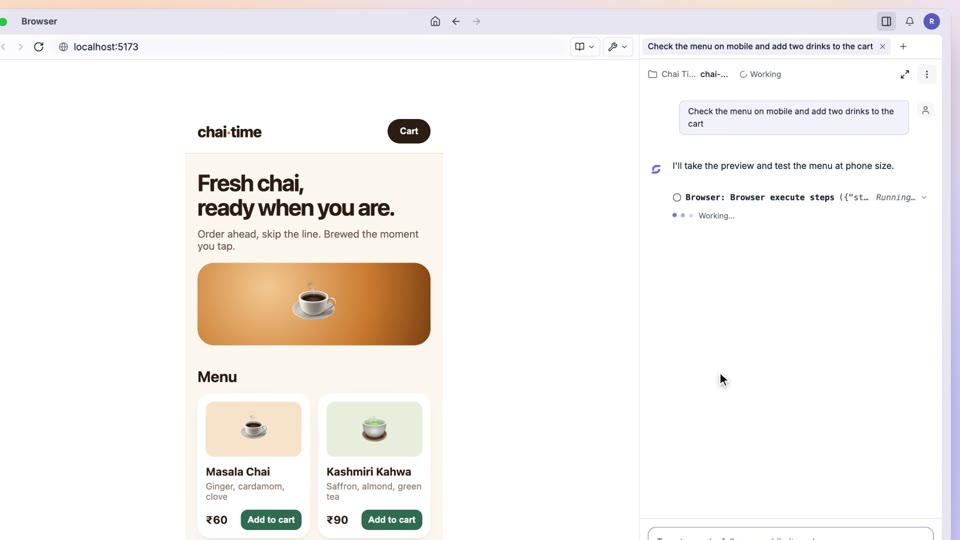
A browser the agent can see and use
Cana Desktop has a built-in browser the agent can open, click through and check, with Elements, Console and Network tools, and Cana Companion lets it work in your own Chrome tabs too.
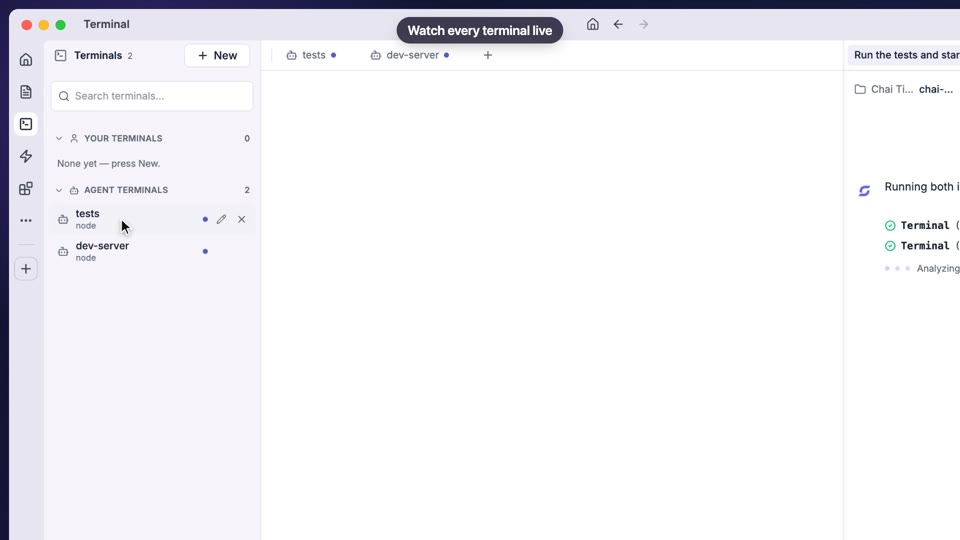
Code, terminal and approvals
The agent reads, edits and runs code in your own project folder, you watch its terminals live beside your own, and you decide which edits and commands it may run without asking.
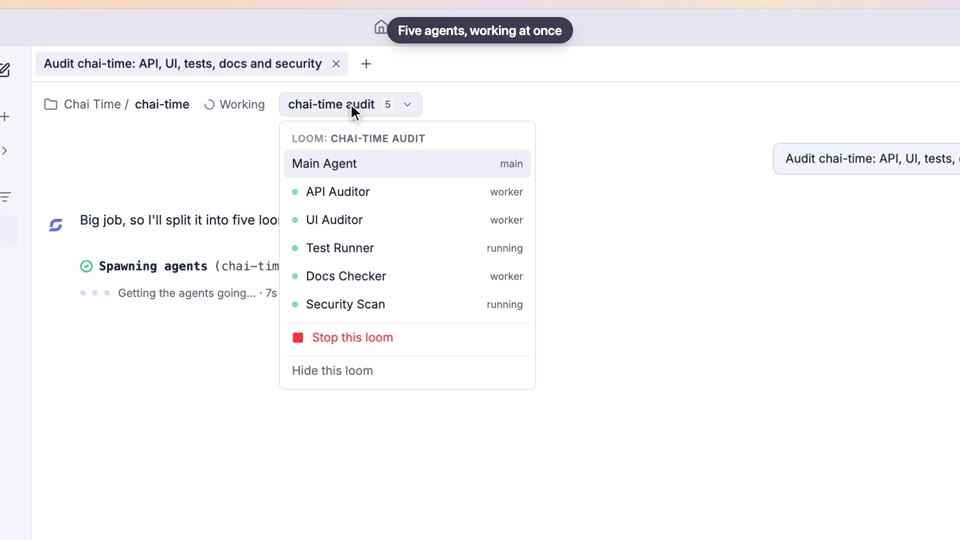
Several agents at once
For big jobs, one agent splits the work across a team of helper agents that run in parallel, each in its own tab, and then combines their reports into one result.
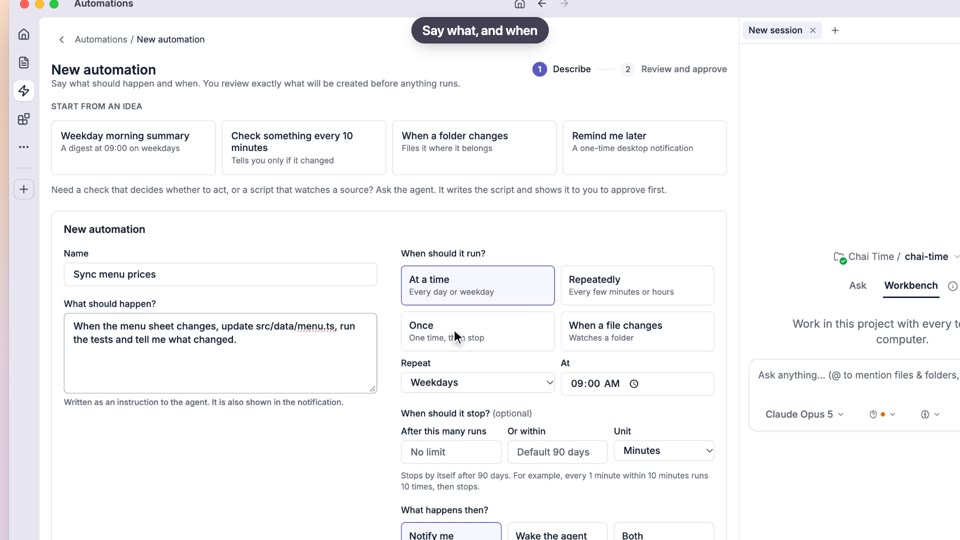
Automations
Tell Cana what to do and when, at a time, on a schedule or when a folder changes, review it, and it runs for you, even after you close the Cana window.
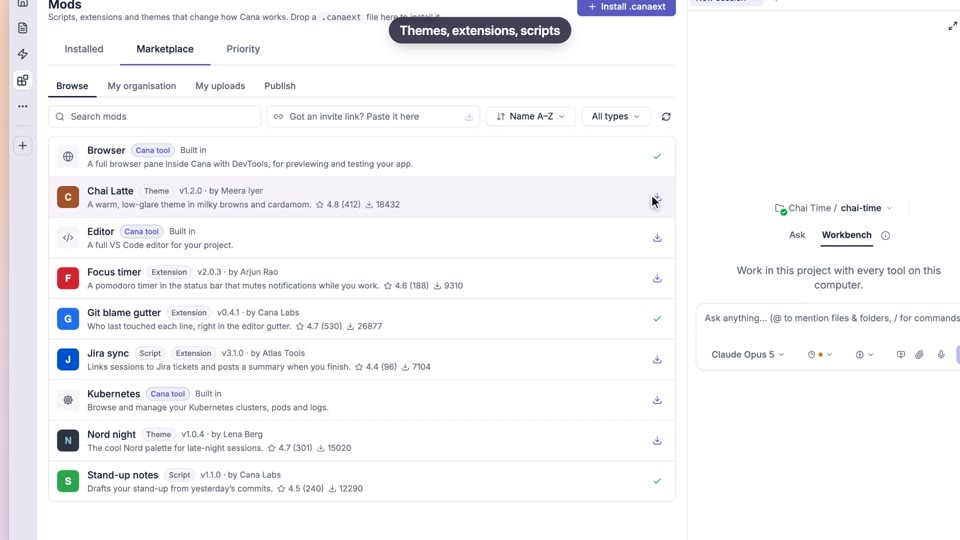
Mods and the mod store
Mods add tools, pages, background scripts and new looks to Cana Desktop; browse the store, see exactly what a mod can do before you install it, and turn it off or remove it any time.
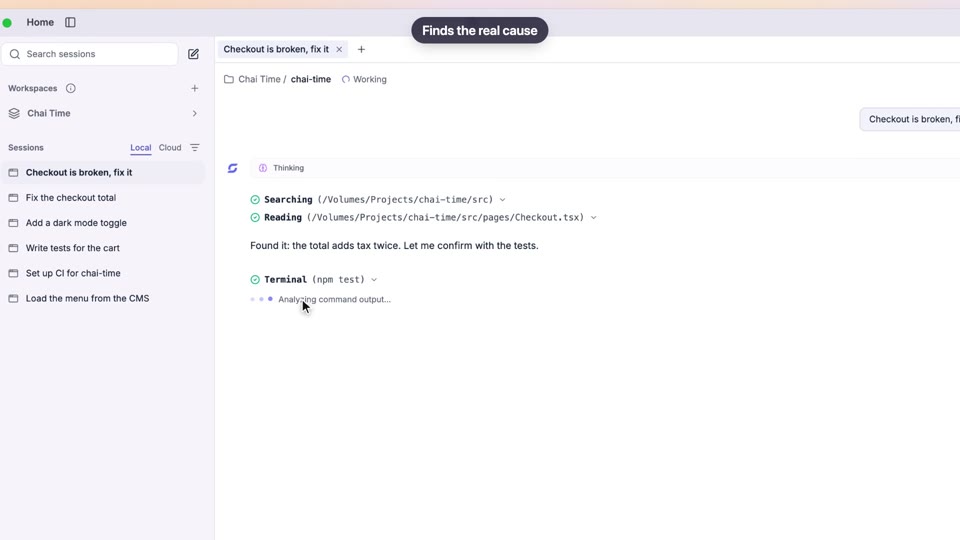
Memory, knowledge, skills and commands
Tell Cana once how you like to work and it remembers in every chat; save project knowledge it looks up when needed, and add skills and /commands that shape how the agent works.
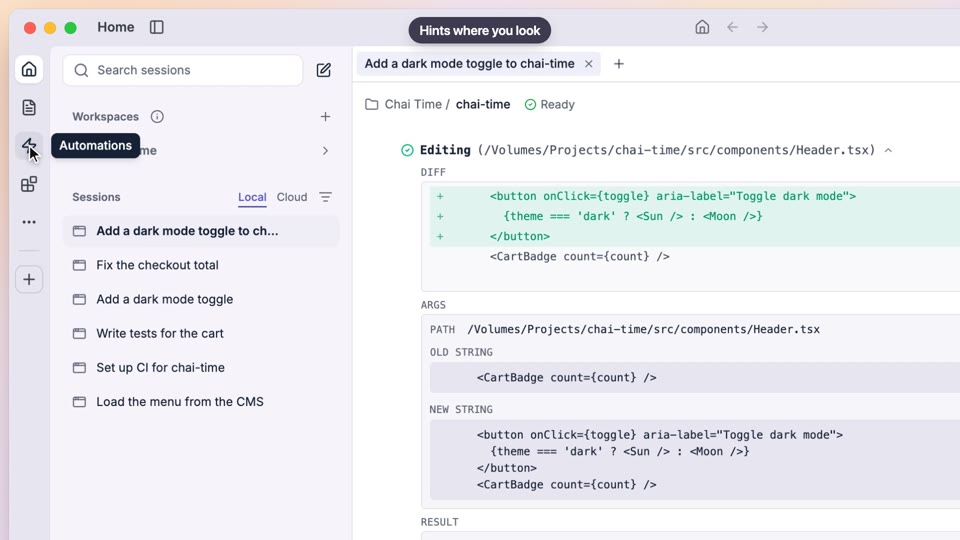
Meeting notes
Record a meeting from your microphone, your computer's audio or both, follow a live transcript, and get a summary, decisions and action items you can export, chat with or turn into tasks.
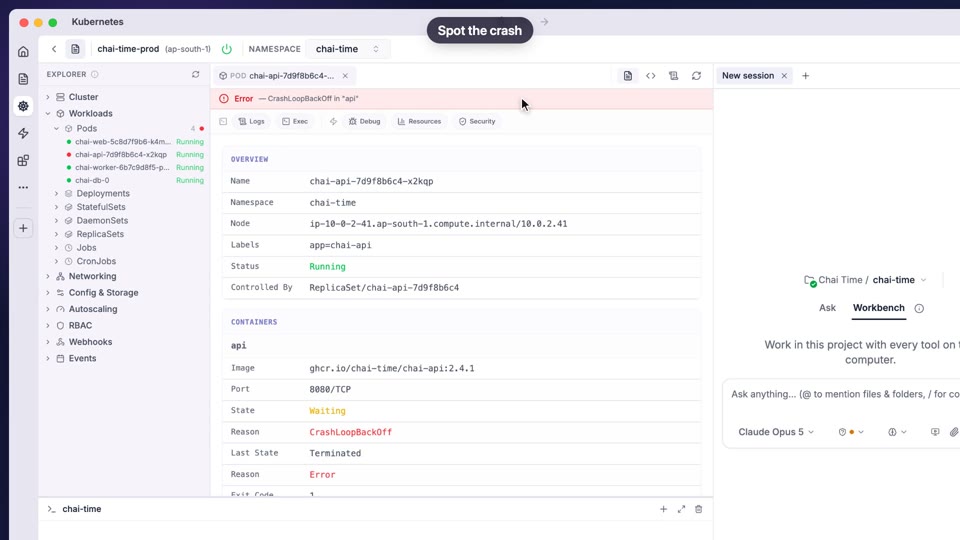
Publish and deploy
Publish a project to your own Git repository with a build pipeline, add deployments to your Kubernetes clusters, and fix what breaks from the logs, all inside Cana Desktop.
Cana on the web
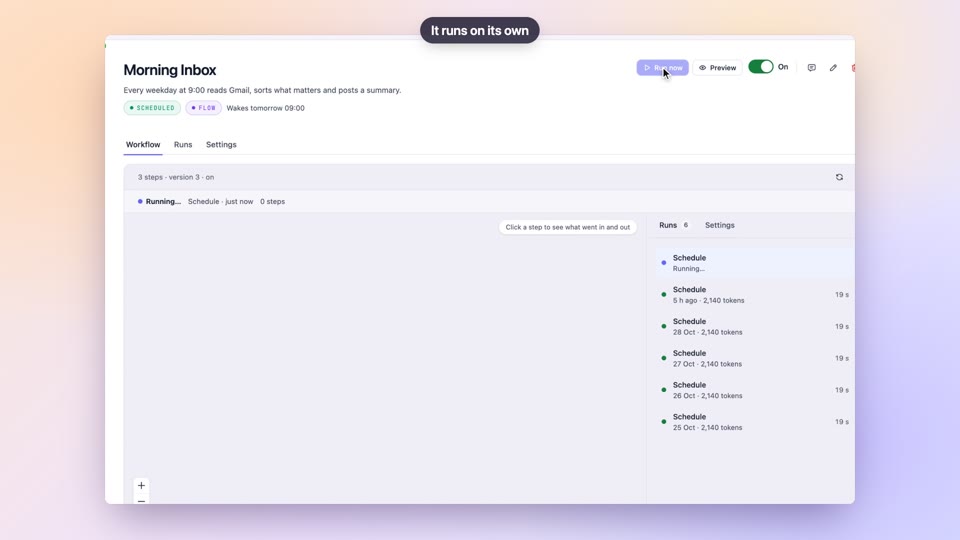
Bots
BetaA bot is an agent with its own cloud computer that wakes on a schedule or when something happens, does the work with your connected apps, and reports back.
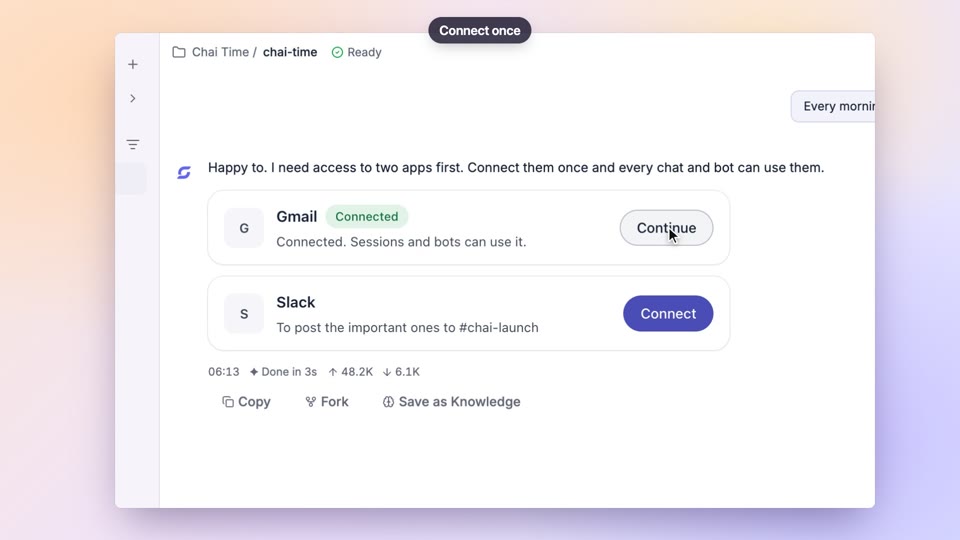
Connected apps and MCP servers
Connect your accounts, such as Gmail, Slack, GitHub and Notion, once in Settings so every chat, bot and Twin can work in them on your behalf, and add your own MCP servers too.
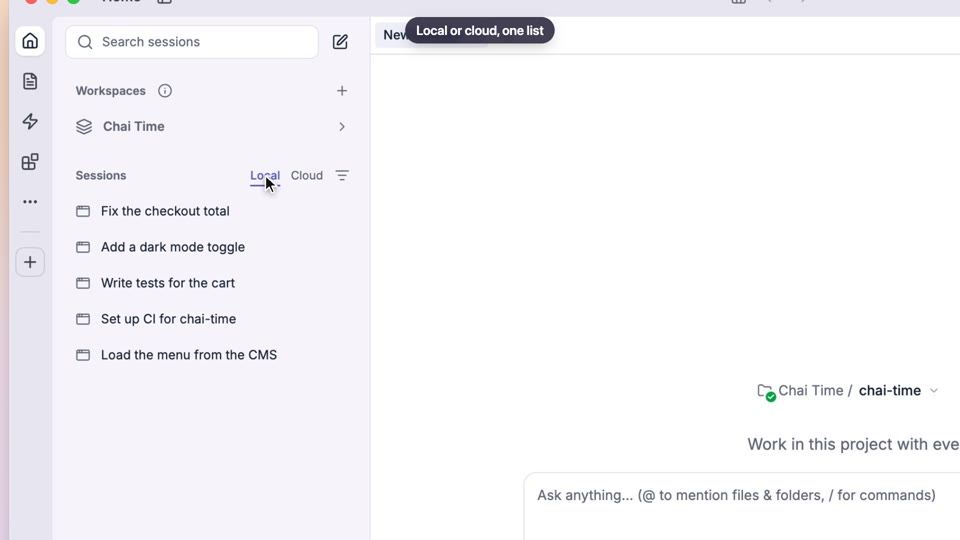
Cloud chats with their own computer
BetaStart a chat on cana.build and the agent works on a cloud computer of its own that keeps your files, sleeps when idle, and can carry on in Cana Desktop.
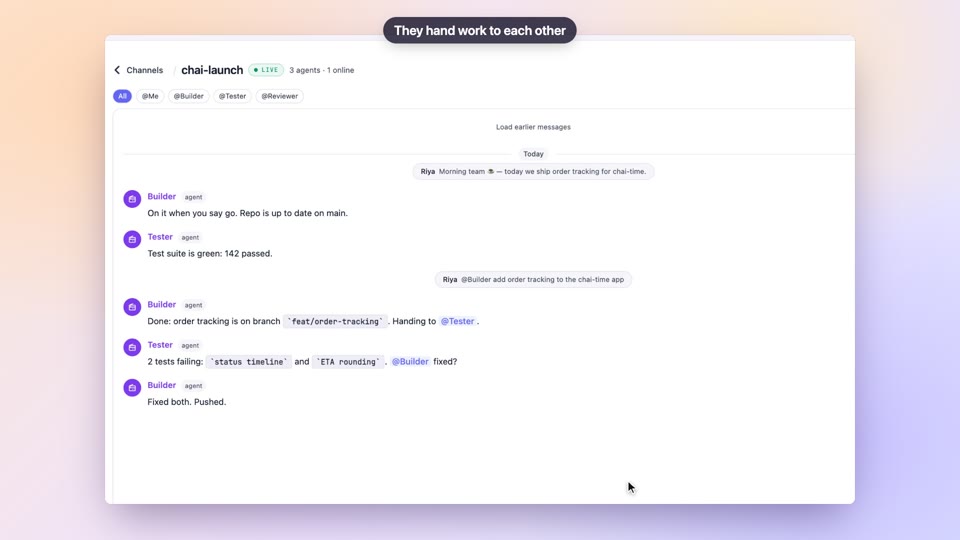
Walkie-Talkie channels
Walkie-Talkie channels put people and agents in one live text conversation, where you @mention an agent to hand it work, approve its plan and stop it with one click, from the web or your phone.
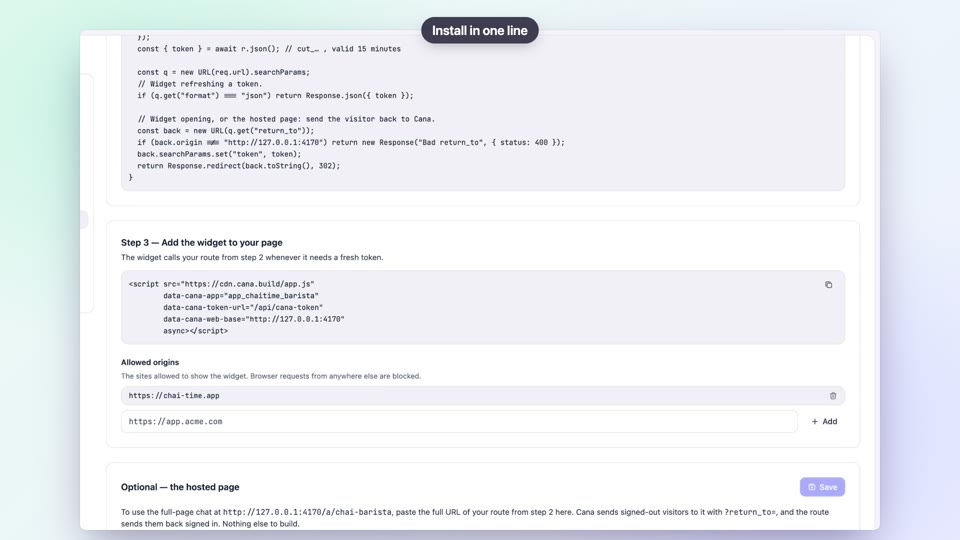
Twins: an agent inside your product
A Twin is an agent you design on cana.build, with its own model, instructions, look and tools, and put on your website with one script tag or call from your product through the developer API.
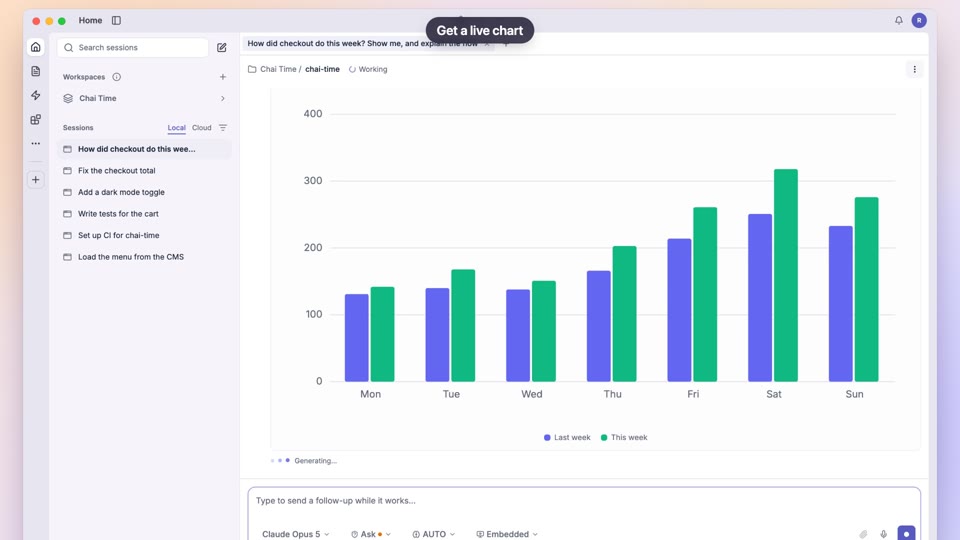
Studio apps and workflows
Ask any chat for a page or small app and it lands in Studio with its own data tables, shared with your organisation or kept private, plus workflows that run on a button, schedule, event or webhook.
Artifacts: mockups, decks and documents
Ask any chat for a website demo, mockup, flow, slide deck or document; it is saved as an artifact that stays private until you share it, with pinned comments, versions and downloads.
Cana on your phone
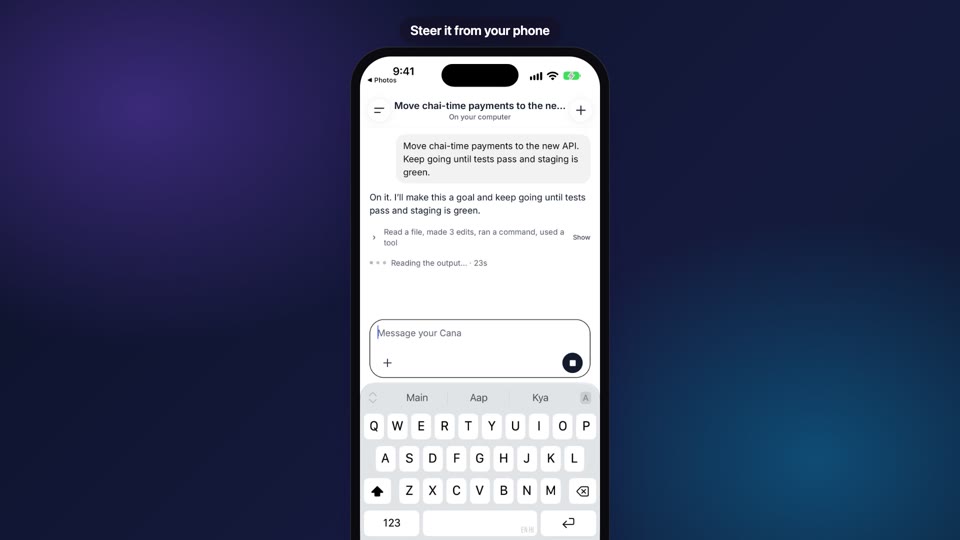
Your agents, in your pocket
Your agents keep working on a cloud computer or on your own desktop while you're away, and the Cana app on your phone is where you steer them, approve their next step and review what they did.
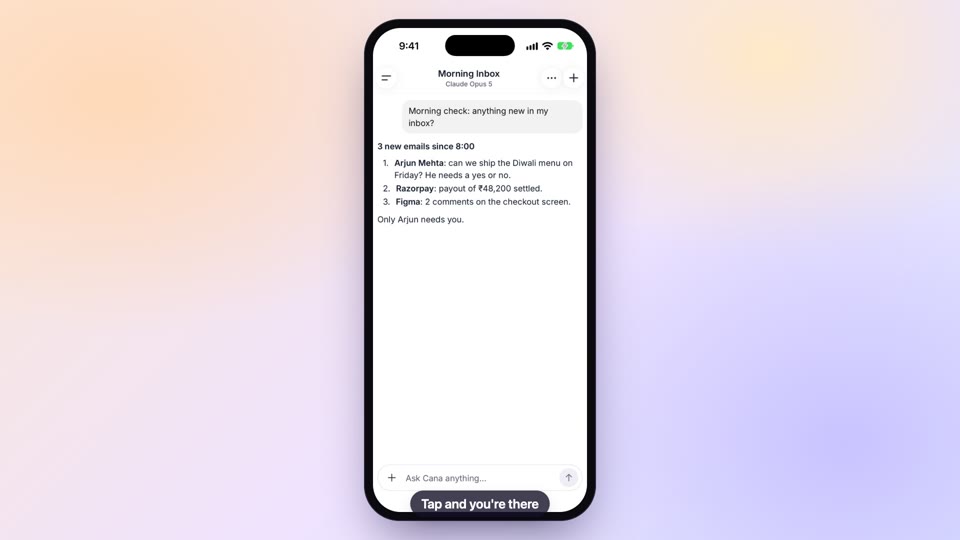
The Cana mobile app
The Cana app for iPhone and Android lets you check on running agents, answer and approve them, follow Walkie-Talkie channels and get notified when a chat or bot needs you.
Notifications that keep work moving
The Cana app tells you when a chat finishes, needs you or fails, when a bot posts or fails, when your computer is done and when Walkie has a message for you, and a tap opens exactly that place.
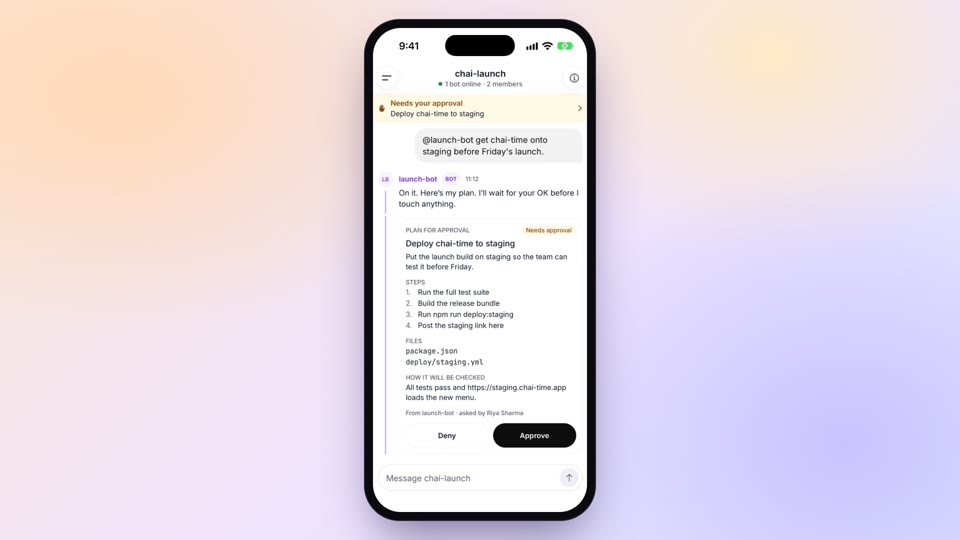
Approve, answer and unblock from anywhere
When an agent asks before it acts, wants an answer, or posts a plan in Walkie, you can review it and decide from your phone: Approve, Always or Deny, answer its questions, or approve or deny the plan.
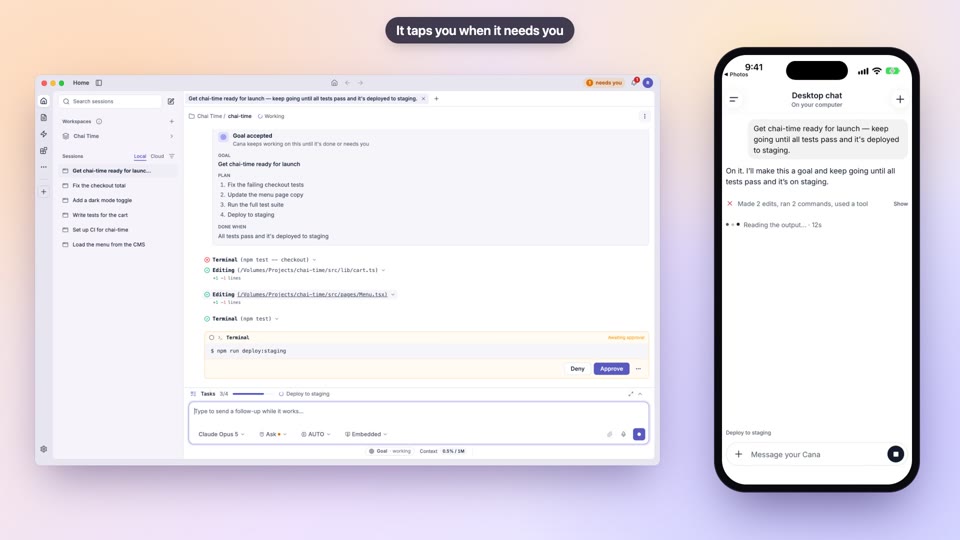
Drive your desktop agent from your phone
Chats running in Cana Desktop on your own computer show up in the app's Desktop tab, so you can follow them, message them, send them photos and files and hear when they finish, while the work stays on your computer.
Start work from anywhere
From the Cana app you can start a cloud chat, start a bot, run a bot or a schedule right now, and hand an agent a photo straight from your camera, such as a whiteboard or a bug on a screen.
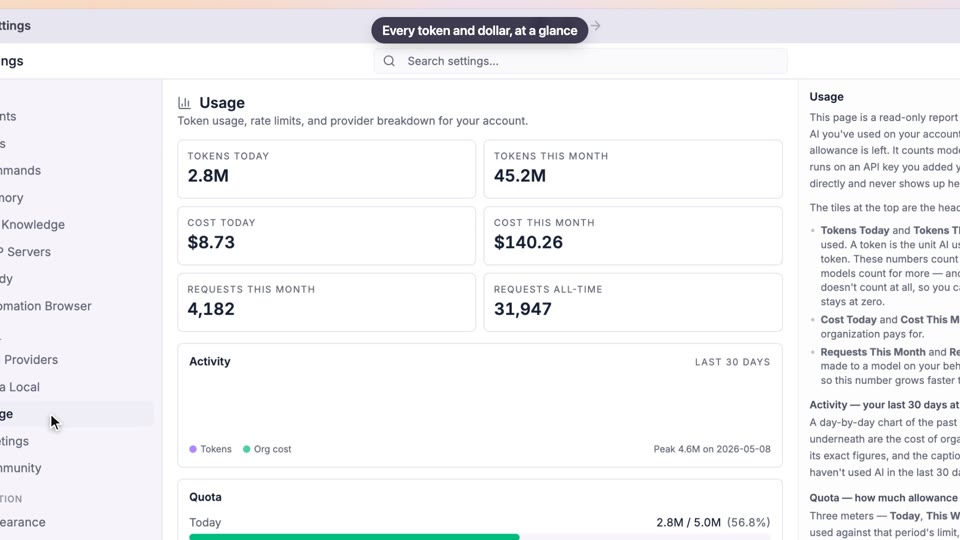
Security and privacy
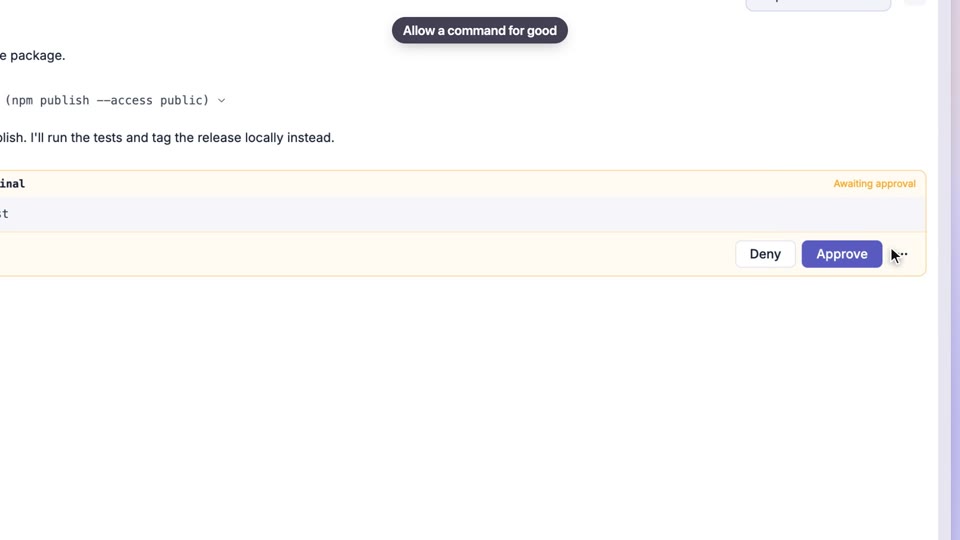
Permissions and approvals
Decide how much an agent may do on its own, approve its commands and edits as they come, and rely on protected locations it can never touch, whatever the setting.
Sign-in and account security
Sign in to Cana with a passkey, an emailed code or link, or your company's single sign-on, and protect your account with two-step sign-in and control over where you're signed in.