
Cana Desktop
Plan first, then build
Before it changes anything, the agent researches your project and drafts a plan you can read, edit and approve, then works through a task list that ticks off only when each check passes.
How it works
The idea in 5 steps
- 1
Research comes before changes
In Research and Plan the agent reads your files and researches the question, but it cannot edit files, and its terminal use is limited to commands that change nothing.
- 2
The plan is a document you can read
The agent writes a plan with its goal, approach, the files it will touch and the steps it will take. It is saved in your project as Markdown, so you can edit it.
- 3
Nothing is built until you decide
You either let it build, in the same chat or a fresh one, or ask for changes. A revision updates the same plan instead of piling up drafts.
- 4
Each task carries a check
The plan becomes a task list. Each task has a check, such as a test run, a build or a cited place in the code, and only ticks when that check really passes.
- 5
A person judges what a check can't
Some things only you can judge, like how a page looks. Those tasks wait for you with the agent's note instead of being marked done.
Tutorial
Step by step
Before you start
- Cana Desktop installed and signed in
- A project folder open in the chat (Cmd+O on a Mac, Ctrl+O on Windows)
- A change in mind that touches more than one file
- 1
Switch the chat to Research and Plan
In the message box, click the Permission mode button and choose Research and Plan.
You'll see: The button now shows Research and Plan, described as "Reads and researches only, then drafts a plan document you approve or revise."
- 2
Describe the outcome you want
Write the goal and what to find out first, for example how the feature works today, then click Send message.
You'll see: The agent reads files and searches the code, reporting what it finds. It does not change anything.
Tip: Say what "done" means, such as "the checkout tests pass". The agent turns it into checks.
- 3
Open and read the plan
When the card Plan ready — review before approving appears, click Open plan to read the whole document.
You'll see: The plan opens with its goal, approach, files and steps, in Preview. Switch to Edit or Split to change it yourself.
- 4
Decide what happens next
On the card, choose Continue in the same chat, Continue in a new tab for a fresh chat that starts from just the plan, or Ask for changes.
You'll see: Continuing starts the build. Ask for changes opens a box asking "What would you like to change in the plan?"
Tip: Type your changes and click Send. The agent updates the same plan without building anything.
- 5
Follow the task list
As the agent works, click Tasks above the message box to see every step and its check.
You'll see: Tasks tick one by one, each only once its check passes, such as a test run or a build.
- 6
Close tasks that need your eye
When a pill such as 1 needs your review appears above the message box, click it, check the item yourself, then click Yes, it's done.
You'll see: The item shows as confirmed while the agent closes it; the pill disappears when nothing is left.
- 7
Find and share the plan later
Click Context on the left rail and open Plans. Choose the plan, then click Share to send it to a colleague.
You'll see: The Share plan dialog, where you pick people and For review or For approval, then click Send.
Worked example
Card payments, agreed before any code changes
You want card payments at checkout but don't yet know how orders are created in this codebase, and you want to agree the approach first.
You type
Add card payments to checkout. First find how orders are created today and where payment should hook in, then propose the safest way, with the files you'll change and how we'll test it.
- 1.Permission mode: Research and Plan
- 2.Send the request and wait for Plan ready — review before approving
- 3.Open plan, read it, then Ask for changes if the approach needs adjusting
- 4.Continue in a new tab to build from the agreed plan
Result: A written plan you agreed to, then a build that ticks each task only when its test or build check passes, with any visual checks left for you to confirm.
Troubleshooting
If something doesn't work
- The agent says it can't edit files
- That is Research and Plan working as intended. Approve the plan with Continue in the same chat or Continue in a new tab, and the agent can then make changes.
- The plan card disappeared before I decided
- Open Context, then Plans, choose the plan, and click Take action in its header to get the same three choices.
- A task won't tick even though it looks done
- Its check has not passed yet, for example a test still fails. Ask the agent in the chat what the check reported; it fixes the cause or explains why.
- I can't close a task the agent left for me
- Click the needs your review pill above the message box and use Yes, it's done on that item. If the agent changes code afterwards, confirm again.
For you
Know exactly what will happen before you say go
You don't have to trust a black box. The agent writes down what it will do in plain words, you change what you don't like, and you can watch each step tick as it is checked.
Update a shared spreadsheet tool
"Plan adding a monthly summary tab to our expenses tool." Approve the plan, then follow the task list.
Research before deciding
Have it compare three ways to automate a weekly export, with trade-offs, before you commit to one.
Hand over cleanly
Sync the approved plan so a colleague can see what was agreed and what is done.
What changes for professionals: Work done the way you agreed, with a written record of what was planned and checked.
Technical details
What it connects to, and the controls you have
- Planning mode
- Research and Plan: the agent reads and researches, file edits are blocked, and terminal use is limited to commands that change nothing until you approve
- Your choices
- Continue in the same chat, Continue in a new tab, or Ask for changes with written feedback; the same choices are under Take action on the plan itself
- Task checks
- A command and the exit code it must return, text its output must contain, cited code locations, an independent reviewer, or your own review
- Honest ticks
- A changed check keeps its previous version and the reason on show; a check that already passed before the work began must be shown failing first
- Where plans live
- Markdown files in your project under .cocreate/plans, listed under Context, Plans, with Preview, Edit and Split views
- Sharing
- Share sends a plan to colleagues for review or for approval
Why Cana
What you get here
- A dedicated planning mode where the agent can research but not edit until you approve
- Every task carries a declared check and ticks only when that check passes
- Tasks that need a human eye wait for your review instead of being marked done
- Plans are plain Markdown files in your own project, and can be shared with colleagues for review or approval
Keep exploring
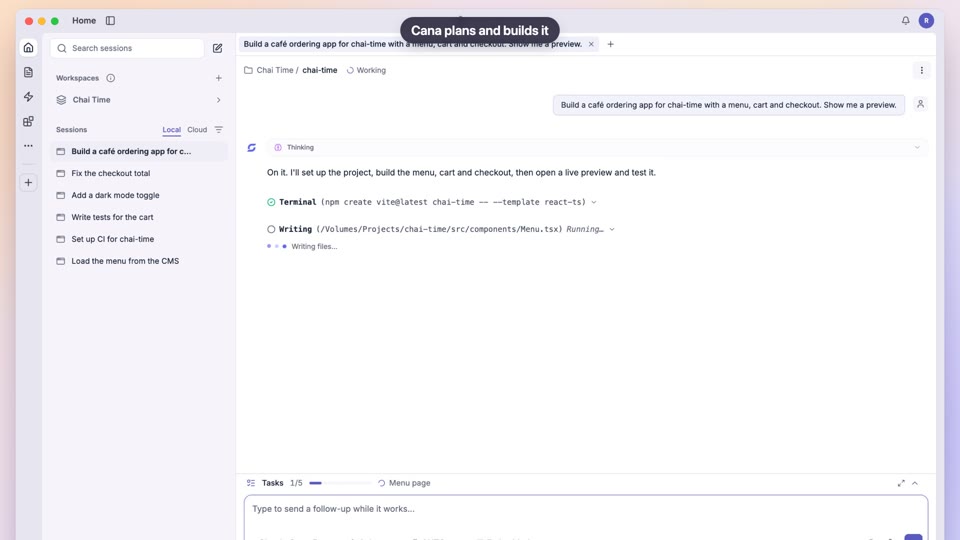
Build an app from one prompt
Make the internal tool you've been waiting for, yourself
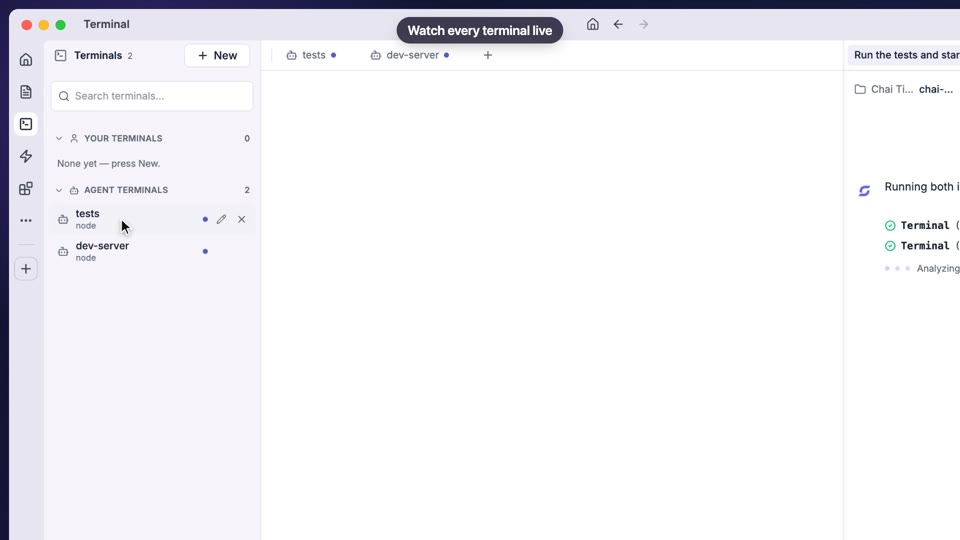
Code, terminal and approvals
Get scripts and small tools built without memorising commands
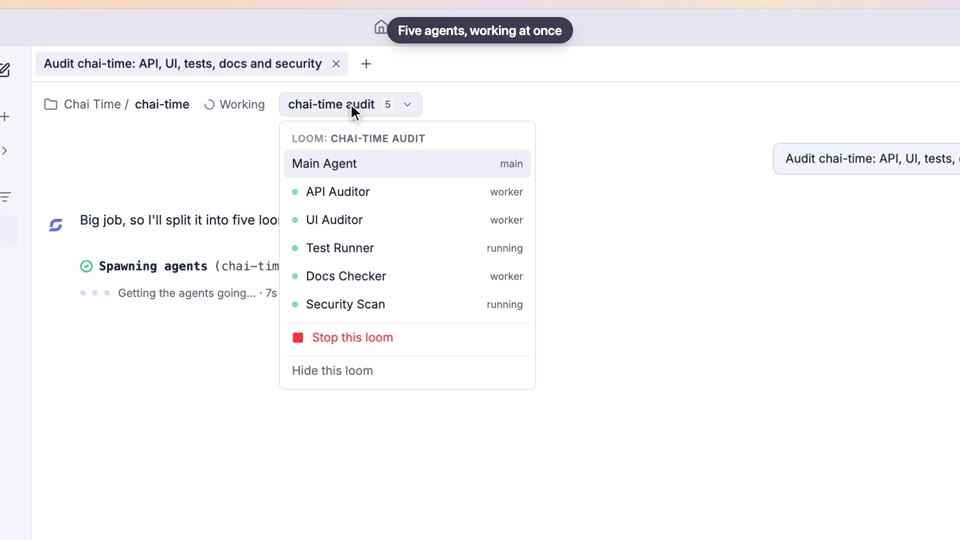
Several agents at once
Hand over a large task and get one finished answer back
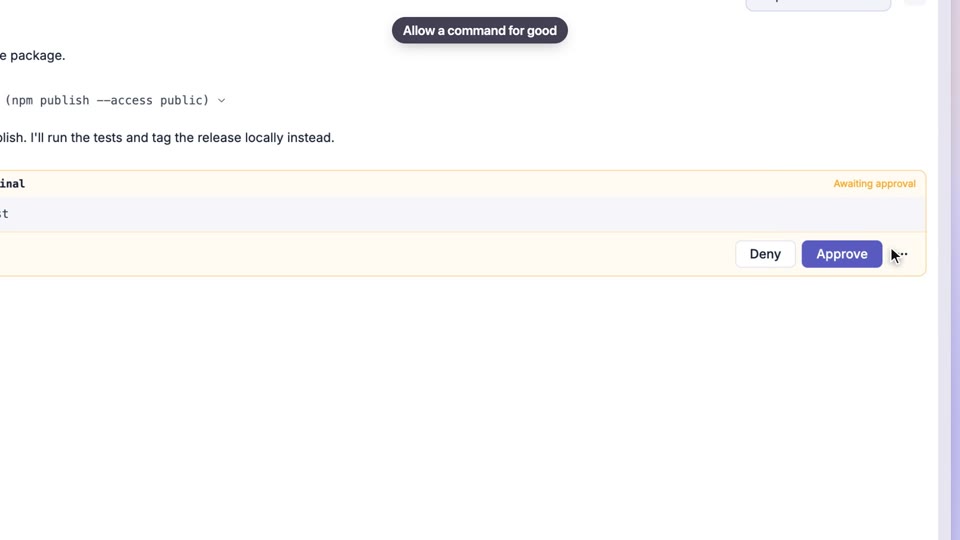
Permissions and approvals
Get help from an agent without worrying what it might touch