Cana Desktop
Several agents at once
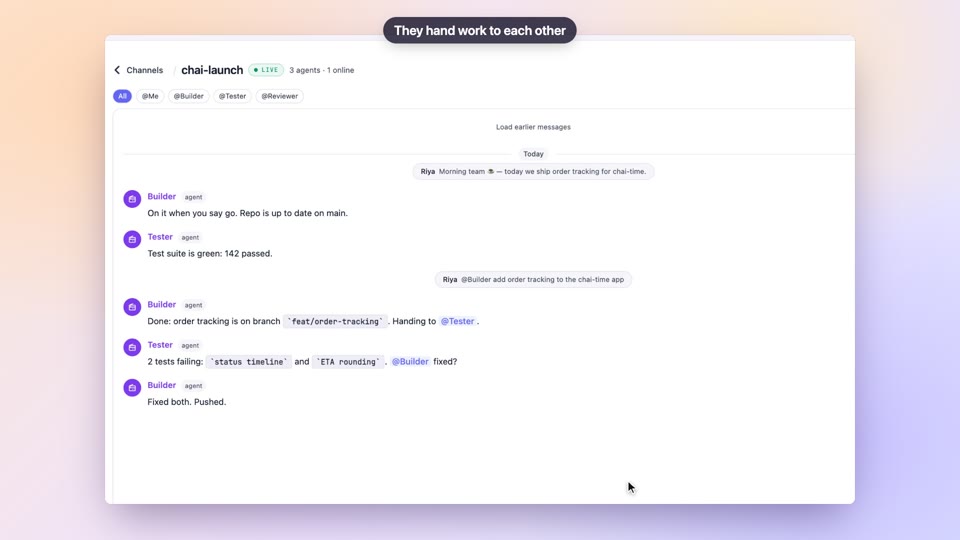
For big jobs, one agent splits the work across a team of helper agents that run in parallel, each in its own tab, and then combines their reports into one result.
How it works
The idea in 5 steps
- 1
Big jobs split into parts
When a job has independent parts, the agent can act as a lead and hand each part to a helper agent. Cana calls the team a loom.
- 2
Helpers work side by side
Helpers without dependencies start at once; others wait for the helper they depend on. Each one can run on a different model or have a time budget.
- 3
Every helper is a full agent you can watch
Each helper runs in its own chat tab, so you can open it and read what it is doing while the team works.
- 4
One combined answer comes back
Each helper reports to the lead when it finishes, and the lead checks the reports and combines them into one result.
- 5
Helpers stay inside your limits
Helpers take the lead chat's permission mode and never wait on you, and they are never allowed to push code or make destructive changes.
Tutorial
Step by step
Before you start
- Cana Desktop installed and signed in
- A project folder open in the chat
- A job with parts that can be done independently, such as reviewing several areas of a codebase
- 1
Choose what helpers may do
In the message box, click the Permission mode button. Leave it on Ask unless helpers must run builds or tests.
You'll see: The mode shown on the button. Every helper the lead starts will use it.
Tip: In Ask or Accept Edits, helpers read, edit files and run read-only commands. Builds and tests need Bypass All.
- 2
Ask for a job with separate parts
Describe the job and name the parts, for example "review the API, the interface and the tests separately, then give me one ranked list". Click Send message.
You'll see: The lead agent starts helpers, each with a name and its own task.
- 3
Watch the team
Cana calls a team of helpers a loom. Click the loom count link above the message box, for example "1 loom".
You'll see: Running looms lists the team. Click Open to go to its helpers.
- 4
Read a helper's work
Click the loom's name in the chat header and choose a helper, or Main Agent to go back to the lead.
You'll see: The helper's own tab, showing every step it takes. You can switch between helpers at any time.
- 5
Stop the team if needed
In the same header menu, click Stop this loom to stop every running helper.
You'll see: The helpers stop, and the lead reports what was done so far.
Tip: Hide this loom closes the helper tabs without stopping anything.
- 6
Get the combined result
Go back to Main Agent and wait for the lead to finish.
You'll see: One combined answer in the lead chat, built from every helper's report.
- 7
Reopen or continue a team later
Type /looms in the message box to see Past looms in this thread. Open a finished helper and click Fork to continue to keep working from its chat.
You'll see: The past team with each helper's transcript, or a new chat that continues from the helper you forked.
Worked example
A three-part codebase audit in one go
You want an audit of a web app's API, interface and tests, and you don't want to run three separate chats yourself.
You type
Audit this codebase. Use separate helpers for the API, the interface and the test suite, run them at the same time, then give me one list of the ten most important problems, ranked by severity, with the files involved.
- 1.Permission mode: Ask, since an audit only needs to read
- 2.Paste the request and click Send message
- 3.Follow the team from the loom count link above the message box
Result: Three helpers work in parallel, then one ranked list of problems arrives in the lead chat, each with the files involved.
Troubleshooting
If something doesn't work
- The agent did the job alone without starting helpers
- It decided the job wasn't worth splitting. Ask directly: "use separate helpers for each part and run them at the same time".
- A helper reports it could not run a command
- The lead chat's mode doesn't allow it. In Ask and Accept Edits helpers can't run builds or tests. The lead tells you, and can ask you to raise the mode to Bypass All.
- A helper's chat says it is read-only
- That helper has finished. Click Fork to continue to carry on from its work in a new chat.
- I closed the helper tabs and lost the team
- Nothing is lost. Type /looms in that chat and choose the team under Past looms in this thread.
For you
Hand over a large task and get one finished answer back
Some requests have many independent parts: several documents to review, several sources to compare. The agent spreads them across helpers and brings the answers together, so you get one result instead of managing five chats.
Compare vendors
"Review these four proposals in parallel and give me one comparison table with risks."
Many files at once
Helpers each summarise a set of contracts, and the lead writes one summary of terms that differ.
Check a long document
Split a long report by chapter for fact-checking, then get one combined list of issues.
What changes for professionals: Large, multi-part requests answered in one go, without coordinating them yourself.
Technical details
What it connects to, and the controls you have
- Team size
- Up to 12 helpers per request, and helpers can start their own helpers up to 3 levels deep
- Ordering
- Helpers without dependencies start at once; others wait for the helpers they depend on
- Models
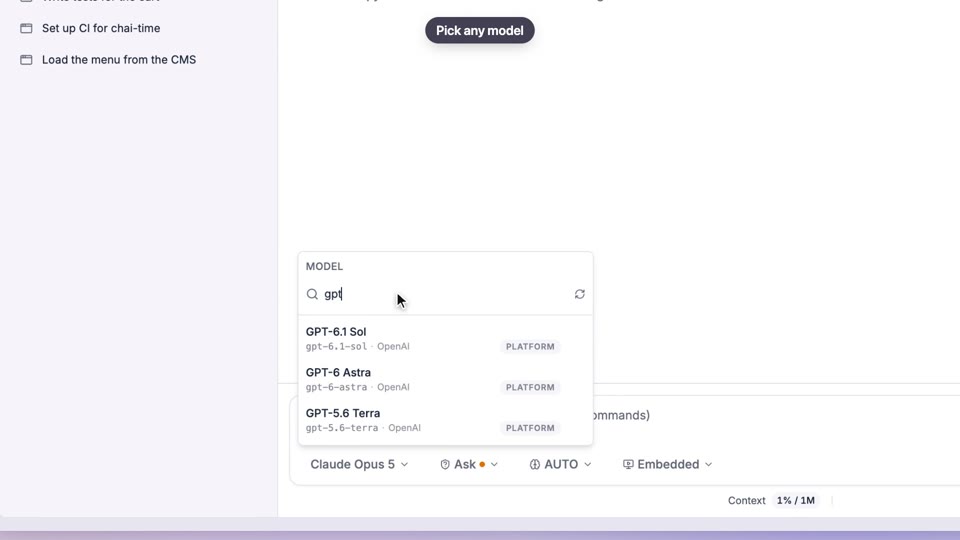
- Each helper can run on a different model; by default it uses the lead's model
- Time budgets
- Optional per helper, up to 6 hours; at the deadline it stops starting new work and reports what it has
- Permissions
- Helpers inherit the lead chat's permission mode and never wait on a person; pushes and destructive cluster commands are always refused for helpers
- Staged work
- A workflow runs stages in order, with helpers inside a stage working in parallel and each stage receiving a digest of earlier results
- Outside events
- A running chat can take in events from monitors, schedules and Walkie-Talkie channels, listed and stoppable from its Background event sources
Why Cana
What you get here
- A lead agent splits the job, sets the order and combines the results
- Each helper is a full agent in its own tab, with a transcript you can reopen
- Helpers can run on different models and have their own time budgets
- Helpers inherit the chat's permissions and cannot push or make destructive changes on their own