Cana Desktop
Automations
Tell Cana what to do and when, at a time, on a schedule or when a folder changes, review it, and it runs for you, even after you close the Cana window.
How it works
The idea in 4 steps
- 1
You describe what and when
An automation is a trigger plus an action: a time, a repeat interval or a folder that changes, and then a notification, an agent session with your instruction, or both.
- 2
Nothing runs until you approve it
Cana turns your choices into a plan that shows exactly what it will set up and when it will next run. Only after you approve it does the automation exist.
- 3
It keeps going in the background
A separate background process runs automations after the Cana window closes, and reopens Cana when the agent needs to act.
- 4
It stops itself when something is wrong
Three failures in a row pause an automation and flag it for you. Automations also expire after 90 days unless you choose another end.
Tutorial
Step by step
Before you start
- Cana Desktop installed and signed in
- A task you repeat, for example a morning summary of a project
- 1
Open Automations
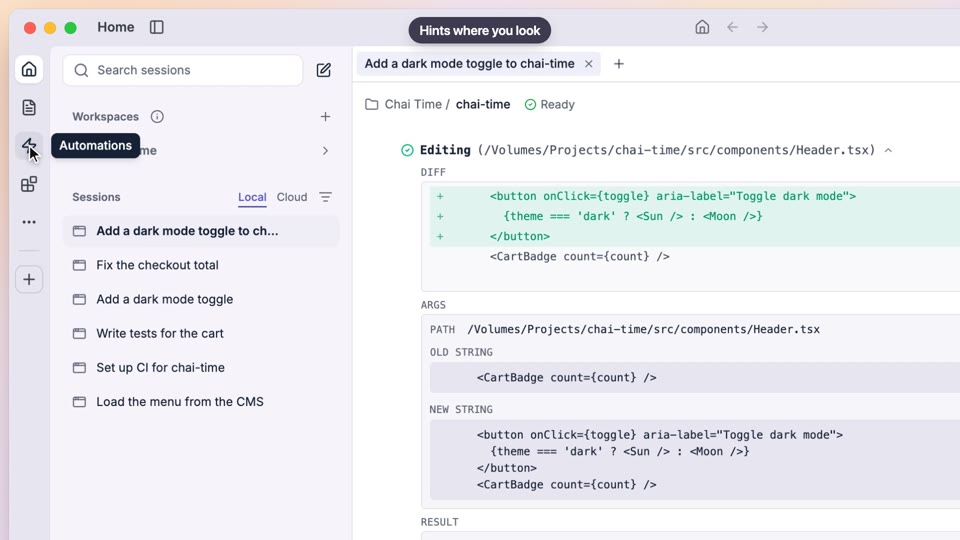
In Cana Desktop, click Automations on the left rail.
You'll see: The Automations page opens. If you have none yet it says No automations yet.
- 2
Start a new automation
Press New automation, then pick the Weekday morning summary template.
You'll see: A form opens with a name, an instruction and the timing already filled in for you to change.
Tip: Other templates include Check something every 10 minutes, When a folder changes and Remind me later.
- 3
Write the instruction
Give it a name and replace the instruction with what the agent should do, such as "Summarise yesterday's commits in this project and list open questions".
You'll see: Your name and instruction show in the form.
- 4
Choose when it runs
Under When should it run? choose At a time, keep Weekdays and set the time to 09:00.
You'll see: The form shows the chosen days and time.
Tip: Repeatedly, Once and When a file changes are the other choices.
- 5
Choose what happens
Under What happens then? choose Wake the agent, or Both to get a notification as well.
You'll see: The choice is highlighted and the agent's work settings appear below it.
- 6
Review the plan
Press Review plan and read what Cana will set up and when it next runs.
You'll see: A summary of the trigger, the action and the next run times. Use Back to edit to change anything.
- 7
Approve it
Press Approve and create.
You'll see: Your automation appears on the Automations page with its next run time.
- 8
Test and manage it
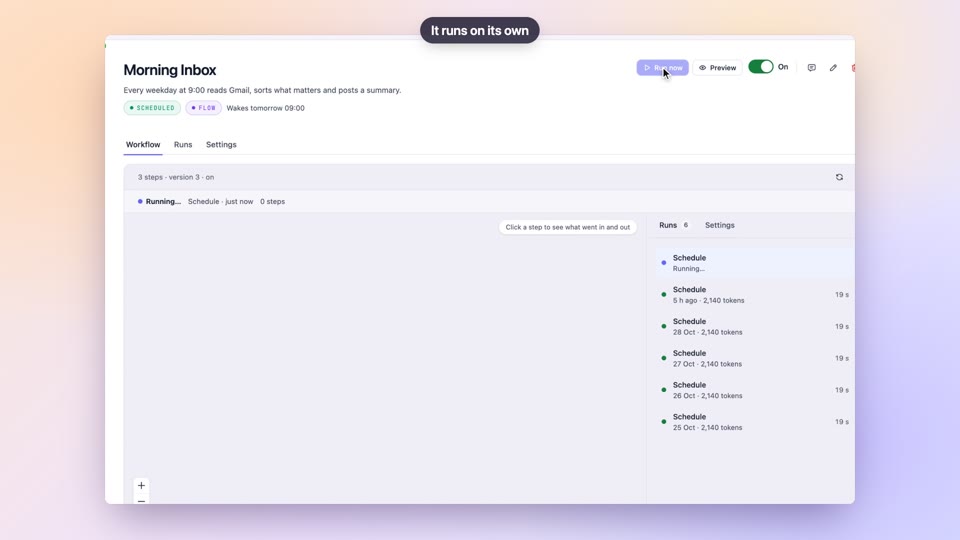
Open the automation and press Run now to try it once. Use Pause, Resume or Delete whenever you need.
You'll see: A new row appears under Run history with its result.
Worked example
A morning project digest
You want a short summary of what changed in your project waiting for you each weekday, without having to ask for it.
You type
Summarise yesterday's commits in this project, list anything that failed in CI, and tell me what needs me today.
- 1.New automation, Weekday morning summary template
- 2.Paste the instruction and name it Morning digest
- 3.At a time, Weekdays, 09:00; Wake the agent
- 4.Review plan, then Approve and create
Result: Every weekday at 9 the agent wakes in your project, writes the digest, and the run shows in Run history, even if the Cana window was closed.
Troubleshooting
If something doesn't work
- My automation is under Needs you
- It failed three times in a row and paused itself. Open it, read the last runs in Run history, fix the cause and press Resume.
- I got a notification but the agent did nothing
- The automation was set to Notify me. Create it again and choose Wake the agent, or Both, under What happens then?.
- Run now is labelled Test handover
- That automation is triggered by a file change. The button tests only the notification or action; a real change in the folder is needed to test the trigger.
- It stopped after a few months
- Automations expire after 90 days by default. Create it again and set a later end under When should it stop?.
For you
Describe a recurring task once and let it run
Most weeks repeat the same checks and summaries. Write the task in plain words, choose when it runs, approve it, and get a notification or a finished result instead of doing it by hand.
Friday wrap-up
Every Friday at 4, the agent drafts your weekly update from the documents in your project folder.
Incoming files
When a new invoice lands in a folder, the agent extracts the totals and adds them to your summary file.
Gentle nudges
A notification every two hours to update your time sheet.
What changes for professionals: Recurring busywork handled the same way every time, without remembering to start it.
Technical details
What it connects to, and the controls you have
- Triggers
- Once at a time, recurring intervals, schedule expressions in your time zone, and file changes in a folder; the agent can also set up small check scripts that wake it only when something is true
- Actions
- A desktop notification, waking the agent with an instruction, or both; approved scripts can also run on their own
- Keeps running
- A separate background process keeps automations going after the Cana window closes, and reopens Cana when the agent needs to act
- Safety
- You review and approve each automation before it is created; scripts need your approval and are stored with a fingerprint so they can't change unnoticed
- Failures
- After three failures in a row an automation pauses itself and shows under Needs you; resuming resets the count
- Lifetime
- Automations expire after 90 days unless you set a different end, and can have a limit on total runs
- Controls
- Run now, Pause, Resume and Delete, with a full run history for each; for file-change automations the button is Test handover, which tests only the action
Why Cana
What you get here
- Automations keep running after the Cana window closes
- Every automation is reviewed, with its next run times, and approved before it is created
- They can wake a full agent session with your instruction, not just send a reminder
- Repeated failures pause an automation and flag it for you
- Default expiry and optional run limits keep schedules from running forever