
cana.build, Cana Desktop
Artifacts: mockups, decks and documents
Ask any chat for a website demo, mockup, flow, slide deck or document; it is saved as an artifact that stays private until you share it, with pinned comments, versions and downloads.
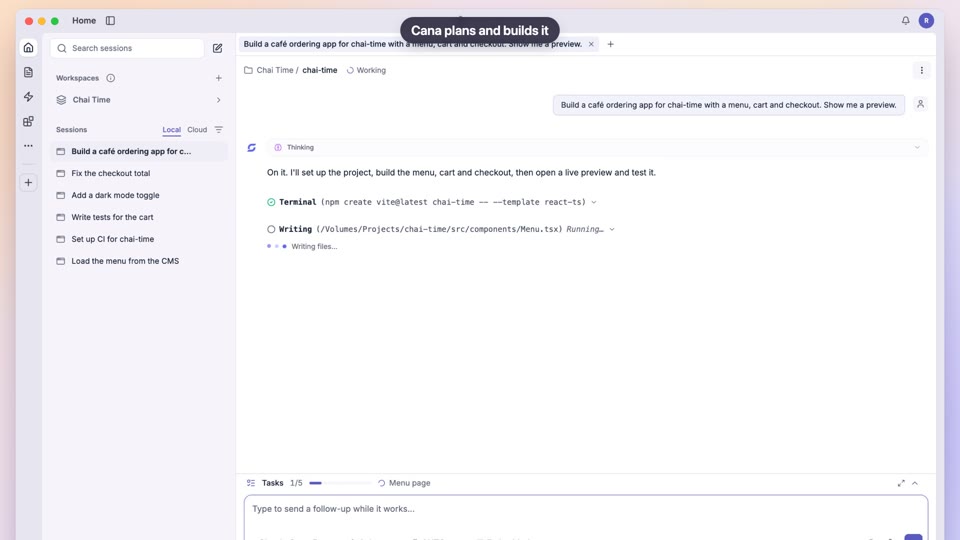
How it works
The idea in 5 steps
- 1
A chat makes it
You ask any Cana chat, on the web or in Cana Desktop, for a demo, mockup, flow, deck or document. The agent builds it and saves it as an artifact in your library.
- 2
In Cana Desktop it opens beside the chat
On the Home page of Cana Desktop, a new artifact opens on the right half the moment the agent publishes it, signed in with your account, with the chat still on the left. A picker above it lists all your artifacts; Open in Chrome shows the full page with comments and sharing. That is the built-in Artifacts mod: switch it off in Mods if you'd rather just get the link.
- 3
It stays private until you share
Only you can see a new artifact. You add teammates from your organisation who can view it or edit it, and can turn on a view-only public link for anyone outside.
- 4
Reviewers comment in place
Comments are pinned to the exact spot on a page, or to text in a document, and each thread is resolved when it's done, so feedback never loses its context.
- 5
One link, every version
Each update is a new version at the same link. People always see the latest, can look back at earlier ones, and can download it as PDF, PowerPoint or Word.
Tutorial
Step by step
Before you start
- A cana.build account in an organisation (sharing needs one)
- A chat on cana.build or in Cana Desktop
- 1
Ask a chat for it
In any Cana chat, describe what you want, for example a three-page demo of your booking site or a 10-slide deck from your notes.
You'll see: The agent builds it and tells you it's saved as an artifact.
- 2
Find it in your library
Open Library, then Artifacts in the sidebar. Stay on the Mine tab.
You'll see: Your new artifact at the top of the list. Click its title to open it in a new tab.
Tip: Type in Search artifacts to find an older one by name.
- 3
Share it with teammates
Click Share, type a teammate into Add by name or email, choose Can view or Can edit, and click Share.
You'll see: They appear under People with access, with you shown as Owner. The artifact shows up in their Shared with me tab.
Tip: People you add as Can edit can share it too. You see who added whom; only you change editors or turn on the public link.
- 4
Pin a comment
Click Comment, then click the spot on the page you mean. Type in Add a comment and click Comment.
You'll see: A pin on that spot, and the thread listed in Comments.
Tip: Press C to start commenting and Esc to stop.
- 5
Resolve feedback
Open Comments, read each thread, reply with Reply if needed, and click Resolve once it's dealt with.
You'll see: The thread moves out of the open list. Click Reopen if it needs another look.
- 6
Check versions and download
After the agent publishes an update, pick an earlier one from Version to compare, then open Download and choose PDF.
You'll see: The latest version marked latest in the list, and a PDF with selectable text saved to your computer.
Tip: Decks also offer PowerPoint (.pptx); documents offer Word (.docx).
- 7
Give an outsider a view-only link
Open Share, then under Public link click Turn on and Copy link.
You'll see: The status reads Anyone with the link can view, no sign-in. Click Turn off to stop it.
Worked example
Sign off a booking-site demo with the client
You need product and the client to agree a booking site before anyone writes code. A clickable demo with pinned comments replaces a week of screenshot emails.
You type
Make a clickable three-page demo of a café booking site: home with today's menu, a booking form with date, time and party size, and a confirmation page. Use warm, simple styling.
- 1.Send the prompt in any chat
- 2.Artifacts, Mine: open it, Share with your product lead as Can edit
- 3.Public link: Turn on, Copy link and send it to the client
- 4.Work through Comments and Resolve each thread as the agent fixes it
Result: Product comments right on the booking form, the client views the same link with no sign-in, and each fix appears as a new version at the same address.
Troubleshooting
If something doesn't work
- There's no Share button
- Only the owner and people who Can edit can share. If you Can view, ask one of them. If sharing says Sharing needs an organization., join or create one first.
- I can't find the Public link section
- Public links are offered only for a published artifact with at least one version. Ask the chat to publish it, then open Share again.
- My teammate can't edit it
- They were added with Can view. In Share, change their role to Can edit.
- Download has no PowerPoint option
- PowerPoint (.pptx) is offered for slide decks only. Other artifacts download as PDF; documents also as Word (.docx).
For you
From rough notes to a reviewed deck or document in one afternoon
Describe what you need and get a deck, document or mockup you can share straight away. Comments happen on the artifact itself, so you aren't merging feedback from email threads.
Quarterly update
"Make a 10-slide quarterly update from these numbers" and send it to your manager to review.
Client proposal
A Letter-size proposal document, shared with a view-only link the client can open without signing in.
Landing page draft
A clickable landing page demo for the campaign, with comments pinned before anyone builds it.
What changes for professionals: Less formatting and fewer feedback rounds for the documents you make every week.
Technical details
What it connects to, and the controls you have
- Kinds
- Website demos with clickable pages, mockups, multi-screen flows, 16:9 slide decks, and A4 or Letter documents; sketches open on a whiteboard-style canvas
- Documents
- Shown as separate paper-sized pages stacked one under another, opening zoomed to fit the first page's width; a long document is split into pages automatically
- Loading
- Pages that hit a brief network error are retried automatically; a page that still fails shows Try again, which reloads only that page
- Created in
- Any Cana chat, on the web or in Cana Desktop
- Beside the chat (desktop)
- On Cana Desktop's Home page the built-in Artifacts mod opens each published artifact in a pane on the right, signed in with your account, with no browser bar; a picker swaps in any of your artifacts, Open in Chrome shows the full page, and the pane can be resized or closed. Only the Home page splits; in Editor or Preview you get the link as before
- Agent tools (desktop)
- The Artifacts mod gives the agent three tools: open an artifact beside the chat, list your artifacts by title, and close the pane. Switch off 'Let the agent use Artifacts' in Mods to take them away; switching the mod off removes the pane and the tools together
- Privacy
- Private by default; you share with named teammates in your organisation who can view or can edit
- Who can share
- The owner and editors add people from the organisation; editors can change or remove viewers, while only the owner changes editors or turns on the public link
- Public link
- View-only, no sign-in, for published artifacts; turn it off at any time
- Review
- Comments pinned to a spot or to document text, replies, and resolvable threads; page review status (approved or changes) is stored through the API
- Versions
- Each publish is a new version at the same link, with a version picker and compare view
- Downloads
- PDF with selectable text for any artifact, PowerPoint (.pptx) and Google Slides for decks, Word (.docx) for documents
Why Cana
What you get here
- Any Cana chat can make a website demo, mockup, flow, deck or document
- In Cana Desktop a published artifact opens beside the chat, signed in, with a picker for all your artifacts
- Artifacts are private until you share them with named teammates or a view-only link
- Comments pin to the exact spot, and threads are resolved as feedback is handled
- New versions publish to the same link; download as PDF, PowerPoint or Word
Ready for the next step? Explore the page connected to this guide.
Explore Cana ArtifactsKeep exploring
Build an app from one prompt
Make the internal tool you've been waiting for, yourself
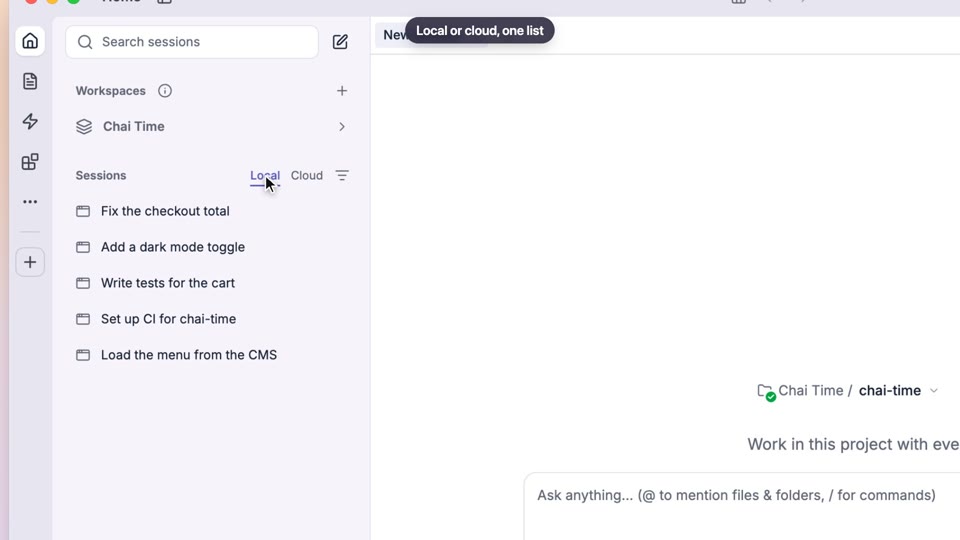
Cloud chats with their own computer
BetaHand the agent a task and a computer, then check back when it's done
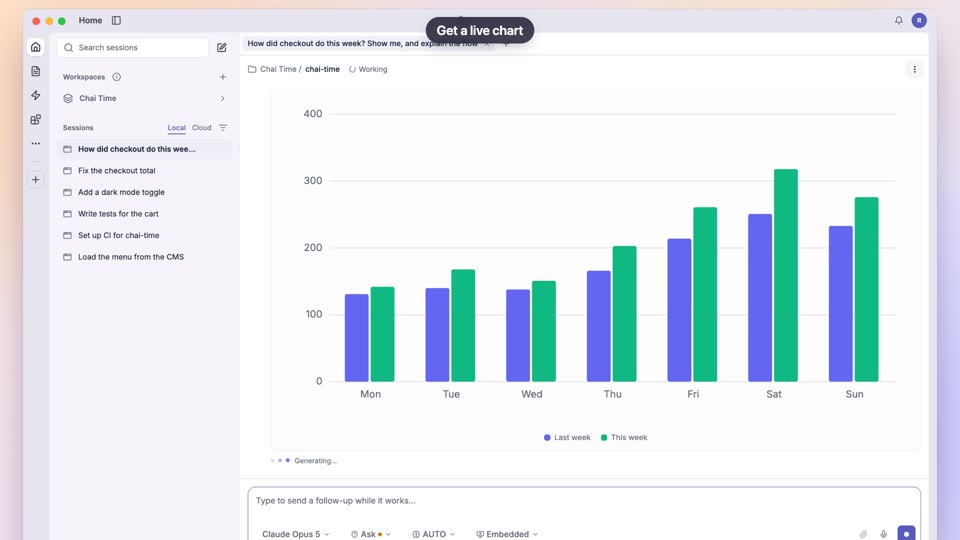
Studio apps and workflows
Replace the shared spreadsheet with a small app that updates itself
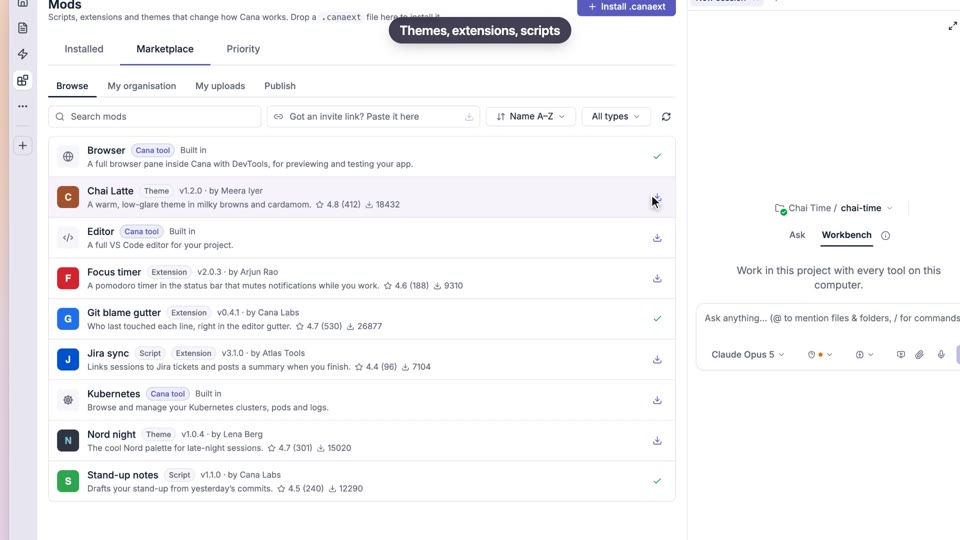
Mods and the mod store
Add the tools you need without leaving Cana