
Cana Desktop
Code, terminal and approvals
The agent reads, edits and runs code in your own project folder, you watch its terminals live beside your own, and you decide which edits and commands it may run without asking.
How it works
The idea in 5 steps
- 1
The agent works in your own folder
It searches your project, edits files, uses git and runs commands in the folder you opened. Your code stays as plain files in your own repository.
- 2
You choose how much it does alone
Each chat has a permission mode, from asking before anything runs to no prompts at all. You can change it at any point in the chat.
- 3
Anything it must ask about waits for you
An edit or command that needs your say appears as a card in the chat. You approve it, deny it, or allow that tool for the rest of the session.
- 4
Its terminals run in plain sight
Every terminal the agent starts is listed live next to your own, so you can watch the output or type an answer into a prompt.
- 5
Some places are always off limits
Credential folders, keychains, browser profiles and files such as keys and .env files are blocked in every mode, even with no prompts at all.
Tutorial
Step by step
Before you start
- Cana Desktop installed and signed in
- A project folder open in the chat (Cmd+O on a Mac, Ctrl+O on Windows)
- A project with tests you can run, ideally under Git
- 1
Pick a permission mode
In the message box, click the Permission mode button and choose Accept Edits.
You'll see: The button shows Accept Edits: file edits apply straight away, while commands and deletions still ask.
Tip: Use Ask to check every step, or Bypass All only in a project you can safely throw away.
- 2
Ask for the change
Describe the change and how to check it, for example "rename getUser to fetchUser everywhere, run the tests and fix anything that breaks". Click Send message.
You'll see: The agent searches the project and edits the files, showing each change in the chat.
- 3
Approve or deny its commands
When a card asks to run a command, read it and click Approve, or Deny to refuse.
You'll see: An approved command runs and its output appears in the chat; a denied one is skipped and the agent is told.
Tip: Open More approval options and choose Always Allow to stop being asked about that tool this session.
- 4
Watch its terminals
On the left rail, click More tools, then Terminal.
You'll see: Agent terminals lists every terminal the agent started, with live output, above Your terminals.
Tip: Click Pin to the rail next to Terminal in that menu to keep it one click away.
- 5
Use a terminal of your own
On the Terminal page, click New terminal and type your own commands, such as checking git status.
You'll see: A new shell in your project folder, under Your terminals, next to the agent's.
- 6
Find a command that failed
Open Command History from the terminal, type into Search commands..., or choose Failed or Saved.
You'll see: Earlier commands with their results; Failed shows only the ones that went wrong.
- 7
Review the changes in the editor
Click More tools, then Editor. The first time, click Download Editor (~470 MB).
You'll see: A full code editor with your files, search and git, where you can read every change the agent made.
Worked example
A safe rename across the whole project
A function is used in dozens of files and you want it renamed everywhere, with the tests proving nothing broke.
You type
Rename getUser to fetchUser everywhere in this project, including tests and imports. Then run the test suite and fix anything that fails. Tell me which files changed.
- 1.Permission mode: Accept Edits, so file edits apply but commands still ask
- 2.Paste the request and click Send message
- 3.Click Approve when it asks to run the tests
- 4.Follow the run under Agent terminals
Result: Every use of the function renamed, the tests run and passing, and a list of the changed files to review in the editor.
Troubleshooting
If something doesn't work
- I keep being asked to approve the same command
- Open More approval options on the card and choose Always Allow for that tool. To skip command prompts in every chat, open Settings, Agents and turn on Terminal commands under Auto-approve Actions.
- Every new chat starts in a mode I don't want
- Open Settings, Agents and change Default permission mode. New chats start there; each chat can still be changed from the message box.
- I can't see the Terminal or Editor on the rail
- They are in the More tools menu by default. Open it and use Pin to the rail to keep one on the rail.
- The agent says it can't open a file
- The file is in a protected location, such as a credentials folder or a .env file. That is blocked in every mode; if a value is needed, paste it yourself.
For you
Get scripts and small tools built without memorising commands
Describe the result you need; the agent writes the code and runs it. Approval cards show each step before it happens, so you stay confident about what changes on your computer.
Clean up a data file
"Remove duplicate rows from customers.csv and save a cleaned copy." Approve the script before it runs.
Rename hundreds of files
"Rename the photos in this folder by date taken." Check the command, then Approve.
Small internal script
Have it write and run a script that totals this month's invoices from a folder of PDFs.
What changes for professionals: Routine file and data work done in minutes, with every action shown before it runs.
Technical details
What it connects to, and the controls you have
- Permission modes
- Ask, Accept Edits, Research and Plan, and Bypass All, chosen per chat; a default can be set in Settings, Agents
- Auto-approve
- Settings can let chosen kinds of action, such as terminal commands, run without asking
- Protected locations
- SSH, cloud and other credential folders, keychains, browser profiles, password-manager data and files such as .env, keys and certificates are blocked in every mode, including Bypass All
- Terminals
- Several terminals at once, the agent's terminals listed live beside your own, and a searchable command history with filters for failed and saved commands
- Editor
- A full code editor with file tree, search, git and an open extension registry, downloaded the first time you open it (about 470 MB)
- Your code
- Plain files in your own folder and Git repository
Why Cana
What you get here
- Four permission modes, from approve-every-action to no prompts, chosen per chat
- Credential folders and secret files are blocked in every mode, including Bypass All
- The agent's terminals are visible live, and you can type into them
- A full code editor inside Cana, installed only when you ask for it
Keep exploring
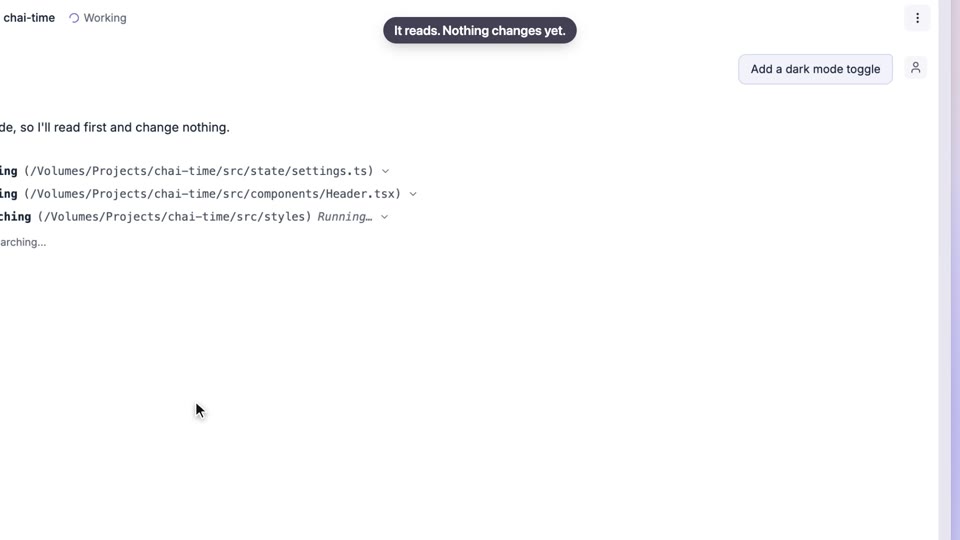
Plan first, then build
Know exactly what will happen before you say go
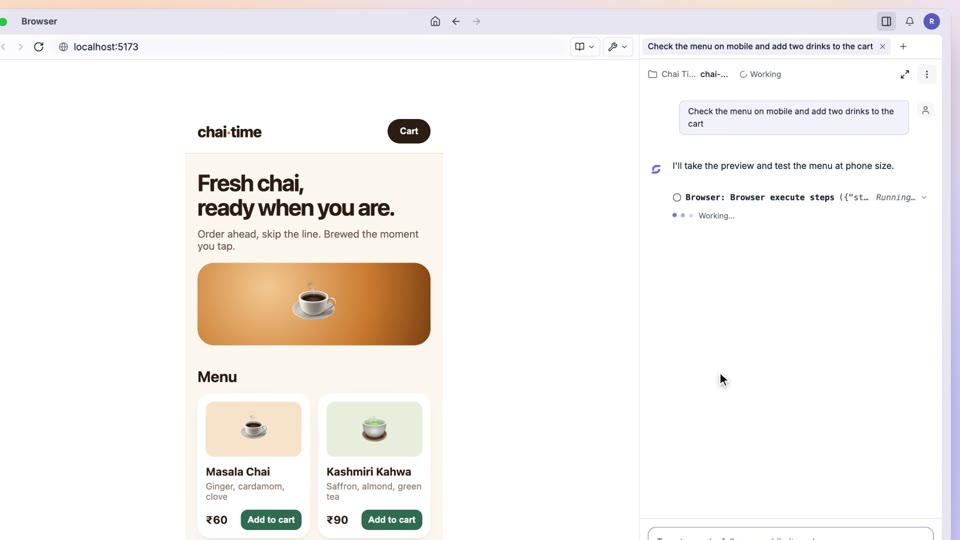
A browser the agent can see and use
Let the agent do the clicking in web tools you use every day
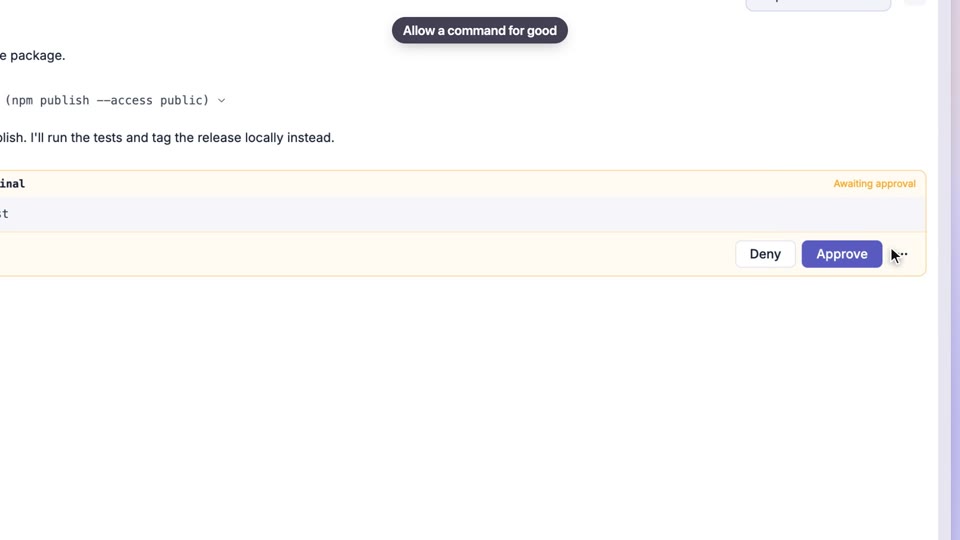
Permissions and approvals
Get help from an agent without worrying what it might touch
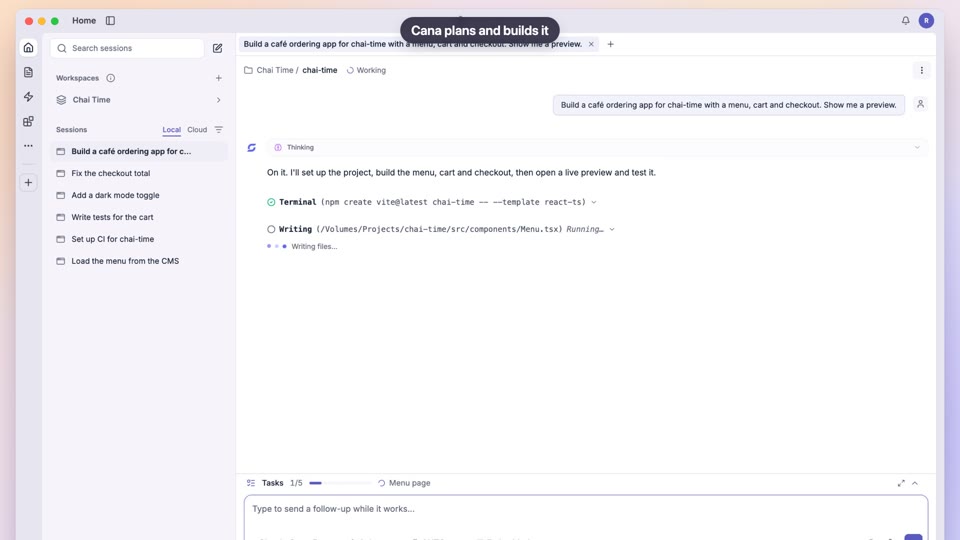
Build an app from one prompt
Make the internal tool you've been waiting for, yourself