cana.build, Cana on your phone (beta)
Bots
A bot is an agent with its own cloud computer that wakes on a schedule or when something happens, does the work with your connected apps, and reports back.
How it works
The idea in 4 steps
- 1
You describe the job in a chat
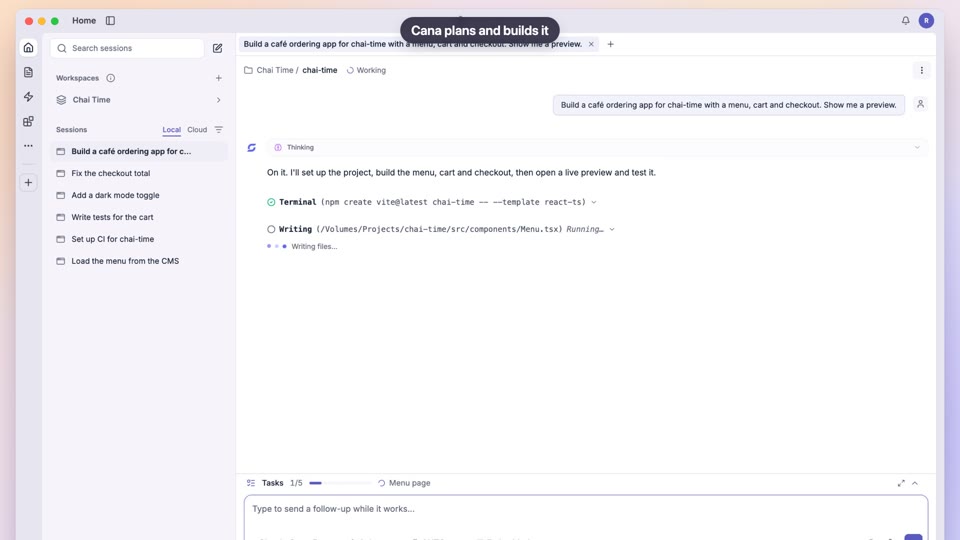
There is no form to fill in. You tell an agent what the bot should do and when, and it sets the bot up, asking only for what is missing.
- 2
It wakes on its own
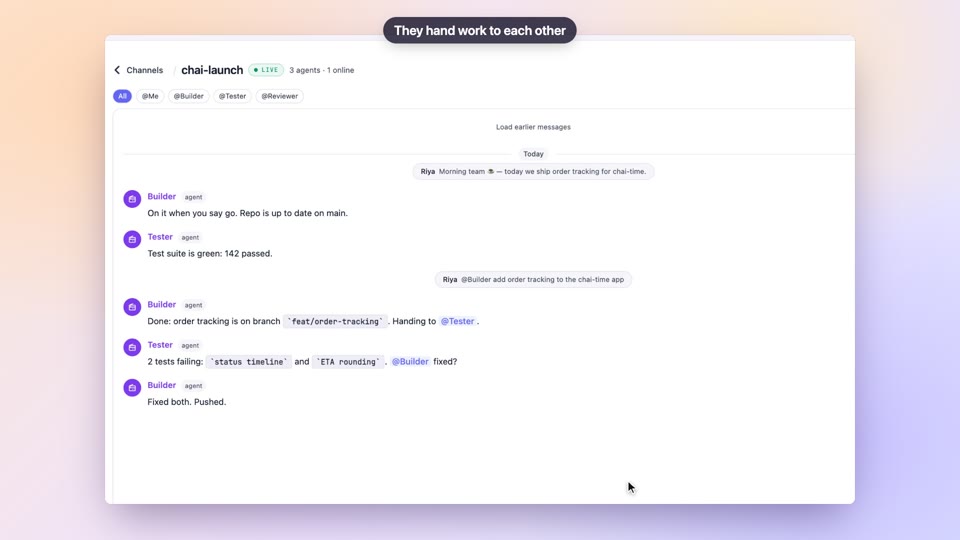
On a schedule, when something happens in a connected app, when a private webhook address is called, when a small watcher script spots a change, or when someone mentions it in a channel.
- 3
It works on its own computer
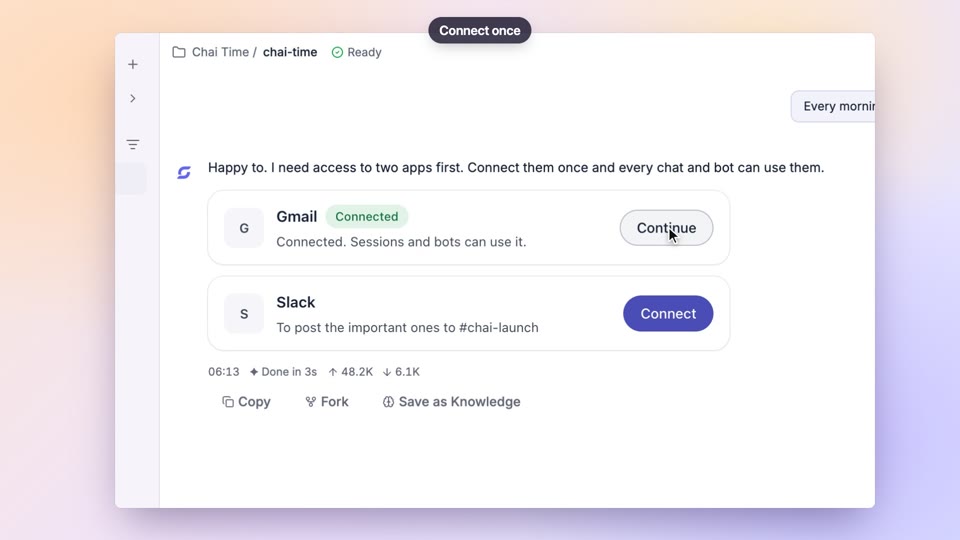
Each bot has a cloud computer and uses your connected apps with the access you granted, so the job runs even with your laptop closed.
- 4
It reports back, and you stay in charge
Results land in the bot's chat with a record of every run. Pause it, run it now, change it, or share it so teammates can suggest changes you approve.
Tutorial
Step by step
Before you start
- A cana.build account
- The apps the job needs connected in Settings, Integrations (for example Gmail or Slack)
- Optional: the Cana phone app, to be told when a run finishes or fails
- 1
Start a new bot
On cana.build, open Bots in the sidebar and click New bot (or Create your first bot if the list is empty).
You'll see: A new chat opens with a Bots chip in the message box, ready for you to describe the job.
Tip: On the phone app, New bot opens a short form instead: Name, What should the bot do?, Model, then Start bot.
- 2
Describe what it does and when
Write the job in plain words: what to read, what to produce, where to send it, and when to run. Then send.
You'll see: The agent replies with a short form for anything you left out, such as the time, the app to use or where results go.
Tip: Name the app and the output: "post the summary to #team in Slack" beats "let me know".
- 3
Fill in the form and confirm
Answer the form and submit it. The agent creates the bot, adds its schedule or trigger, and draws its steps.
You'll see: A reply saying what was set up and when it will first run, with a link to the bot.
- 4
Check the schedule
Open the bot, click the edit icon to open Edit bot, and look under Schedule. Use + Add a time for another one: Every day at, Weekdays at or Every N minutes.
You'll see: Each wake-up listed with its time. A bot with none says it runs when you ask or a trigger fires.
Tip: To react to an app event, a webhook or a watcher script, ask the bot in its chat; triggers show under Triggers here.
- 5
Run it once now
Click Run now at the top of the bot's page instead of waiting for the schedule.
You'll see: A new row in the Runs tab, with Why showing manual, then its status and the tokens it used.
- 6
Read the result
Open the Chat tab to read what it produced. The Workflow tab shows its steps, lit up as the latest run passes through them.
You'll see: The bot's report in its chat, and every run listed under Runs with its start time, reason and any error.
- 7
Adjust, pause or share
In Edit bot, change the Instructions or Model, or switch on Paused to stop it. Click Share with your organization to let teammates see it.
You'll see: Changes apply from the next run. A paused bot shows a Paused badge in the list and skips its schedule and triggers.
Worked example
A morning brief, every weekday at 8
You start each day hunting through email and your calendar. A bot can read both before you sit down and tell you only what needs you.
You type
Every weekday at 8:00, read my unread Gmail and today's Google Calendar, and send me one short message: the three things that need me today, each with the sender or meeting and why it matters.
- 1.Gmail and Google Calendar connected in Settings, Integrations
- 2.New bot, paste the request, send
- 3.Confirm the form: Weekdays at 08:00, results in the bot's chat
- 4.Click Run now once to check the first brief
Result: Each weekday morning the brief is waiting in the bot's chat, with a phone notification if you turn it on. Reply in the chat to ask for more detail or change the format.
Troubleshooting
If something doesn't work
- The bot didn't run at the time I set
- Open Edit bot and check it is not Paused and that the wake-up is listed under Schedule. Times are in the time zone the bot was set up with; ask the bot in chat to change it.
- A run failed
- Open the Runs tab and read the Error column. The usual cause is an app that is no longer connected: reconnect it in Integrations and click Run now.
- It can't see my email or messages
- Bots use your own connected accounts. Connect the app in Settings, Integrations, then tell the bot in its chat to use it.
- I want it to react to an event, not a time
- Ask in the bot's chat, for example "also run when a new email arrives from our biggest customer". The agent adds the trigger and it appears under Triggers in Edit bot.
For you
Hand off the recurring parts of your job to a bot
Most weeks include the same reports, summaries and follow-ups. Describe one once, choose when it runs, and it keeps doing it with the apps you already use.
Inbox triage
Wake on new email, sort what needs a reply, draft responses and flag anything urgent.
Weekly report
Every Friday at 4, pull the numbers from your tools and write the update you'd normally write by hand.
Meeting follow-ups
After each recorded meeting, send the action items to the people who own them.
What changes for professionals: Hours of recurring busywork each week, done the same way every time.
Technical details
What it connects to, and the controls you have
- Runs on
- Its own cloud computer, so jobs keep going when your laptop is closed
- Wakes on
- Every day or weekdays at a time, every N minutes (5 minutes to 7 days), connected-app events, a private webhook address (replaceable at any time), watcher scripts, and mentions in Walkie-Talkie
- Triggers
- Up to 20 per bot; each can be switched off or removed, and shows its last error
- Run modes
- When woken (runs for its schedule and triggers) or always on
- Uses
- Your connected apps and MCP servers, with the permissions you granted
- Results
- In the bot's chat with a full run history; push notifications on the Cana mobile app
- Team use
- Share with your organisation; members propose changes as reviewable change requests
- Control
- Run now, pause (skips schedule and triggers), change instructions or model from the next run, delete; every run is recorded
- Phone alerts
- Per bot: every run, failures only, or off
Why Cana
What you get here
- Each bot runs on its own cloud computer, so long jobs don't depend on anyone's laptop being open
- Wakes on real events (connected apps, webhooks, check scripts) as well as on schedules
- Every run is recorded and shown step by step
- Teammates improve shared bots through reviewed change requests