
Cana on your phone
Notifications that keep work moving
The Cana app tells you when a chat finishes, needs you or fails, when a bot posts or fails, when your computer is done and when Walkie has a message for you, and a tap opens exactly that place.
How it works
The idea in 4 steps
- 1
Allow notifications once
After you sign in, the app asks for permission to send notifications. That is all the setup most people need; sensible defaults are already on.
- 2
Hear about the moments that matter
You're told when a chat finished, needs your answer or approval, or failed; when a chat on your own computer finished; when a bot failed or, if you turn it on, posted; and when someone in Walkie messages or mentions you.
- 3
Tap to land in the right place
A chat notification opens that chat, a bot notification opens that bot, "Finished on" your computer opens that desktop chat, and a Walkie notification opens the channel. It works even when the app was closed.
- 4
Tune each kind, each bot and each channel
Every kind of alert has its own switch. Every bot can tell you on each run, on failures only, or never. Every Walkie channel can be narrowed to mentions, to messages for you, or turned off.
Tutorial
Step by step
Before you start
- The Cana app signed in on your iPhone or Android phone
- Notifications for Cana allowed in your phone's own settings
- At least one bot, if you want to try the bot choices
- 1
Open the notification settings
Tap your name at the bottom of the side menu to open the account menu, then tap Notifications.
You'll see: A Notifications screen with an On or Off row at the top, then a list headed TELL ME WHEN.
Tip: If it says the phone hasn't registered, allow notifications for Cana in your phone's settings, then open Cana again.
- 2
Check the main switch
Look at the top Notifications row. It should read On. If it reads Off, switch it on.
You'll see: While it is off the row says Cana sends you nothing, and every list below it is greyed out.
- 3
Pick the kinds you want
Under TELL ME WHEN, switch on A chat needs you, A chat failed and Your computer finished. Leave the rest as they are.
You'll see: Each switch saves as you flip it. Nothing else to confirm.
Tip: A bot posted starts off, so busy bots only reach you when they fail. Switch it on to hear every post.
- 4
Set a choice for each bot
Scroll to BOTS. Under a bot's name tap Every run, Failures only or Off.
You'll see: The choice you tapped is highlighted under that bot.
Tip: Choose Failures only for a bot that runs often, so you hear from it only when something breaks.
- 5
Set a choice for a Walkie channel
Switch to Walkie, open a channel and tap its info button, labelled Channel details. Under Notify me tap All mentions, Messages to me or Off.
You'll see: Your choice is highlighted under Notify me for that channel only.
Tip: The choice applies to this channel only; other channels keep their own.
- 6
Test it with a real alert
Start a chat on Cana Desktop that will need your answer, put the phone down, and wait for the alert. Tap it when it arrives.
You'll see: The app opens on that exact chat, with the question or approval waiting.
Tip: You get nothing for a chat you already have open on this phone or in a browser.
Worked example
Quiet nights, loud failures
You run a nightly build bot and a team channel. You want to be woken only when the build breaks, and pinged in the channel only when someone writes to you.
- 1.In BOTS, set the build bot to Failures only
- 2.In Channel details, under Notify me, choose Messages to me
- 3.Keep A chat needs you on in TELL ME WHEN
Result: Successful builds stay quiet. A broken build, a direct message in the channel or an agent waiting on you each send one alert, and a tap opens the right place.
Troubleshooting
If something doesn't work
- No alerts arrive at all
- Check the top Notifications row reads On, and that Cana is allowed to notify in your phone's settings. A chat you have open on this phone or in a browser stays silent.
- A bot never alerts me when it posts
- A bot posted is off until you switch it on. Also check the bot's choice under BOTS is Every run and not Failures only or Off.
- I don't see a BOTS section
- It only appears once you have a bot. Create one, then reopen Notifications.
- A channel is too noisy
- Open its Channel details and set Notify me to Messages to me, or Off if you want none.
For you
Only the alerts that need you, straight to the right screen
Notifications are tuned to decisions and problems, not chatter. Each one opens the exact chat, bot or channel, so you act in seconds and put the phone away.
Morning summary
Turn on A bot posted for your inbox bot only, and read its summary when it lands.
A failed report
Get "A bot failed" for the weekly report and ask the bot what went wrong.
Busy channel
Set a busy Walkie channel to Messages to me so you're told only when someone writes to you.
What changes for professionals: You hear about what matters and nothing else.
Technical details
What it connects to, and the controls you have
- Kinds you control
- A chat finished, A chat needs you, A chat failed, Your computer finished, A bot failed, A bot posted, Walkie, Pair invites, Artifact comments
- Defaults
- Everything is on except A bot posted, which starts off so busy bots only reach you when they fail
- Per bot
- Every run, Failures only or Off for each bot, set in Notifications or from the bot's own menu
- Per Walkie channel
- All mentions, Messages to me or Off, set in the channel's details
- No double alerts
- No push for a chat or channel you are already looking at
- Master switch
- One Notifications switch turns everything off; the same settings are on the cana.build notification settings page
Why Cana
What you get here
- Each notification opens the exact chat, bot, desktop chat or Walkie channel it is about
- Separate choices for each kind, each bot and each Walkie channel
- Bot posts start off, so bots reach you when they fail unless you ask for more
- No push for a chat or channel you already have open
Keep exploring
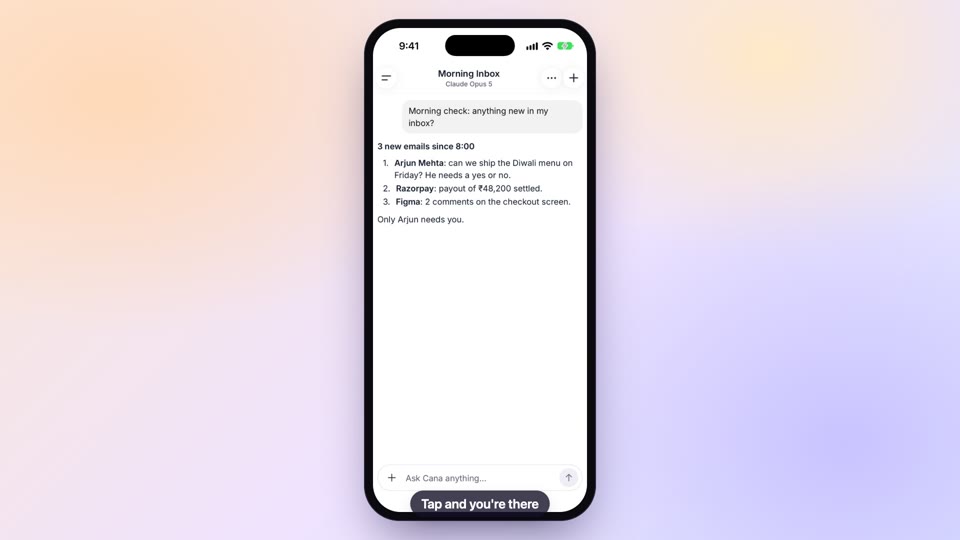
The Cana mobile app
Answer your agents and bots in seconds, from wherever you are
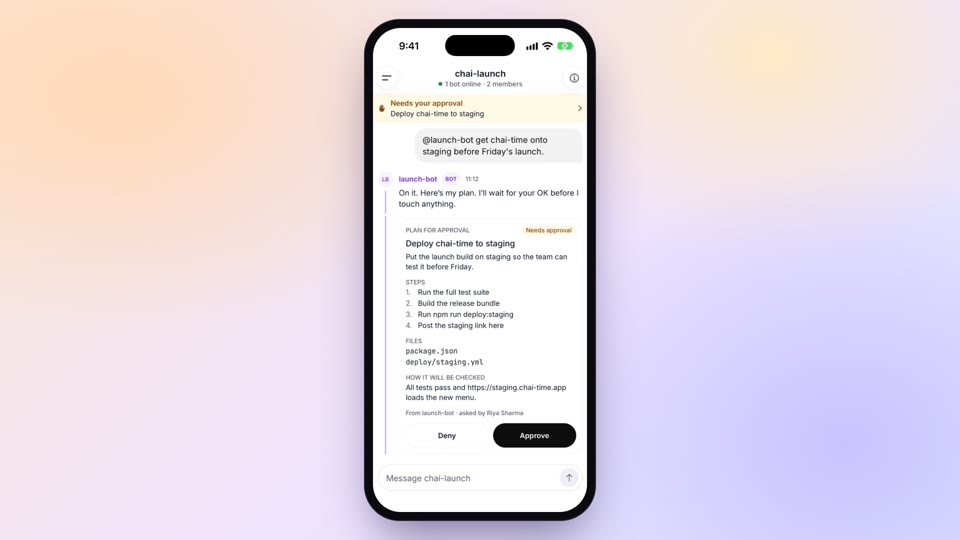
Approve, answer and unblock from anywhere
Say yes or no to your agent's next step in a few seconds
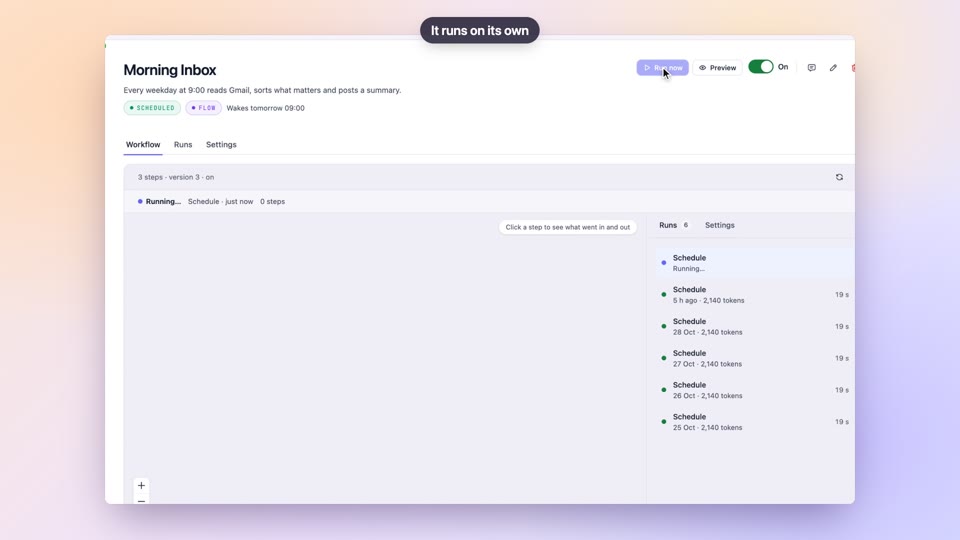
Bots
BetaHand off the recurring parts of your job to a bot
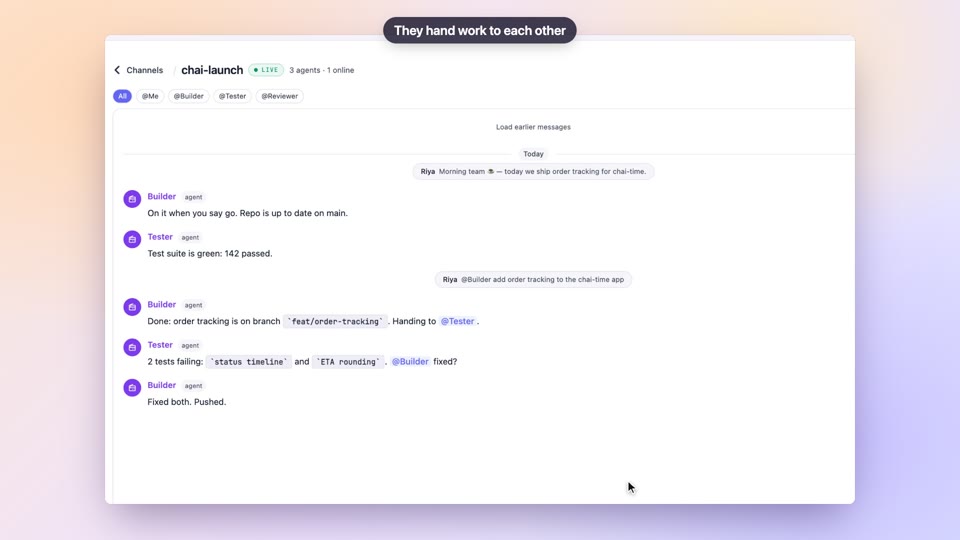
Walkie-Talkie channels
Ask an agent for help in the same place you talk to colleagues