
cana.build
Organisations, members and roles
Bring your team into one Cana organisation: invite members, give them built-in or custom roles, connect apps and AI providers once for everyone, and see usage across the team.
How it works
The idea in 5 steps
- 1
One organisation holds the team
People join by an emailed invite or by signing in with a verified company email domain. Each member has a role that decides what they can see and change.
- 2
Roles are sets of permissions
Every organisation has Owner, Admin and Member. You can add your own roles and choose exactly which permissions each carries, for example Studio access without control of AI provider settings.
- 3
Shared setup is done once
An admin adds the organisation's own AI provider keys and connects team accounts such as a support inbox. Members use them as their role allows, and never see the keys.
- 4
Work is shared, not copied
Members share bots, skills, knowledge and Studio apps with the organisation instead of keeping private copies.
- 5
Usage stays visible
Admins see tokens used today and this month, and can break usage down by member, provider, model and period.
Tutorial
Step by step
Before you start
- A cana.build account that is an owner or admin of an organisation (the Organization link only shows for admins)
- Your teammate's email address
- Optional: your company's email domain and an inbox at it, to verify the domain
- 1
Open the organisation admin area
Click Organization in the sidebar.
You'll see: A menu with Overview, Org Usage, Members, Manage Roles, Integrations and Settings.
Tip: LLM Providers also appears when your plan and role allow organisation AI providers.
- 2
Invite a teammate
Click Members. In the Invite member card, type their email address and click Invite.
You'll see: The message Invitation sent. and a row for them under Pending invitations, marked Pending.
Tip: With built-in sign-in the card has a Role menu and Send invite, and each pending row has New link and Cancel.
- 3
Check the invite
Under Pending invitations, find their row. The Expires column shows the last day the invite works, 7 days after you sent it.
You'll see: After they accept, they leave this list and appear under All members as active.
Tip: Don't send another invite unless the first has expired.
- 4
Give someone an extra role
In All members, click the actions icon on their row and choose Manage role. Open Assign a role… and pick one of your roles.
You'll see: The role shows in the dialog's list of assigned roles. The membership role (Owner, Admin or Member) is marked protected.
- 5
Create a custom role
Click Manage Roles, then Create role. Fill in Role name and Description, tick permissions (use Search permissions to find them), then click Create role again to save.
You'll see: Your role is listed on the Organization roles page and can be given to members.
- 6
Let a company email domain join automatically
Click Settings. Under Email domains, type the domain (for example acme.com) and click Add domain. Click the mail icon on its row, enter an address at that domain in Verification email and click Send verification.
You'll see: The domain shows PENDING until someone opens the emailed link, valid for 24 hours, then VERIFIED.
Tip: From then on, people with that domain join the organisation when they sign in.
- 7
Set up shared AI providers and apps
Click LLM Providers and Add provider to add the organisation's own key. Click Integrations and Connect for everyone to connect a team account once.
You'll see: Members can pick the organisation's models in chats, and use the team app account, without handling the keys.
- 8
Check usage
Click Overview for Tokens Today and Tokens This Month. Click Org Usage and narrow with All members, All providers, All models and the 7d, 30d, 90d or All buttons.
You'll see: Tokens and a provider breakdown for the member, model and period you chose.
Worked example
Onboard a contractor with limited access
A contractor starts Monday. They need chats and Studio, but must not change organisation settings or AI provider keys.
- 1.Manage Roles, Create role, Role name Contractor; tick Studio and chat permissions only
- 2.Members, Invite member: their email, then Invite
- 3.After they join: Manage role, then Assign a role…, Contractor
- 4.Four weeks later, Org Usage: filter to them and 30d to review
Result: The contractor works with the organisation's models and shared apps from day one, can't open provider settings, and you can see exactly what they used.
Troubleshooting
If something doesn't work
- I don't see an Organization link
- It only shows for organisation owners and admins. Ask an owner to change your role, or check you are signed in to the right account.
- The invite link says it has expired
- Invites last 7 days. Check the Expires column under Pending invitations, then send a fresh one from Invite member.
- The domain is still PENDING
- The emailed link lasts 24 hours and goes to the address you typed. Click the mail icon on the domain row and choose Resend verification.
- A teammate can't see a menu item
- Menu items follow role permissions. Open Manage Roles and check the role they hold carries the permission, or move them to a role that does.
For you
Start with your team's tools and knowledge already set up
When you join, the organisation's AI models, connected apps and shared skills are already there. You get to work instead of configuring things, and you can share what you build back with colleagues.
Join with your work email
Sign in with your company address and land in the organisation automatically if the domain is verified.
Use the team inbox
Ask a chat to draft replies from the support Gmail your admin connected for everyone.
Share a useful bot
Share your weekly report bot with the organisation so teammates can read its runs.
What changes for professionals: Productive from the first day, with the team's setup and know-how ready to use.
Technical details
What it connects to, and the controls you have
- Built-in roles
- Owner, Admin and Member; built-in permissions can't be removed, product permissions can be added or removed
- Custom roles
- Created per organisation from product-wide permission definitions, such as reading members, managing roles or org AI providers
- Invites
- Expire after 7 days; pending invites are listed with their expiry date, and you can send a new one if it lapses
- Verified domains
- Verified by a one-time email link valid for 24 hours; users from a verified domain join automatically on sign-in
- Organisation AI keys
- Added by admins and stored encrypted (AES-256-GCM); members see the models, never the keys
- Usage
- Organisation-wide view filterable by member, provider, model and period, with a provider breakdown
- API keys and tokens
- Personal API keys are shown once and stored only as a hash; agent tokens for Walkie-Talkie last 8 hours by default and are limited to the user's own channels
Why Cana
What you get here
- Custom roles built from fine-grained permissions, assigned per organisation
- Verified email domains let colleagues join on sign-in
- Organisation AI keys and team app connections are set up once and shared by role
- Usage filterable by member, provider, model and period
Keep exploring
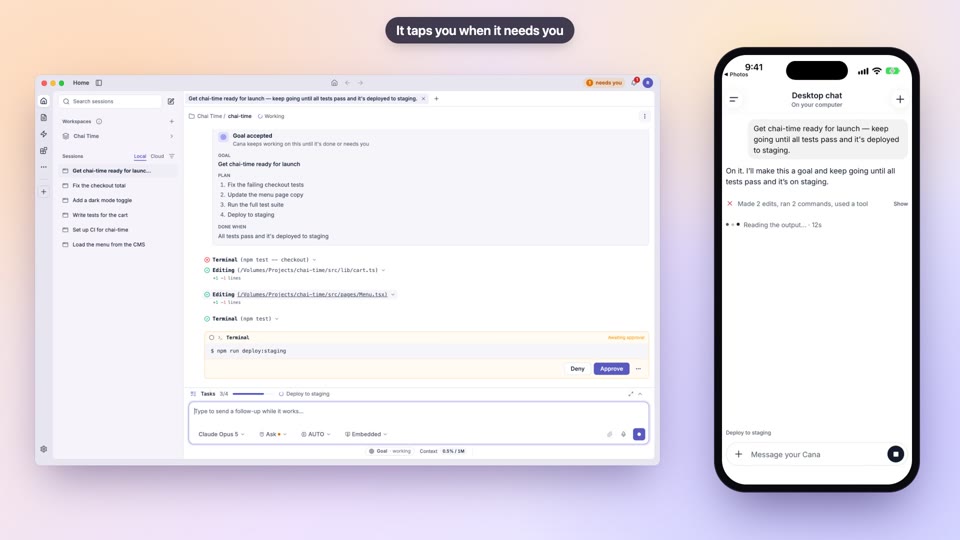
Sign-in and account security
Sign in quickly and know your account is protected
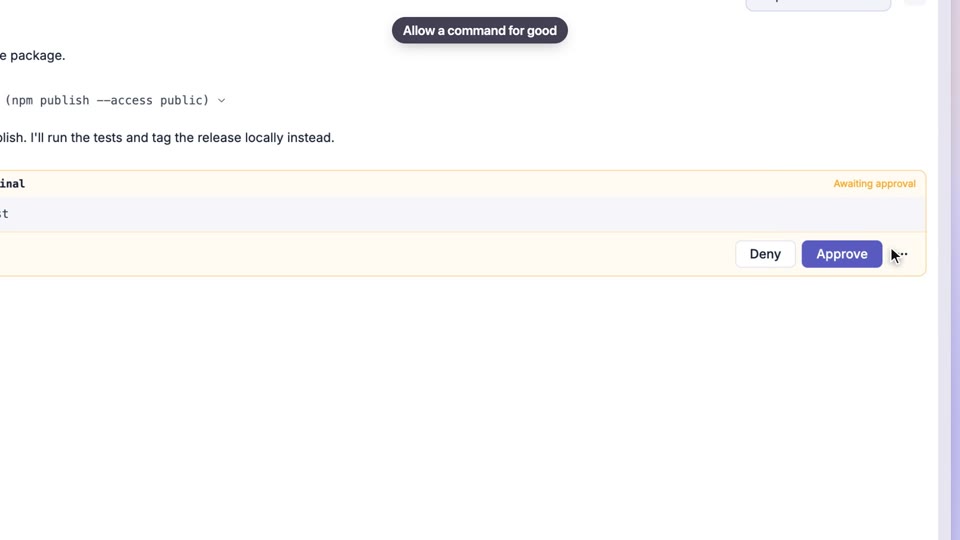
Permissions and approvals
Get help from an agent without worrying what it might touch
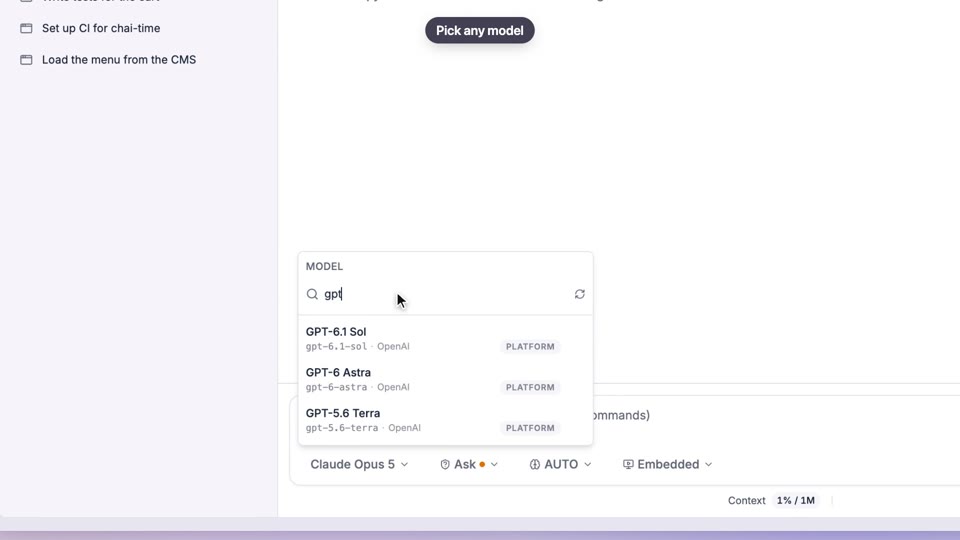
Choose your model
Use the model that fits the job, without thinking about setup
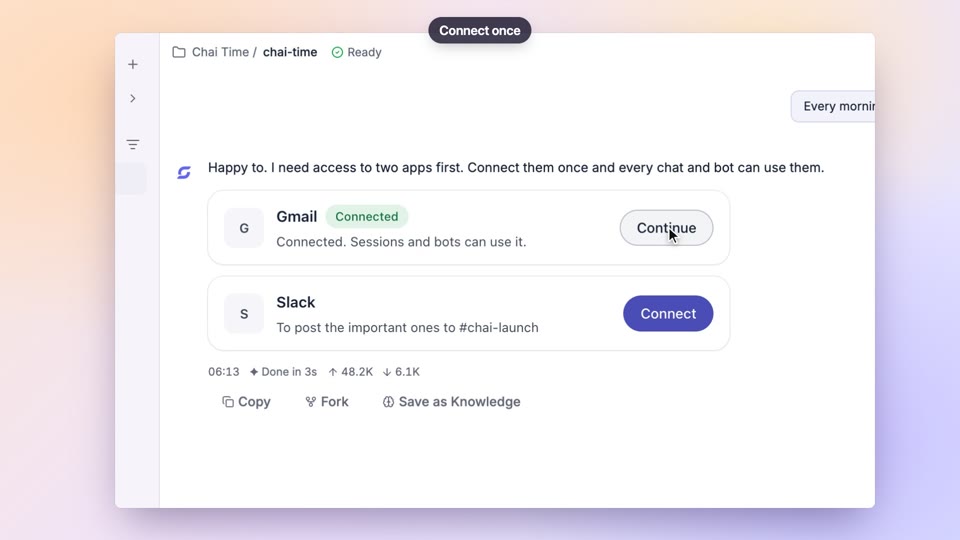
Connected apps and MCP servers
Connect your apps once and have work done across all of them