
Cana Desktop
Get started with Cana Desktop
Install Cana Desktop on your Mac or Windows PC, sign in, open a folder and give an agent its first job in plain words.
How it works
The idea in 5 steps
- 1
One app on your own computer
Cana Desktop installs on a Mac or a Windows PC. Your files stay in ordinary folders on that machine, and the agent works on them there.
- 2
One account everywhere
You sign in once through your browser. The same Cana account is used on the desktop, on the web and on your phone.
- 3
A chat first, a folder when you need one
Cana opens into a chat with no project needed. When the agent should touch real files, you open a folder, and workspaces group related projects.
- 4
You brief it like a colleague
You say what you want in plain words, with files, screenshots or your voice. The agent plans, does the work and shows you what it did.
- 5
It asks before it acts
Every new chat starts in Ask, so the agent checks with you before anything runs. You give it more freedom only when the work calls for it.
Tutorial
Step by step
Before you start
- A Mac (macOS 10.15 or later) or a Windows PC
- Cana Desktop from cana.build/download
- A Cana account (the one you use on cana.build)
- 1
Sign in
Open Cana Desktop and click Sign in. Your browser opens on the Cana sign-in page; finish there.
You'll see: The app shows "Complete sign in in your browser, then return here." and opens on the home chat once you are done.
- 2
Open a folder to work in
Press Cmd+O on a Mac (Ctrl+O on Windows), or use Open Folder, and choose the project folder on your computer.
You'll see: The folder becomes the chat's project, so the agent can read and change the files in it.
Tip: Just exploring? Skip this: you can chat without a folder and open one later.
- 3
Group projects in a workspace
In the chat sidebar, click the New workspace button, type a name in Workspace name and confirm.
You'll see: The workspace appears in the sidebar, ready to hold related projects and their chats.
- 4
Check the permission mode
In the message box, click the Permission mode button. Leave it on Ask for your first chat.
You'll see: A menu of four modes, with Ask described as checking with you before anything runs.
- 5
Describe the first job
Type the job in the message box, which reads "Ask anything... (@ to mention files & folders, / for commands)". Type @ to add a file, then click Send message.
You'll see: The agent starts working and shows each step it takes in the chat.
Tip: Use Attach file for a screenshot, or Dictate (voice to text) to speak the request.
- 6
Approve what it wants to do
When the agent wants to edit a file or run a command, read the card in the chat and click Approve, or Deny to stop it.
You'll see: Approved actions run and their results appear in the chat; denied ones are skipped.
- 7
Move around the app
Use the rail on the left: Home for chats, Context for plans and notes, More tools for the editor, terminal and browser, Settings at the foot.
You'll see: The chosen view opens. Cmd+1 to 5 (Ctrl on Windows) jump straight between the five modes.
Worked example
A first real change to your website
You have a small website in a folder and want a contact form added, without setting anything up first.
You type
Add a contact form to this site with name, email and message fields, check the fields before sending, and show me the page when it's done.
- 1.Sign in, then Cmd+O and choose the website's folder
- 2.Leave Permission mode on Ask
- 3.Paste the request and click Send message
- 4.Click Approve on each file edit you are happy with
Result: The form is added to your site's files, each change approved by you, and the agent tells you which files it changed and how to try it.
Troubleshooting
If something doesn't work
- Sign-in opened my browser but the app is still waiting
- Finish signing in on the browser page, then switch back to Cana. If the page was closed, click Sign in again to open a fresh one.
- The agent can't find my files
- The chat has no folder yet. Press Cmd+O (Ctrl+O on Windows) or use Open Folder, choose the project folder, and ask again.
- Nothing happens until I click something
- That is the Ask mode doing its job: the agent waits for Approve on each action. Switch Permission mode to Accept Edits if you want file edits applied straight away.
- I can't find the editor or the terminal
- They are in the More tools menu on the left rail by default. Open it and pin one to keep it on the rail.
For you
From download to your first finished task in one sitting
Getting started takes a few clicks: install, sign in in your browser, and describe the job in everyday words. The agent asks before it does anything, so you stay in charge from the first chat.
Tidy a folder of files
Open the folder and ask: "Rename these invoices by date and client, and list any duplicates."
A small internal page
"Make a one-page sign-up form for the team offsite and show it in the preview."
Organise your work
Create a workspace called "Client work" and keep each client's folder in it.
What changes for professionals: Useful work done on day one without learning a new toolchain first.
Technical details
What it connects to, and the controls you have
- Platforms
- macOS 10.15 or later (one universal installer for Apple silicon and Intel) and Windows
- Updates
- On macOS, updates arrive automatically; you can also check from the profile menu. On Windows, download new versions from cana.build
- Account
- Sign-in happens in your browser and is required; the same Cana account is used on desktop, web and mobile
- Modes
- Vibe, Plan, Code, Preview and Deploy, switched with Cmd/Ctrl+1 to 5 or from the left rail (Home opens Vibe)
- Where work happens
- In folders on your own computer; workspaces group several projects together
- Default safety
- New chats use the Ask permission mode, which checks with you before anything runs
- Make it yours
- Seven colour themes (four light, three dark) and separate text sizes for chat, editor and the whole app
Why Cana
What you get here
- Opens straight into a chat; a project folder is optional until you need one
- Editor, terminal, built-in browser, plans and deploy in one app, across five modes
- New chats ask before anything runs
- Work stays in plain files in your own folders
Keep exploring
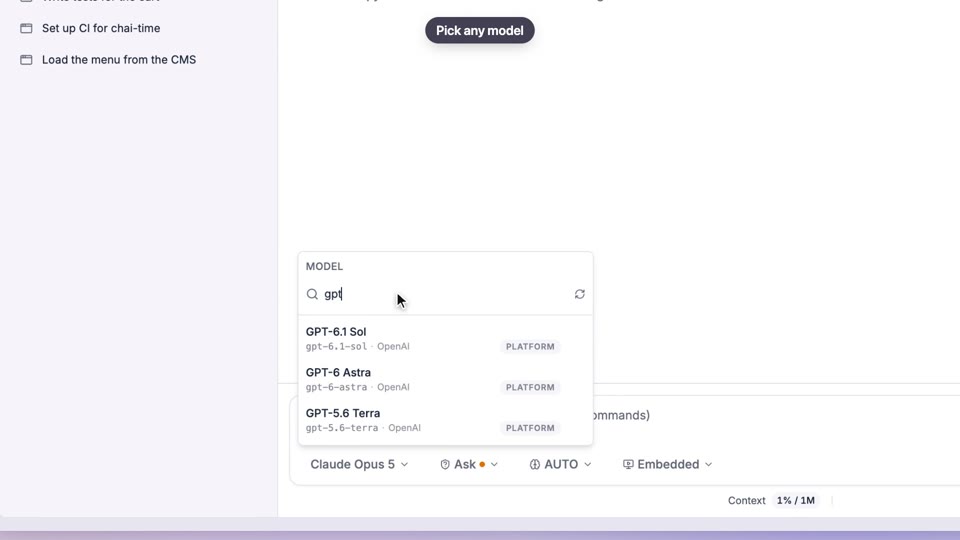
Choose your model
Use the model that fits the job, without thinking about setup
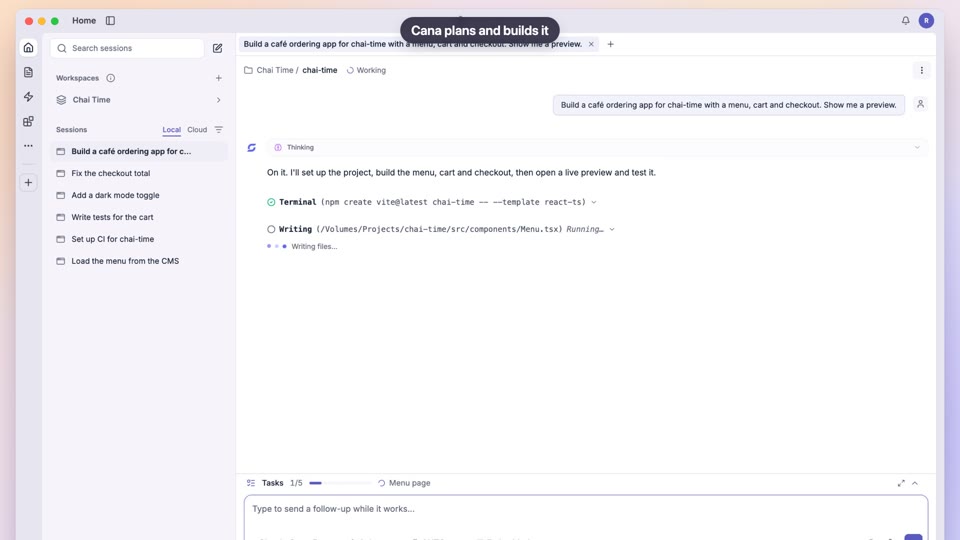
Build an app from one prompt
Make the internal tool you've been waiting for, yourself
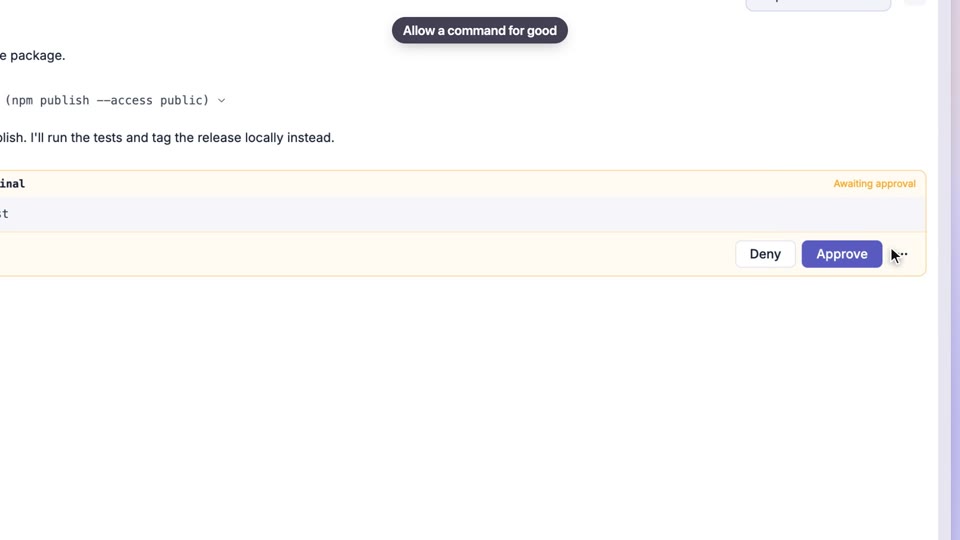
Permissions and approvals
Get help from an agent without worrying what it might touch
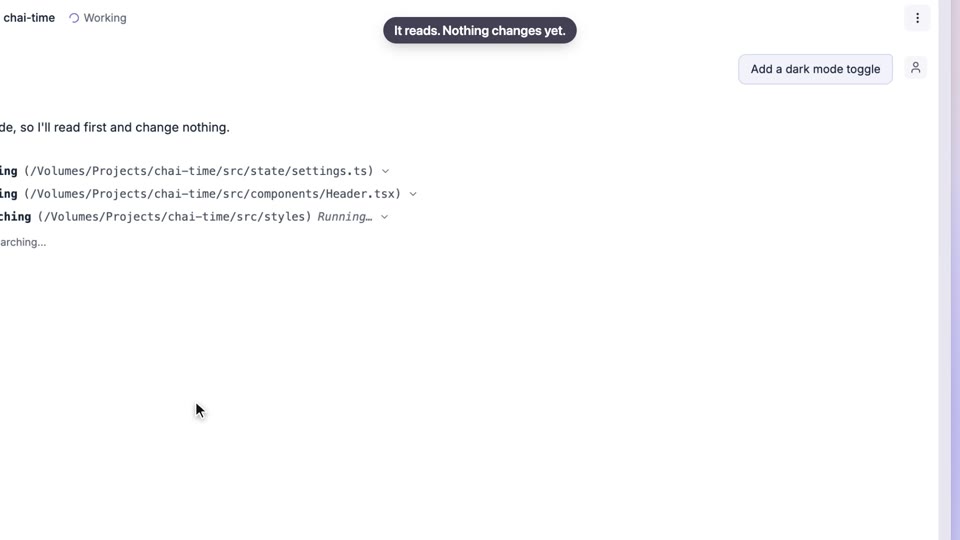
Plan first, then build
Know exactly what will happen before you say go