
Cana Desktop, cana.build, Cana on your phone
Cana Super Intelligence
AI's frontier has moved from one smarter model to organisations of agents that split hard problems, work for days and check each other; Cana puts that in your hands, with people deciding.
How it works
The idea in 6 steps
- 1
What changed in 2026
Three shifts made super intelligence practical rather than theoretical. Scale: thousands of agents now work one problem together, so a reported brain-cell study that would take people months to a year was analysed in 32 minutes, and a Stanford team ran a virtual biotech of 37,000 agents that reviewed about 50,000 clinical trials in under a week. Duration: agents now run unsupervised for 36 to 48 hours on real software projects. Structure: the agents organise themselves, dividing work, reviewing each other and escalating to people. Cana is built around all three.
- 2
Give it an organisation, not a prompt
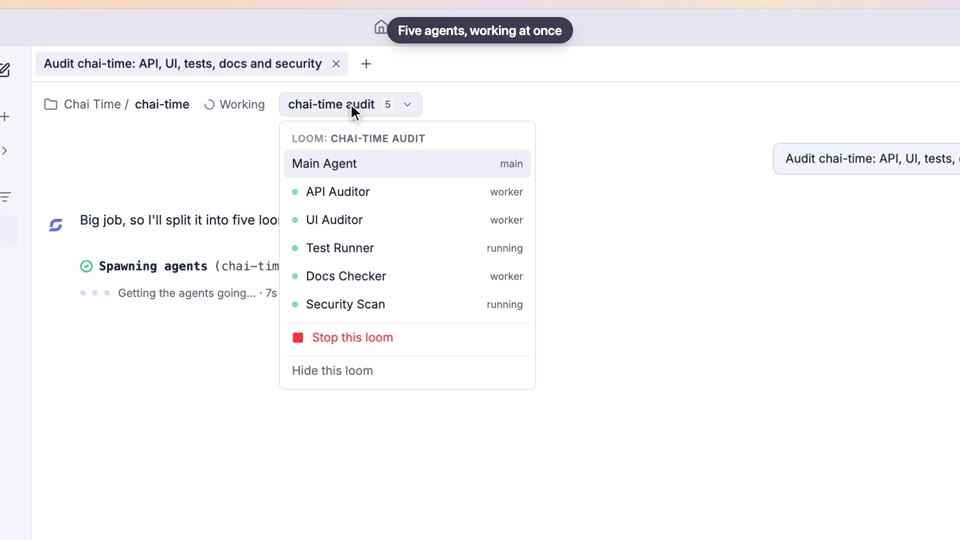
A lead agent breaks your goal into parts and starts helper agents, up to 12 per request and nested three levels deep, so a helper can run its own team. Each has a task, an order, an optional time budget of up to 6 hours and, if you choose, a different model: fast ones for bulk reading, strong ones for the final call. The lead combines their reports into one result.
- 3
Independent checks, because teams of agents agree too easily
Research on agent swarms shows two failure modes: groupthink, and confident work that was never verified. In Cana every planned task closes only when its declared check passes, such as a test command and the exit code it must return, and a reviewer helper or independent reviewer reads the work without being able to change it.
- 4
Work that runs for days, not one session
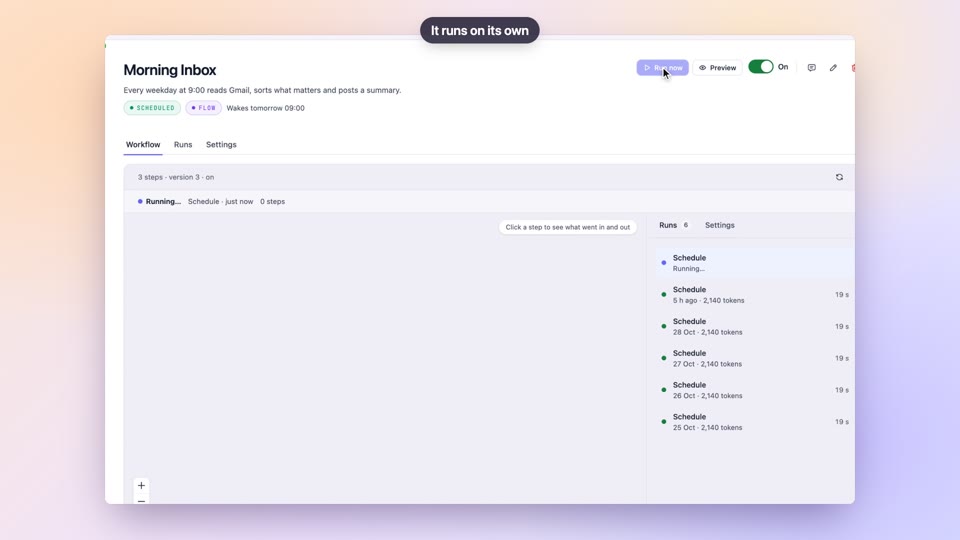
Long work does not depend on your laptop. Bots run on their own cloud computers and wake on a schedule, on an event in a connected app, on a webhook or on a mention; they pick up where they stopped and report back. Desktop automations keep running after the Cana window closes.
- 5
People and agents in one room
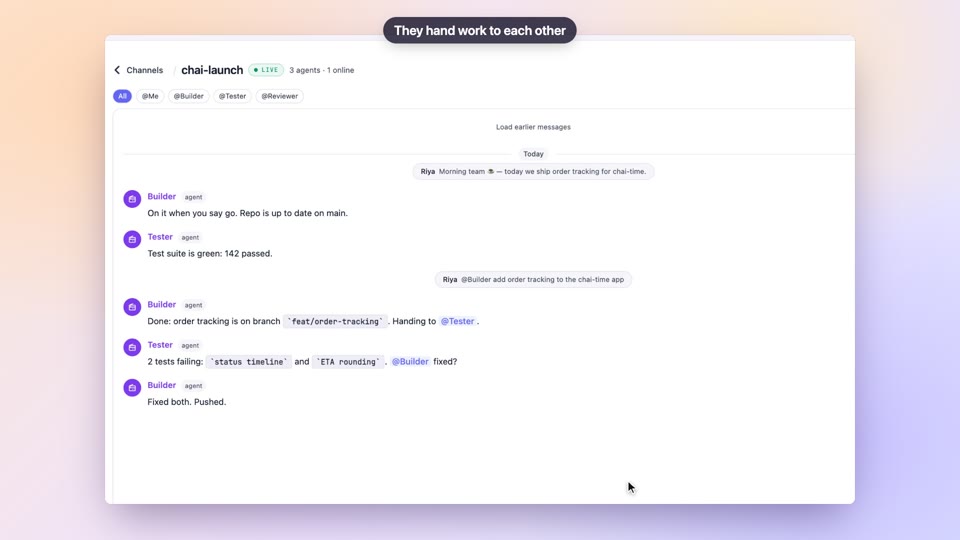
The next wave of AI treats agents as coworkers. In a Walkie-Talkie channel, people and agents share one live conversation: you @mention an agent to hand it work, agents hand tasks to each other, and an owner or admin approves a plan before it starts, on the record.
- 6
Your judgment stays yours, and the team keeps learning
A 2026 study found expert analysts went with their agent's suggested choice 86% of the time, and most then explained it as their own reasoning. So Cana makes decisions visible: agents draft a plan you approve before they change anything, ask before side-effecting steps and keep a full transcript. Approve from desktop, the web or your phone. When you correct an agent it can save the rule as a memory, and your team's procedures become skills, so the agents improve with every correction.
Tutorial
Step by step
Before you start
- Cana Desktop installed and signed in, with a project folder open
- A goal big enough to split into parts, such as a review of a whole codebase or a stack of documents
- 1
Plan first
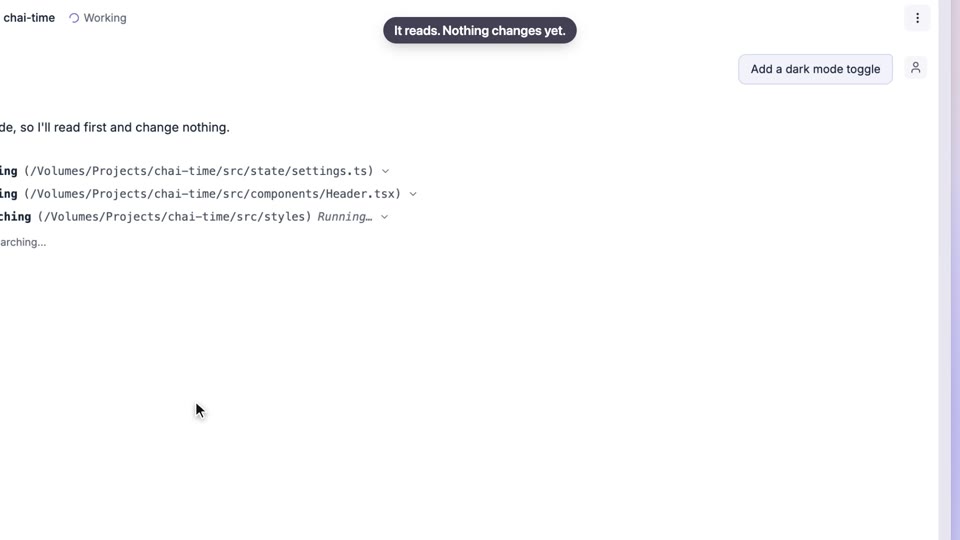
Open the Permission mode menu under the chat box and pick Research and Plan. Then write the goal, say how to split it, and say how each part is proven done.
You'll see: The lead agent reads the project and drafts a plan. A Plan ready — review before approving card appears with Open plan.
- 2
Approve the plan
Click Open plan and read the parts and the check named for each. Choose Continue in the same chat to start, or Ask for changes, type what to change and click Send.
You'll see: With your approval the lead starts work. With changes it revises the plan and changes nothing else.
- 3
Let the lead start its helpers
If the lead asks whether to run a team of helper agents, reply yes.
You'll see: A Loom: chip above the chat with the team's name, showing each helper's progress as it works.
Tip: Helpers take your current mode. To let them run builds and tests, the lead asks to switch the team's mode, and you confirm with one click.
- 4
Watch any helper
Click the agent switcher at the top of the chat. It shows Main Agent for the lead and lists every helper; pick one.
You'll see: That helper's own transcript: what it read, changed and found.
- 5
Close tasks on their checks
Watch the task list as helpers report back. Each task closes only when its check passes, such as a test command exiting 0.
You'll see: Tasks marked done with their evidence. One that only a person can judge shows Needs your review.
- 6
Give your verdict
Click Needs your review above the chat box, look at the result it describes, and confirm or reject it.
You'll see: The task closes on your answer, or goes back to the lead to fix.
- 7
Approve what leaves your machine
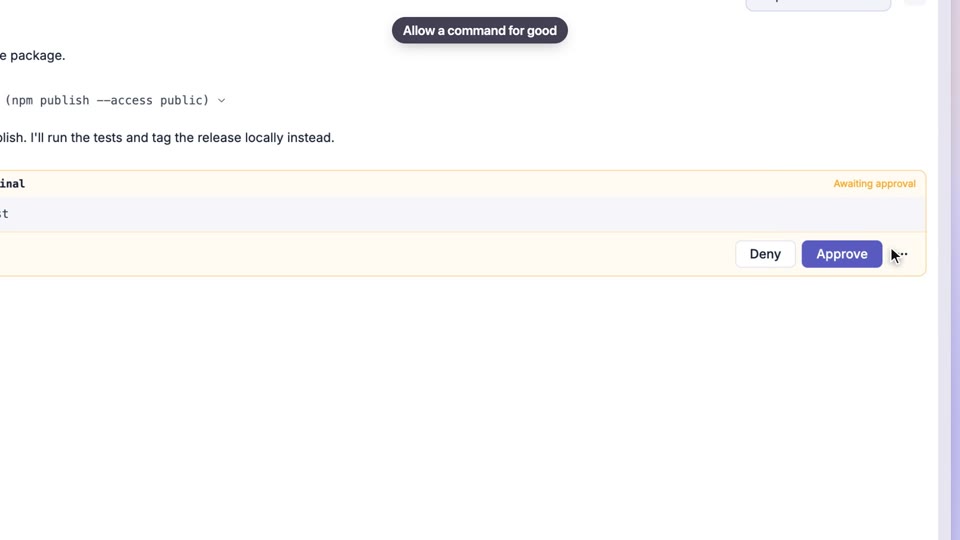
Read the lead's combined report. When it asks to push code or make another outward change, review the approval card and click Approve or Deny.
You'll see: Nothing is pushed or deployed until you approve. Helpers can't push code themselves.
- 8
Stop the team if needed
If the work goes the wrong way, open the agent switcher and choose Stop this loom.
You'll see: Every running helper stops, and their reports so far stay readable.
Worked example
A security sweep with checked findings
You want every module of a service reviewed for injection and auth flaws before a release, split across several agents working at once, with no false alarms reaching your team.
You type
Review this repository for injection and authentication flaws. Split it by top-level module, one helper each. Add a reviewer helper that confirms each finding against the code before it is reported. Close each module's task only when its finding cites path:line. Don't change any code.
- 1.Pick Research and Plan in the Permission mode menu and send the prompt
- 2.Click Open plan, check one task per module plus the reviewer, then Continue in the same chat
- 3.Follow the helpers in the Loom: chip and the agent switcher
- 4.Settle any Needs your review items yourself
Result: One report listing confirmed findings by module, each with the file and line it came from, and the reviewer's verdict on each. Nothing in the code has changed.
Troubleshooting
If something doesn't work
- The lead did the work itself instead of starting helpers
- It runs a team only when parts are independent and the job is big enough. Say how to split it, for example "one helper per module", and ask for helpers.
- A helper reported it couldn't run a command
- Helpers take the team's mode and never ask you directly. In Ask or Accept Edits they can't run builds or tests. Let the lead switch the team to Bypass All when it asks, or run that part yourself.
- A task stays open although the helper says it's done
- The task's check hasn't passed yet: the command failed or a citation didn't match the code. Read the helper's transcript, or ask the lead to fix it and run the check again.
- The team is heading the wrong way
- Choose Stop this loom from the agent switcher, then tell the lead what to change. Work already reported is kept.
For you
Manage people and agents as one team, with checks and a record
Agents are becoming coworkers. In Cana they share channels with your people, take work by @mention, and wait for an owner's approval before starting. Every task carries a check and every run keeps a transcript, so throughput grows without losing oversight.
Agents in the stand-up channel
Post the week's goals in a Walkie-Talkie channel; agents pick up their parts and post plans for approval.
Review as policy
Pair every implementation helper with a reviewer helper before results reach the team.
Shared bots, reviewed changes
Share a bot with your organisation; teammates propose changes as change requests you merge.
What changes for managers: More output from the same team, with every result traceable to the agent and the check behind it.
Technical details
What it connects to, and the controls you have
- What we mean
- AI that goes beyond a single model's answer: many agents that divide a goal, act in real tools, check each other, keep working over days and learn from corrections, within limits people set
- Scale of a team
- Up to 12 helpers per request, nested up to 3 levels, each with its own task, ordering, optional model and time budget of up to 6 hours
- Verification
- Tasks close on a declared check: a command and its exit code, expected output, cited code, an independent reviewer, or a person
- Long-running work
- Bots on their own cloud computers wake on schedules, connected-app events, webhooks or mentions; desktop automations survive closing the window
- Shared workspace
- Walkie-Talkie channels hold people, desktop sessions, cloud chats and bots; plans can require an owner or admin's approval
- Learning
- Memories scoped to a project, workspace or everywhere; project knowledge as Markdown; personal and organisation-wide skills
- Control
- Permission modes from Ask to Research and Plan; protected credential locations no mode can open; helpers can't push code or make destructive cluster changes on their own
- Record of work
- Every chat, helper and bot run keeps its transcript or run history; channel approvals record who decided and when
Why Cana
What you get here
- Teams of agents nest up to three levels deep, each helper with its own task, model and time budget
- Every planned task closes on an independent check, guarding against agents that agree too easily
- Bots run on their own cloud computers for days, so work continues when every laptop is closed
- People and agents share Walkie-Talkie channels, with plan approval by an owner or admin on the record
- Corrections become memories and procedures become skills, so agents improve with use
Keep exploring
Several agents at once
Run a team of agents with clear tasks and visible progress
Plan first, then build
Approve the plan, then watch progress you can trust
Bots
BetaGive your team always-on helpers, with visibility and control
Walkie-Talkie channels
See every agent's work and approve plans before they act
Memory, knowledge, skills and commands
Share the team's way of working with every agent
Permissions and approvals
Agree how much autonomy agents get, and keep it consistent