
Cana Desktop, cana.build
Permissions and approvals
Decide how much an agent may do on its own, approve its commands and edits as they come, and rely on protected locations it can never touch, whatever the setting.
How it works
The idea in 5 steps
- 1
Each chat has a permission mode
The mode sets how much the agent may do without you. There are four: Ask checks with you before anything runs and is the default, Accept Edits lets file edits through, Research and Plan only reads and drafts a plan, and Bypass All runs everything with no prompts.
- 2
Actions wait for your answer
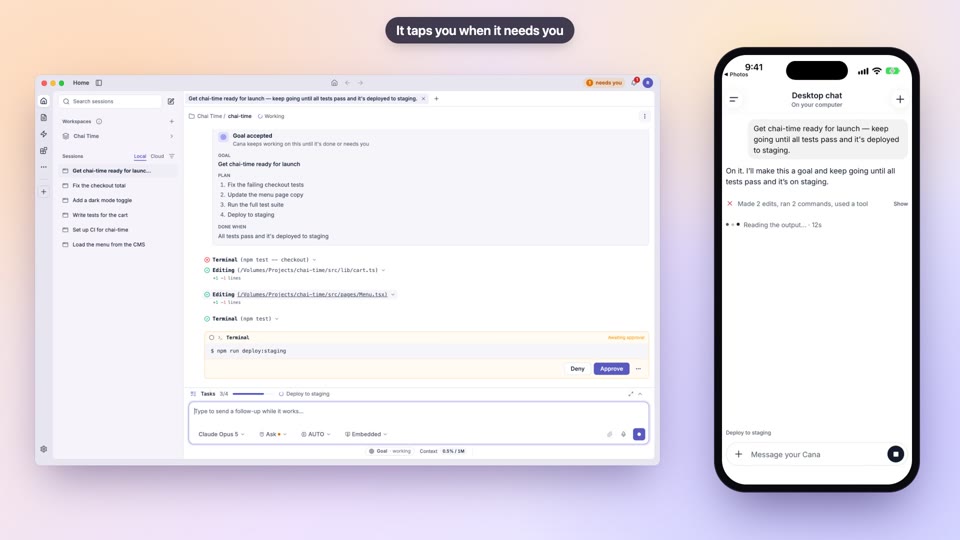
When the agent wants to run a command or change something, it stops and shows you exactly what it will do. Nothing happens until you allow it, and you can refuse.
- 3
Your answers can stick
A command you trust, such as your test runner, can be allowed for good, and one you never want can be blocked for good. Anything new still asks.
- 4
Some places are always off-limits
Credential folders, keychains, browser profiles, secret files and system folders are on a fixed deny list. No mode and no approval opens them, including Bypass All.
- 5
Secrets can be used without being seen
With the Vault mod (beta), API keys and passwords stay in your system keychain. The agent uses each one by name only, and any value that shows up in output is replaced with [vault:name].
Tutorial
Step by step
Before you start
- Cana Desktop installed and signed in, with a project folder open
- A safe task to try, such as running your project's tests
- 1
Check the mode for this chat
Look at the mode button under the chat box, next to the model, and click it.
You'll see: A Permission mode menu with Ask, Accept Edits, Research and Plan and Bypass All, each with a one-line description.
- 2
Start in Ask
Pick Ask, then send a request such as "Run the tests and tell me what fails."
You'll see: The agent stops at its first command and shows an approval card with the exact command.
- 3
Approve once or refuse
Read the command, then click Approve to run it this once, or Deny to stop it.
You'll see: After Approve the command runs and its output appears in the chat. After Deny the agent is told no and looks for another way.
- 4
Allow a trusted command for good
Next time the same command comes up, open More approval options on the card and choose Allow followed by the command it shows, such as pnpm test.
You'll see: That command no longer asks. Other commands still do.
Tip: Choose Block from the same menu for a command you never want run, or Auto-approve this session for a long familiar task.
- 5
Let edits through on a prototype
Switch the mode to Accept Edits and ask for a change to a file.
You'll see: The edit lands straight away, while commands and deletions still show an approval card.
- 6
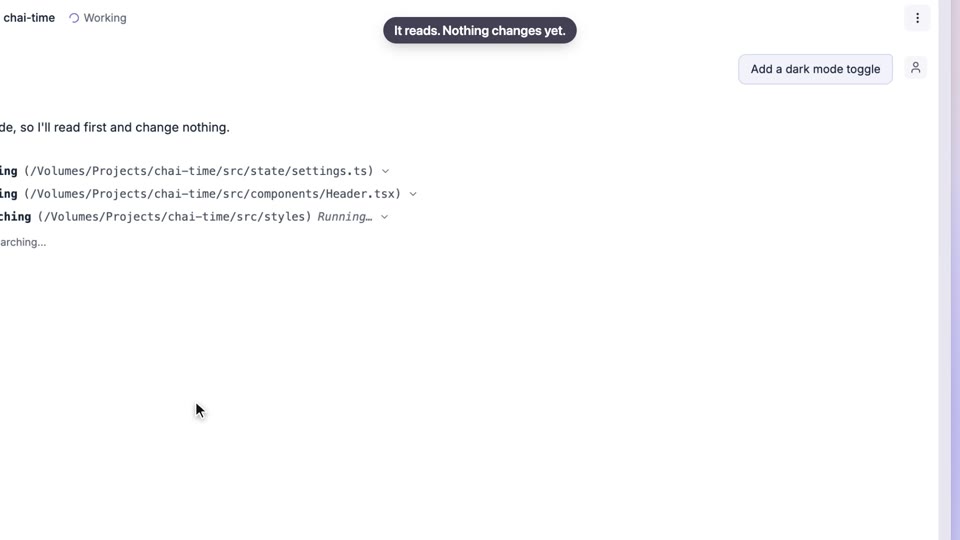
Plan before any change
Switch to Research and Plan and describe a larger change you want.
You'll see: The agent reads your project and drafts a plan for you to approve or revise. It changes no files on the way.
- 7
Set the default for new chats
Click Settings at the foot of the left rail and open Agents. Under Permission mode pick the mode new chats start in. Under Auto-approve Actions, leave Terminal commands off unless you want commands to run without asking.
You'll see: New chats open in the mode you chose.
- 8
See a protected location hold
In any mode, ask the agent to read a file in your SSH folder.
You'll see: The agent reports it is blocked because the path is a protected location, and no approval card appears.
Worked example
Let the agent fix failing tests without babysitting it
Your test suite has a handful of failures. You want the agent to run the tests, edit code and re-run them until they pass, without approving the same test command twenty times.
You type
Run pnpm test, fix the failing tests one by one, and re-run the suite after each fix. Don't touch the CI config.
- 1.Pick Accept Edits from the Permission mode menu
- 2.Send the request and click Approve on the first pnpm test
- 3.On the next pnpm test card, open More approval options and choose Allow for pnpm test
- 4.Deny any command you don't recognise
Result: The agent edits and re-runs the tests on its own until they pass. Only new or unusual commands come back to you for approval.
Troubleshooting
If something doesn't work
- The agent keeps asking about the same command
- Approve allows it once. Open More approval options and choose Allow for that command, or Auto-approve this session while you work.
- A file is blocked even in Bypass All
- The path is a protected location, such as a credential folder, keychain or .env file. These can't be opened in any mode. Give the agent the value another way, for example through the Vault mod.
- I can't switch to Bypass All from the web
- When you drive your desktop from Cana on the web, Bypass can only be turned on at the desktop. Pick it in the desktop app itself.
- Research and Plan won't make the change I asked for
- That mode only reads and plans. Approve the plan or switch the mode to Ask or Accept Edits, and the agent carries out the work.
For you
Agree how much autonomy agents get, and keep it consistent
Permission modes give your team a shared vocabulary: Ask for production work, Accept Edits for prototypes, Research and Plan for scoping. Approval cards make each action visible to the person responsible, and protected locations hold no matter what.
Team norm
Production repositories stay in Ask; prototypes may use Accept Edits; Bypass All needs a reason.
Plan before change
Start new features in Research and Plan so the plan is reviewed before any file changes.
Safe cluster work
Agents can read logs and describe resources; any change to a cluster waits for approval.
What changes for managers: Predictable agent behaviour across the team, with a person approving the actions that matter.
Technical details
What it connects to, and the controls you have
- Modes
- Ask (default), Accept Edits, Research and Plan (read-only), Bypass All
- Approval choices
- Approve once, Deny, Allow or Block a command permanently, Auto-approve this session
- Protected locations
- SSH and cloud credentials (~/.ssh, ~/.aws, ~/.kube and others), keychains, browser profiles and cookies, password-manager data, system folders, other users' home folders
- Protected files
- .env files, private keys and certificates, credential and token files, shell history and infrastructure state files, wherever they are
- Enforcement
- Protected locations are a hard deny list that can't be approved in any mode, including Bypass All; links are followed to their real target
- Cluster actions
- Read-only Kubernetes checks run freely; apply, delete, exec, scale and rollout ask, and are refused in Research and Plan
- Vault (beta)
- Secrets kept in the system keychain, used by name only, limited to allowed sites, hidden from everything the agent reads
Why Cana
What you get here
- Four clear permission modes, with Ask as the default
- Allow, Block or auto-approve commands from the approval card itself
- A hard deny list for credentials, keychains, browser data and secret files that holds in every mode
- Vault (beta) lets the agent use secrets without ever seeing them
Keep exploring
Plan first, then build
Approve the plan, then watch progress you can trust
Code, terminal and approvals
Set how far agents may go, chat by chat
Sign-in and account security
Require two-step sign-in and keep team access tidy
Mods and the mod store
Standard tools and looks for the team, with access shown up front