
cana.build, Cana Desktop, Cana on your phone
Sign-in and account security
Sign in to Cana with a passkey, an emailed code or link, or your company's single sign-on, and protect your account with two-step sign-in and control over where you're signed in.
How it works
The idea in 4 steps
- 1
Sign in the way your account allows
Cana asks for your email first, then offers what your account supports: a passkey, an emailed code or link, a connected account, or your organisation's single sign-on. The phone app only signs in; creating an account happens on the web.
- 2
A passkey replaces the password
A passkey lives on your device and is unlocked with your fingerprint, face or screen lock. Add one once and it works on the web and in the phone app. Remove it at any time and it stops working at once.
- 3
Two-step sign-in adds a second proof
Where your organisation uses Cana's built-in sign-in, you can link an authenticator app. After your password, Cana asks for its 6-digit code, and 10 single-use backup codes cover a lost phone.
- 4
You can see and end every session
Each place you're signed in is listed with when it started and when it expires. End any you don't recognise. Changing your password signs you out everywhere else.
Tutorial
Step by step
Before you start
- A web browser, and an email address you can open
- A phone or laptop with Face ID, Touch ID, a fingerprint reader or a screen lock, for a passkey
- For two-step sign-in: an authenticator app on your phone
- 1
Open the sign-in page
Go to cana.build/login. The page says Sign in to Cana. Type your email address and click Continue.
You'll see: Cana shows the sign-in choices your account supports.
Tip: New to Cana? Sign-up is on the web only, at cana.build/signup. It may show Join the waitlist while sign-up is closed.
- 2
Choose how to sign in
Pick one: Sign in with a passkey, Email me a sign-in code, Email me a sign-in link, or Continue with your organisation or connected account.
You'll see: You land in Cana after your device confirms, you enter the emailed code, or you open the link.
Tip: Only the methods set up for your account appear. A work email often shows single sign-on.
- 3
Add a passkey
Once signed in, click Settings in the sidebar, then Account. On the Passkeys card click Add a passkey, then confirm with your fingerprint, face or screen lock.
You'll see: A message that the passkey was saved, and its name listed on the card with a Remove button.
- 4
Turn on two-step sign-in
Open Sign-in and security under Settings. Click Set up two-step, scan the QR code with your authenticator app, type the 6-digit number into Code from the app and click Turn on two-step.
You'll see: A list headed "Save these backup codes". Each code works once and is shown only now.
Tip: This page only appears where your organisation uses Cana's built-in sign-in.
- 5
Keep your backup codes
Copy the 10 backup codes somewhere safe, away from your phone. Later, the Backup codes row shows how many are left, and Make new codes replaces them.
You'll see: The row reads "10 of 10 left" until you use one. Making new codes stops the old ones working.
- 6
Check where you're signed in
On Sign-in and security, scroll to Where you're signed in. Find any session you don't recognise and click Sign out beside it.
You'll see: Your current session is tagged This browser. The one you ended disappears from the list.
- 7
Sign in on your phone
Open the Cana app. On Sign in to Cana enter your email and password and tap Sign in, or tap Sign in with a passkey. If asked, enter your code and tap Verify.
You'll see: Your chats and bots open in the app. The code screen is headed "Two-step sign-in".
Tip: The phone app has no sign-up. Create your account on the web first.
- 8
Delete your account, if you need to
On the web, open Settings, then Account. Click Delete account, read the warning and click Yes, delete my account.
You'll see: Cana deletes your account and all associated data. This cannot be undone.
Tip: Prefer to ask us? Email support from the address you sign in with.
Worked example
Lock down a new laptop and retire an old phone
You've got a new work laptop and you've lost your old phone, which was still signed in to Cana. You want passwordless sign-in and no leftover access.
- 1.Sign in on the laptop with Email me a sign-in code
- 2.Settings, Account, Add a passkey: confirm with the laptop's fingerprint reader
- 3.Sign-in and security, Set up two-step: scan with your new authenticator app
- 4.Where you're signed in: Sign out the old phone's session
Result: Next time the laptop signs you in with a touch. The lost phone's session is gone, and a backup code gets you in if your authenticator app is ever unavailable.
Troubleshooting
If something doesn't work
- I can't find Sign-in and security
- It only appears where your organisation uses Cana's built-in sign-in. If you sign in with single sign-on or a passkey, your identity provider handles passwords and two-step.
- It says this browser doesn't support passkeys
- Update your browser, or add the passkey from a browser or device that supports them. Passkeys you add there also work in the phone app.
- I lost my authenticator app
- At the two-step prompt enter one of your backup codes instead of the 6-digit code. Then use Make new codes and set up two-step again.
- Adding a passkey asks me to sign in again
- Adding or removing a passkey needs a recent sign-in. Sign out, sign back in and try Add a passkey again.
For you
Strong authentication your organisation can enforce
Cana supports passkeys and enterprise single sign-on, and organisations can make two-step sign-in mandatory. Repeated failed attempts trigger a lockout, and users can end sessions on any device.
Identity under your control
Use your existing identity provider through SAML or OIDC single sign-on.
Enforced second factor
An organisation-wide two-step requirement that members can't switch off.
Contain incidents quickly
A password change signs out every other session; individual sessions can be revoked.
What changes for leaders: Reduced account-takeover risk, with authentication policy set by the organisation.
Technical details
What it connects to, and the controls you have
- Sign-in methods
- Passkeys, emailed one-time codes or links, connected sign-in providers and enterprise single sign-on (SAML and OIDC), depending on how your account and organisation are set up
- Passkeys
- Standard browser passkeys (WebAuthn); add or remove them in Settings
- Two-step sign-in
- Authenticator-app codes with 10 single-use backup codes; organisations can require it for every member
- Lockout
- With built-in sign-in, 5 failed attempts lock the account for 15 minutes; admins can clear a lock
- Passwords
- At least 12 characters; changing it signs you out of every other session
- Sessions
- See each active session with start and expiry times, and sign any of them out
- Desktop and mobile
- Cana Desktop hands sign-in to your browser. The phone app has its own sign-in (email and password, passkey, Apple or Google) and no sign-up; create the account on the web
Why Cana
What you get here
- Passkey sign-in across web, desktop and mobile
- Enterprise single sign-on alongside passkeys and emailed codes
- Organisations can require two-step sign-in for every member
- Active sessions are listed and can be signed out individually
Keep exploring
Organisations, members and roles
Centralised access, encrypted keys and organisation-wide visibility
Permissions and approvals
Human approval by default, and hard limits no setting can override
Get started with Cana Desktop
A fast start for every team, with control set from the first click
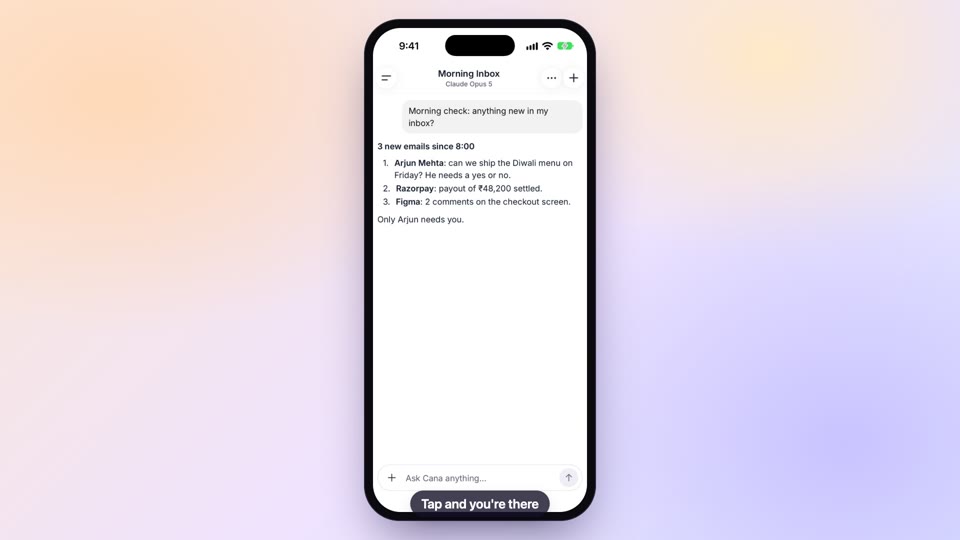
The Cana mobile app
Oversight of agent work in your pocket, with approvals kept human