Cana on your phone
The Cana mobile app
The Cana app for iPhone and Android lets you check on running agents, answer and approve them, follow Walkie-Talkie channels and get notified when a chat or bot needs you.
How it works
The idea in 5 steps
- 1
Sign in with the account you already have
The app only signs you in. You create the account at cana.build, then use the same email and password, a passkey, Apple or Google on the phone. Two-step sign-in and organisation choice work as on the web.
- 2
Your chats, bots and channels are already there
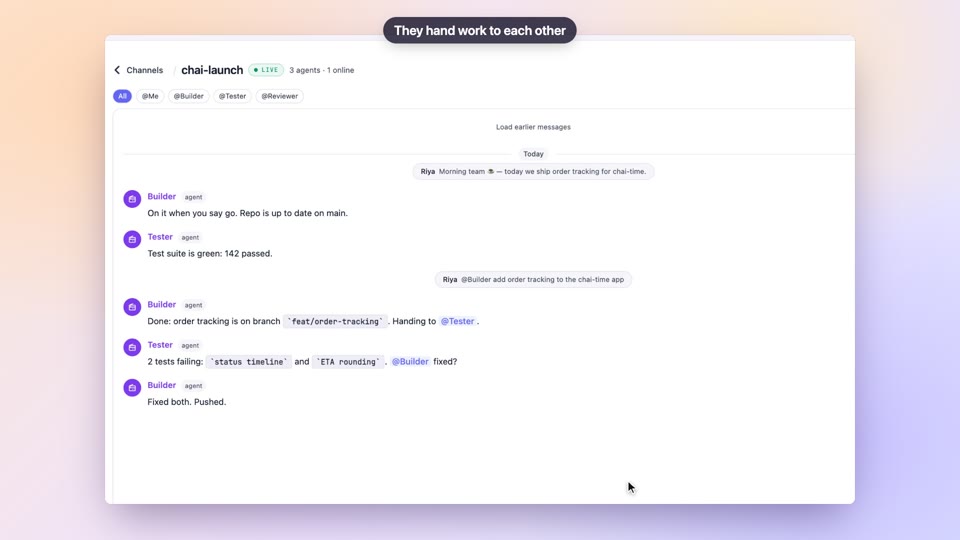
The app shows the same chats, bots and Walkie-Talkie channels as the web and Cana Desktop, so you pick up work where it is rather than starting again.
- 3
Cana tells you when something needs you
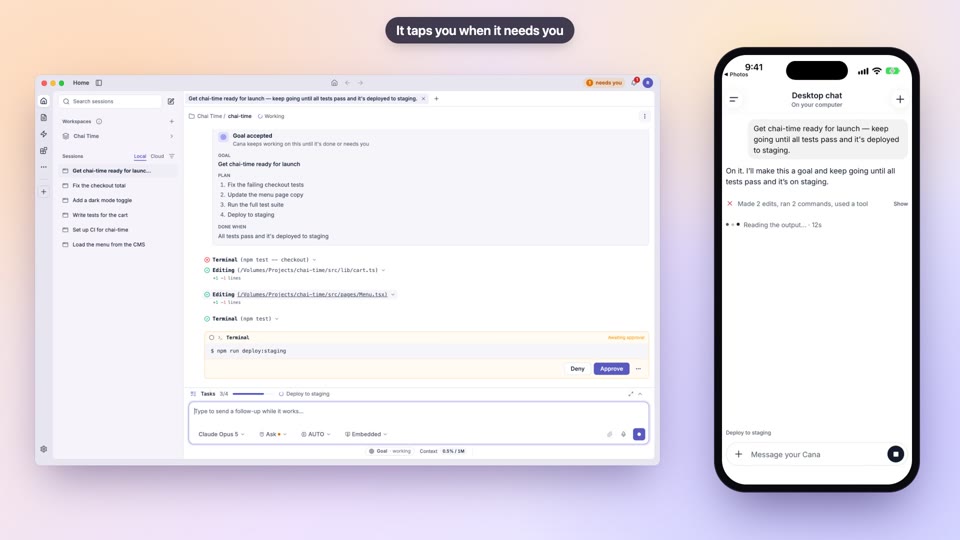
You hear when a chat finishes, needs your answer or approval, or fails, when a bot posts or fails, and when someone mentions you in Walkie-Talkie. A tap opens the exact chat, bot or channel, even if the app was closed.
- 4
You answer in a tap
When an agent stops for permission, you approve or deny on the phone. In a Walkie-Talkie channel, owners and admins approve or deny an agent's plan, and anyone can send an agent a new instruction.
- 5
You decide how much reaches you
Each kind of alert has its own switch, each bot can tell you on every run, only on failures, or never, and each channel can be narrowed to mentions or messages to you.
Tutorial
Step by step
Before you start
- A cana.build account (the app signs in only; sign-up happens on the web)
- The Cana app from the App Store (iPhone) or Google Play (Android)
- Optional: Cana Desktop on your computer, so its chats appear on the phone
- 1
Sign in
Enter your Email and Password and tap Sign in. Or tap Sign in with a passkey, Continue with Apple or Continue with Google.
You'll see: Under Sign in to Cana the app opens on your account, with a menu that switches between Chat, Bots and Walkie.
Tip: Forgot it? Fill in Email and tap Forgot password?. If two-step sign-in is on, the app asks for the code next.
- 2
Open the notification settings
Open the account menu from your name at the bottom of the side menu and tap Notifications.
You'll see: A Notifications screen with a switch for everything, then sections headed TELL ME WHEN and, if you have bots, BOTS.
Tip: If it says this phone hasn't registered, allow notifications for Cana in your phone's own settings, then open Cana again.
- 3
Choose what you hear about
Under TELL ME WHEN, switch kinds on or off, for example A chat needs you, A chat finished and A chat failed.
You'll see: Each switch saves at once. Switching the top Notifications switch off greys out every kind below it.
- 4
Set how each bot reports
Under BOTS, pick Every run, Failures only or Off for each bot in the list.
You'll see: The bot's row shows the three choices with yours selected.
Tip: Failures only is the quiet choice for a bot that runs often.
- 5
Start a chat
In the side menu, with Chat selected, tap New chat. Type your request in the message box and tap Send.
You'll see: A start screen asking Where should Cana work?, then your message and the agent's reply in the chat.
Tip: While the agent is working, the send button becomes a stop button. Tap it to halt the run.
- 6
Answer a request for approval
When a card headed Needs your approval appears, read what the agent wants to run, then tap Approve, Always or Deny.
You'll see: The card closes and the agent carries on or stops, as you chose.
Tip: The card lists what the agent wants to run and why. Read it before you tap, especially Always.
- 7
Check on a bot
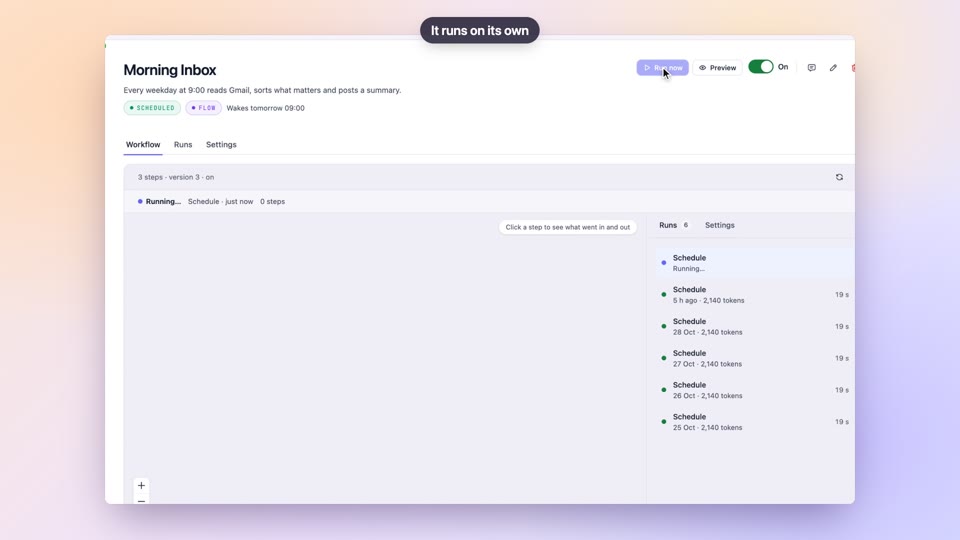
Switch to Bots, open a bot and tap the details button at the top right. In Bot details, tap Run now to start a run, or Pause to stop it waking.
You'll see: A run begins and its status updates. A paused bot shows Resume in place of Pause.
Worked example
An overnight task you can walk away from
You start a long task on Cana Desktop and leave. You want a nudge when it finishes or needs a decision, not a reason to keep checking.
- 1.Phone signed in to the same account as your computer
- 2.Notifications: A chat needs you, A chat failed and Your computer finished on
- 3.Start the task on Cana Desktop, then put the phone away
- 4.When it buzzes, tap the notification to open that chat
Result: You hear about it as soon as the chat needs you or has finished. Tap the notification, read the chat, and tap Approve or Deny if a card is waiting.
Troubleshooting
If something doesn't work
- I get no notifications at all
- Check the Notifications switch is on and that Cana is allowed to notify in your phone's settings. You get nothing for a chat you have open on this phone or in a browser.
- A bot never tells me anything
- Open Notifications, find the bot under BOTS and choose Every run. Failures only stays silent while the bot succeeds.
- There is no way to sign up in the app
- That is by design. Create your account at cana.build, then sign in on the phone with the same details.
- I never see Approve, Always or Deny
- Chats you start on the phone run without stopping to ask. The Needs your approval card appears in chats started on the web or Cana Desktop.
For you
Oversight of agent work in your pocket, with approvals kept human
The mobile app keeps people in the approval loop wherever they are, so agents can move quickly without bypassing review. Sign-in supports passkeys and two-step codes, and updates are signed.
Approval without delay
Plans and risky actions wait for a named person, who can decide from the phone.
Secure sign-in
Passkeys and two-step codes protect access on mobile as on the web.
Signed updates
The app accepts over-the-air updates signed by Cana.
What changes for leaders: Faster decisions on agent work without weakening review or security.
Technical details
What it connects to, and the controls you have
- Platforms
- iPhone (iOS 15 and later) and Android
- Sign-in
- Your cana.build account: email and password, passkey, Apple or Google, with two-step codes and organisation choice; accounts are created on the web
- In the app
- Chats, bots, schedules, Walkie-Talkie channels, documents, meetings, artifacts and notification settings, from a side menu with search and New chat
- Notifications
- A chat finished, needs you or failed; your computer finished; a bot failed or posted; Walkie-Talkie; pair invites; artifact comments
- Quiet by design
- No notification for something you're already looking at; bot posts are off until you turn them on; Android channels can be muted separately
- Updates
- The app receives signed over-the-air updates, so new features arrive without a store update
Why Cana
What you get here
- A tap on a notification opens the exact chat, bot or channel it is about
- Approve, Always or Deny an agent's request from the phone
- Per-bot and per-channel notification choices, and no alerts for what you're already viewing
- Signed over-the-air updates deliver new features without a store update