
Cana Desktop
Publish and deploy
Publish a project to your own Git repository with a build pipeline, add deployments to your Kubernetes clusters, and fix what breaks from the logs, all inside Cana Desktop.
How it works
The idea in 4 steps
- 1
Your code goes to your own repository
Publishing commits your project and pushes it to a new repository on your own GitLab, GitHub or Bitbucket, private unless you choose public. Nothing is hosted in a format only Cana can read.
- 2
A pipeline shows build and deployments
Each published app appears as a pipeline: a build, then one stage per deployment with its cluster and environment. When a build fails, one click hands the failure to the agent to fix.
- 3
Clusters connect with your own sign-in
Cana connects to your Kubernetes clusters, including Amazon EKS, using your own AWS profile or single sign-on. The agent can never read cloud credential folders such as ~/.aws or ~/.kube.
- 4
Look freely, change with approval
You and the agent can read resources, logs and YAML at any time. Changes such as apply, scale, restart or delete wait for your approval, so the agent can diagnose a crash without being able to break production on its own.
Tutorial
Step by step
Before you start
- Cana Desktop installed and signed in
- A Kubernetes cluster you can reach, for example on Amazon EKS
- kubectl installed, plus the AWS CLI and an AWS profile for EKS
- 1
Open Kubernetes
In Cana Desktop, click More tools on the left rail and choose Kubernetes.
You'll see: The Kubernetes view opens with your list of clusters, empty the first time.
Tip: Not listed? Open Mods, go to Marketplace and add it from the Cana tools type.
- 2
Start a connection
Press Connect cluster.
You'll see: The Connect Kubernetes Cluster dialog opens.
- 3
Sign in to AWS
Set Provider to Amazon EKS, choose your AWS Profile and Region, then press Authenticate & scan. Use Log in via SSO if your profile uses single sign-on.
You'll see: Cana signs in with your profile and lists the EKS clusters in that region.
Tip: If your account needs it, enter the code from your authenticator in MFA Code first.
- 4
Pick and verify the cluster
Choose your cluster under EKS Cluster and press Connect & verify.
You'll see: The cluster appears in the list and its namespaces, workloads and pods load.
- 5
Read a failing pod
Open a pod that keeps restarting and select its Logs tab.
You'll see: The pod's log streams live, so you can see the error that makes it crash.
- 6
Ask the agent
In the chat, ask "Why does this pod keep restarting? Read its logs and describe it, then propose a fix."
You'll see: The agent reads the logs and the resource, explains the cause and shows the change it proposes.
- 7
Approve or make the change
Approve the agent's change when it asks, or edit the resource yourself on its YAML tab and save it with Apply changes.
You'll see: The change is applied to the cluster and new pods start.
Tip: Use Restart to roll pods, or Scale and set Replicas to change how many run.
Worked example
Fix a crashing checkout service
Your checkout service on staging keeps restarting after a release and customers see errors. You want the cause and a fix without hunting through logs by hand.
You type
The checkout pod in staging keeps restarting. Read its logs and events, tell me why, and propose the smallest fix.
- 1.Open Kubernetes and connect your EKS cluster
- 2.Open the checkout pod and its Logs tab
- 3.Send the prompt in the chat
Result: The agent finds a missing environment variable in the logs, proposes the Deployment change and applies it after you approve. The new pods stay running.
Troubleshooting
If something doesn't work
- Kubernetes is not in More tools
- It is a Cana tool you add once. Open Mods, then Marketplace, set the type filter to Cana tools and add Kubernetes.
- Authenticate & scan finds no clusters
- Check the Region is the one your cluster runs in and that the AWS profile can list EKS clusters there.
- My SSO session expired
- Open Connect cluster again and use Log in via SSO, then Connect & verify.
- The agent did not change the cluster
- Cluster changes wait for your approval, and they are refused in Research and Plan mode. Switch the permission mode and approve the change when asked.
For you
Get a working tool online without becoming an ops expert
Publishing is a short form: pick where it goes, name it, click Publish. The Applications page then shows whether the build and each deployment are healthy, in plain terms.
Share an internal tool
Publish the team request form you built and add a deployment so colleagues can open it.
See if it's healthy
Check the Applications page for the build and deployment status instead of asking someone.
Hand off a failure
Use Send to agent on the app and ask it to find out why the last build failed.
What changes for professionals: Your tools are online and you can tell at a glance whether they're working.
Technical details
What it connects to, and the controls you have
- Repositories
- Publishes to GitLab, GitHub or Bitbucket through a repository connection; new repositories are private by default
- Pipeline view
- Build stage plus one stage per deployment, each labelled with its environment and cluster
- Deployment options
- Auto or manual sync, automatic or manual pipeline trigger, optional ingress domain
- Clusters
- Kubernetes clusters, including Amazon EKS with your own AWS profile, SSO and MFA; opened from Kubernetes under More tools on the left rail
- Cluster actions
- Browse resources, live pod logs, edit and apply YAML, restart and scale workloads, kubectl terminal
- Agent controls
- Read-only kubectl actions (get, describe, logs, top) run freely; apply, delete, exec, scale and rollout ask for approval and are refused in Research and Plan mode
- Credentials
- Cloud credential folders such as ~/.aws and ~/.kube are protected paths the agent can never read
Why Cana
What you get here
- Publish to your own Git repository, private by default, from inside the app
- Build and deployment pipeline shown per app, with Fix with AI on failures
- A full Kubernetes view with logs, YAML apply, restart, scale and a kubectl terminal
- Agent cluster changes need approval; read-only checks run without interrupting you
Keep exploring
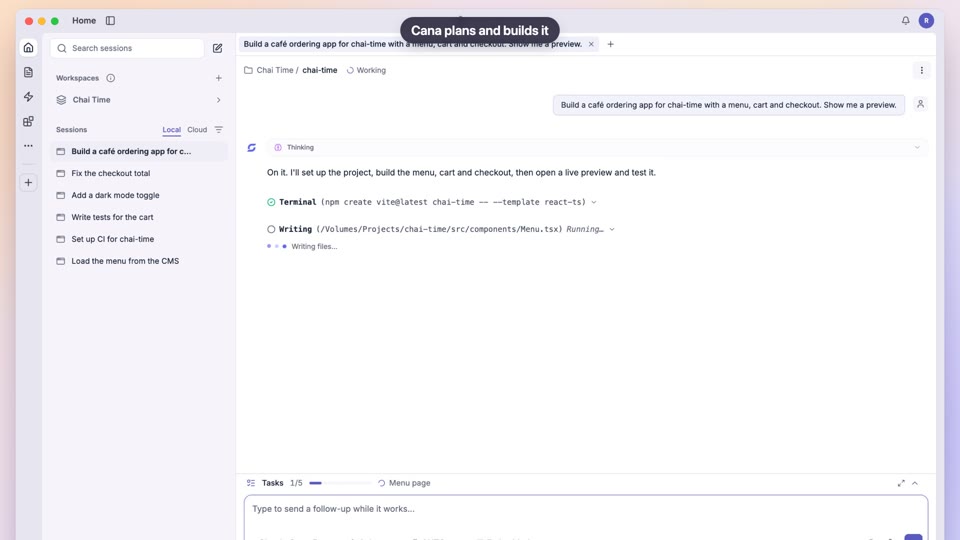
Build an app from one prompt
Make the internal tool you've been waiting for, yourself
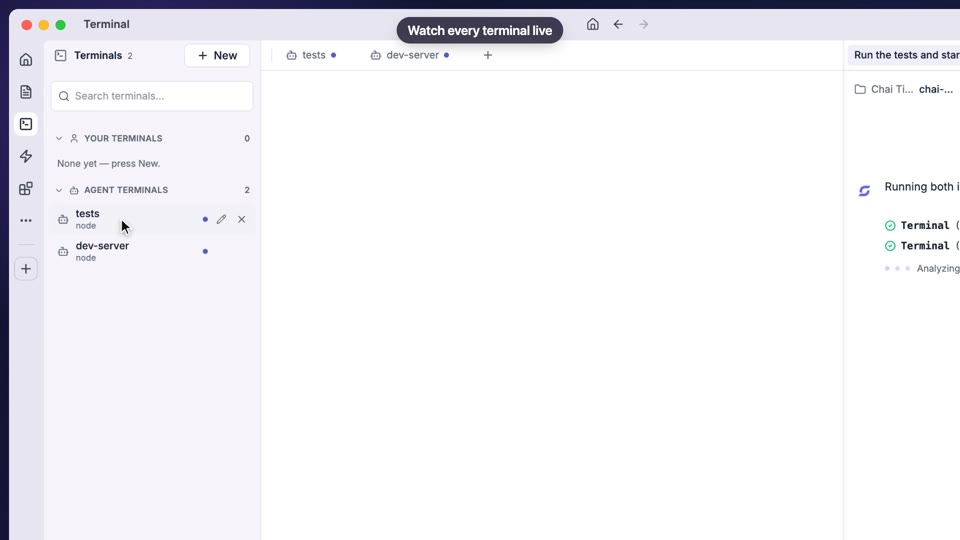
Code, terminal and approvals
Get scripts and small tools built without memorising commands
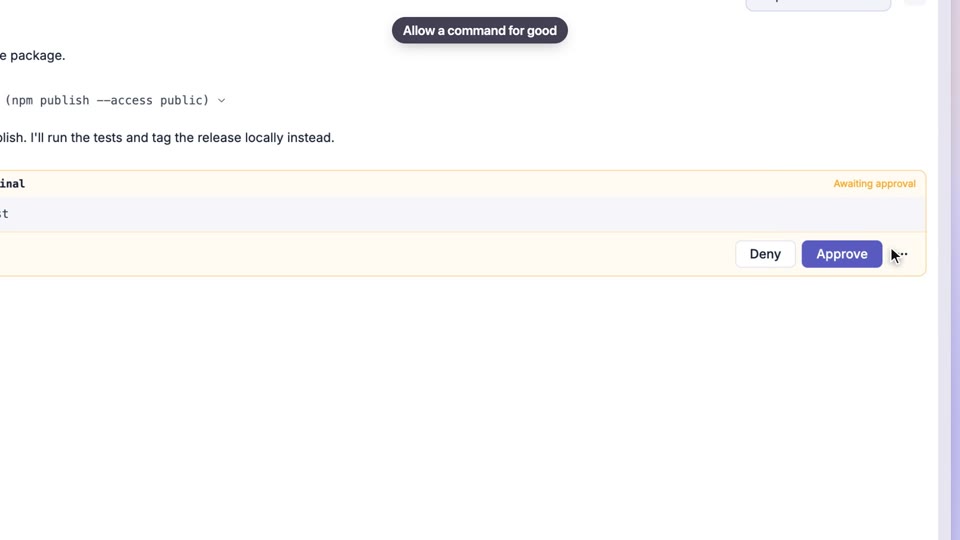
Permissions and approvals
Get help from an agent without worrying what it might touch
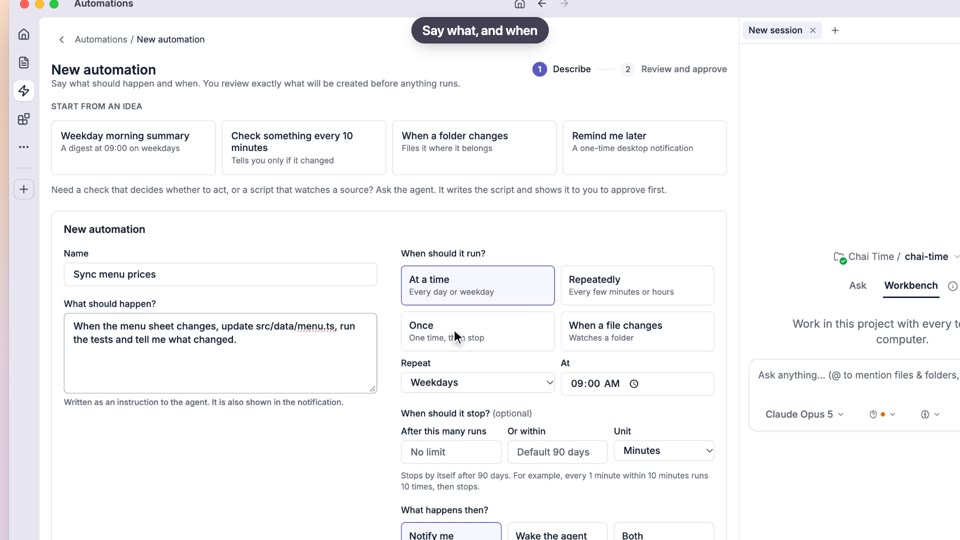
Automations
Describe a recurring task once and let it run