
cana.build, Cana Desktop (beta)
Cloud chats with their own computer
Start a chat on cana.build and the agent works on a cloud computer of its own that keeps your files, sleeps when idle, and can carry on in Cana Desktop.
How it works
The idea in 5 steps
- 1
Your first message starts it
There is no setup form. Open Chat on cana.build and type; the agent starts on a cloud computer and gets to work.
- 2
Two kinds of chat
Ask is for quick answers, writing and research. Workbench gives the agent its own computer to build, run code and keep things running, where your organisation has it switched on.
- 3
You choose the model and the effort
Pick the model under the message box and how hard it should think, from Low to Max. Attach files for it to work on.
- 4
Work is saved and can be shared
Every chat stays in your list with its files. Idle computers go to sleep and wake on your next message, and a read-only link lets anyone follow what was done.
- 5
It can carry on in Cana Desktop
A chat can move between the cloud and Cana Desktop with its files and history. When it continues on your desktop, the web chat says so.
Tutorial
Step by step
Before you start
- A cana.build account in an organisation that has cloud chats switched on (it is in beta)
- Optional: files you want the agent to work on
- 1
Open a new chat
Click Chat in the sidebar. If a chat is already open, click New chat at the top of the chat list.
You'll see: An empty chat with a greeting and suggestions, and the message box ready for typing.
- 2
Choose the kind of chat
Above the greeting, click Workbench for build and run work, or leave Ask for questions and writing.
You'll see: With Workbench, the heading asks what to build and the message box says Describe what to build, run or fix….
Tip: No toggle? Workbench isn't switched on for your organisation yet; the chat works in Ask.
- 3
Pick the model and effort
Click the model name under the message box and choose one. Then open the effort menu, titled Effort, and choose High.
You'll see: The model's name and HIGH shown under the message box.
Tip: Auto lets the model decide how hard to think.
- 4
Attach a file and send the task
Click Attach file to add a file if you have one, type the task, and press Enter.
You'll see: The agent replies step by step, showing each command and file it works with.
Tip: Stop it at any time with the stop button or Escape.
- 5
Share a read-only link
In the chat list, hover over the chat, open its menu and click Share link.
You'll see: Link copied. Anyone with it can read this chat. and the link itself. Click Stop sharing to remove it.
- 6
Come back later
Close the tab. Later, open the chat from the list under Today or Yesterday and send a follow-up.
You'll see: The chat wakes with its files where you left them and carries on.
Tip: Click Pin to top in its menu to keep an important chat above the rest.
Worked example
Clean a messy CSV without installing anything
A sales export has duplicate rows and three date formats, and you are on a laptop with nothing installed. A Workbench chat does the cleaning on its own computer.
You type
I've attached sales.csv. Remove duplicate rows, change every date to YYYY-MM-DD, trim spaces in names, and give me the cleaned file plus a three-line summary of what you changed.
- 1.Chat, then Workbench
- 2.Attach file: sales.csv
- 3.Effort: Medium, then send the prompt
- 4.Share link to show a teammate exactly what was changed
Result: A cleaned sales.csv to download, a short summary of the fixes, and a link your teammate can read without signing in to anything new.
Troubleshooting
If something doesn't work
- There's no Workbench option
- The Ask / Workbench choice shows only where your organisation has Workbench switched on. Ask chats still answer questions, write and research.
- There's no permission mode picker
- On the web, chats run without asking at each step; the setting is fixed on the server. Use Cana Desktop if you want to approve each step yourself.
- It says This chat continued on your desktop
- The chat was moved into Cana Desktop. Open it there to keep going; the web copy is read-only until it comes back to the cloud.
- My reply takes a while to start
- The chat's computer was asleep. Your message wakes it, then the agent picks up with its files in place.
For you
Agents that work on isolated cloud computers, under clear controls
Each cloud chat runs on its own computer rather than on employees' laptops, and access is limited to selected organisations. Organisations can cap how many chat computers run at once.
Separation from personal devices
Agent work happens on a dedicated cloud computer per chat, not on staff machines.
Capped capacity
Limits on how many chat computers run at once can be set per organisation or per user.
Controlled rollout
The capability is enabled for selected organisations while it is in beta.
What changes for leaders: Teams get capable agents in the browser while access and risk stay under your control.
Technical details
What it connects to, and the controls you have
- Runs on
- A cloud computer per chat, started by your first message and put to sleep when idle; it wakes on your next message
- Kinds of chat
- Ask for quick answers, writing and research; Workbench for its own computer to build, run code and keep things running, where switched on
- Controls
- Model picker, effort from Auto and Low to Max (depending on the model), file attachments, stop at any time
- Permissions
- Web chats run without step-by-step approval, fixed on the server; Cana Desktop offers Ask, Accept Edits, Research and Plan, and Bypass All
- Sharing
- A read-only share link to the conversation, which you can stop sharing at any time
- Desktop handoff
- A chat can move between Cana Desktop and the cloud with its files and history; the web shows when it continued on your desktop
- Availability
- In beta for selected organisations; limits on how many chat computers run at once (5 by default) can be set per organisation or user
Why Cana
What you get here
- Every cloud chat runs on a cloud computer, and Workbench chats can build, run code and keep things running
- A chat moves between the cloud and Cana Desktop with its files and history
- Idle chats are saved and put to sleep, then wake on the next message
- Read-only share links show every step the agent took
Keep exploring
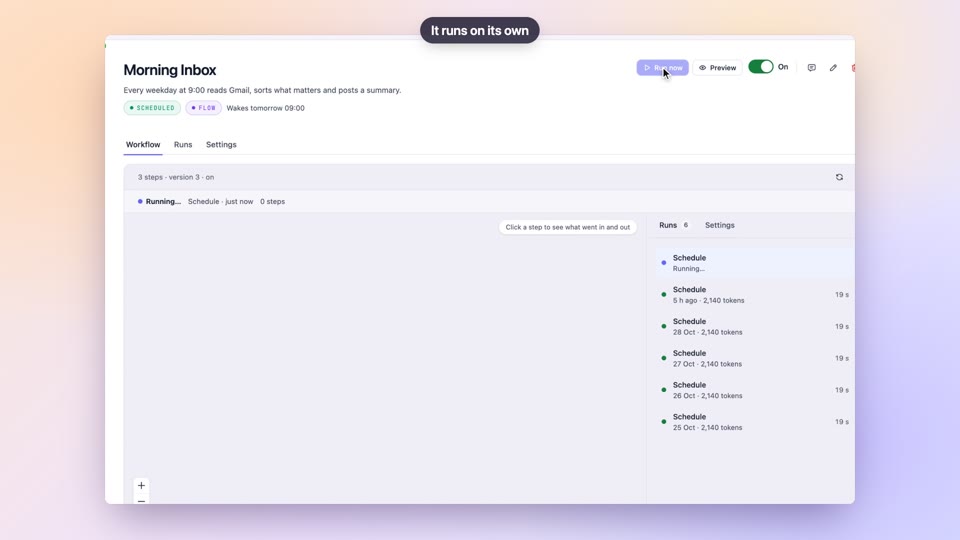
Bots
BetaRecurring operational work, automated with an audit trail
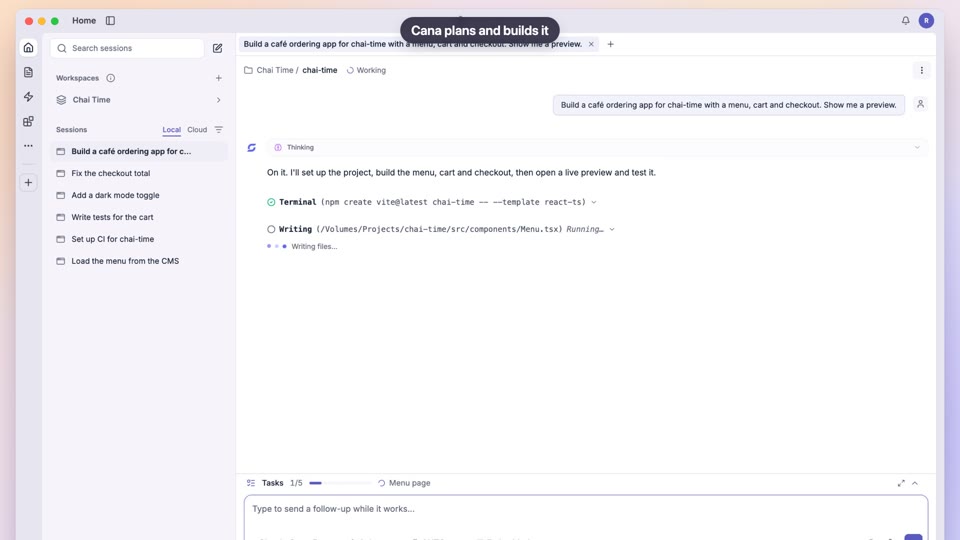
Build an app from one prompt
Faster software delivery, with human approval and verified results
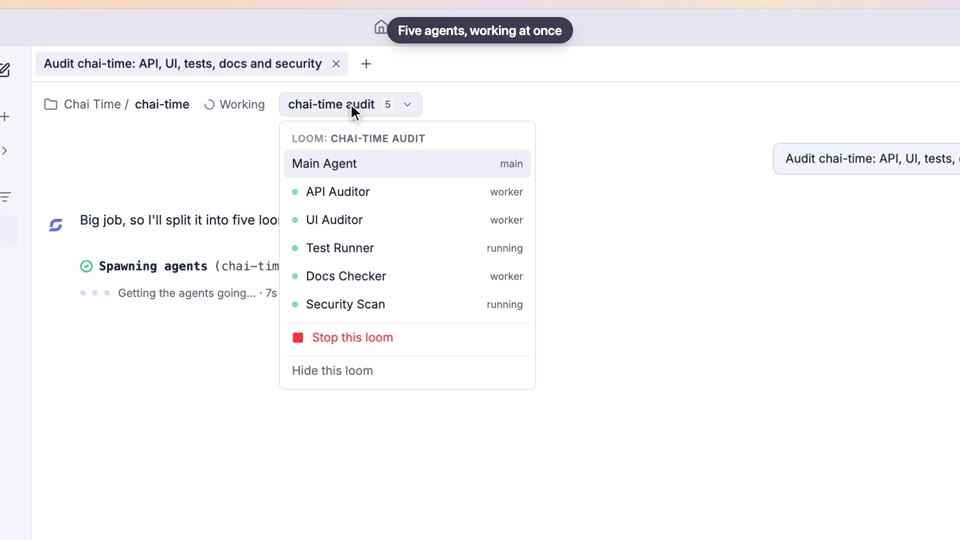
Several agents at once
Parallel AI work with clear limits and a full record
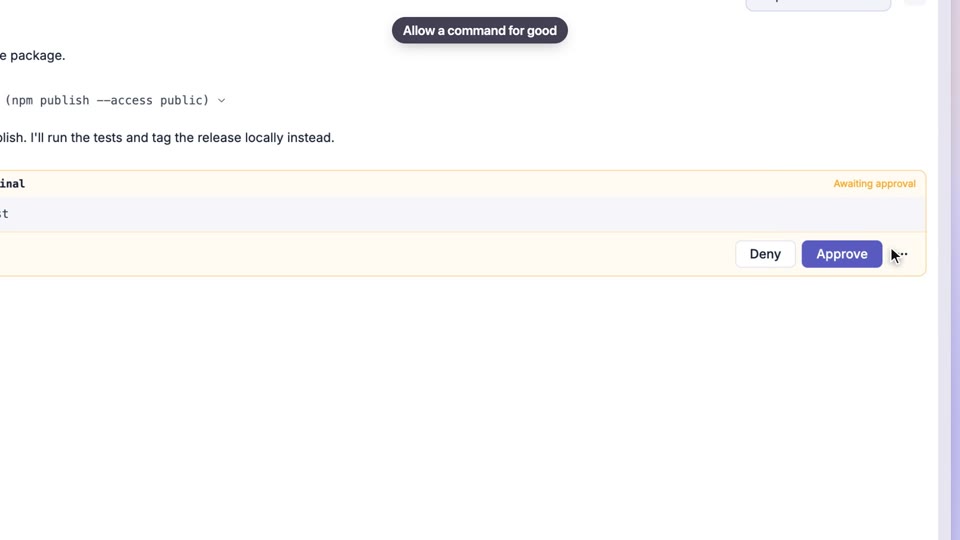
Permissions and approvals
Human approval by default, and hard limits no setting can override