Cana Desktop
Build an app from one prompt
Describe the app you want in plain words; an agent in Cana Desktop plans it, writes the code, runs it in a built-in browser and checks its own work before you ship.
How it works
The idea in 5 steps
- 1
A brief in plain words is enough
The agent works from a description like one you would give a colleague: who the app is for, what it must do and how it should look. Files, sketches and screenshots add detail.
- 2
Plan first, then build
For bigger work the agent researches and writes a plan with tasks before touching code. You approve it, ask for changes, or let it go straight to building.
- 3
You decide how much it does alone
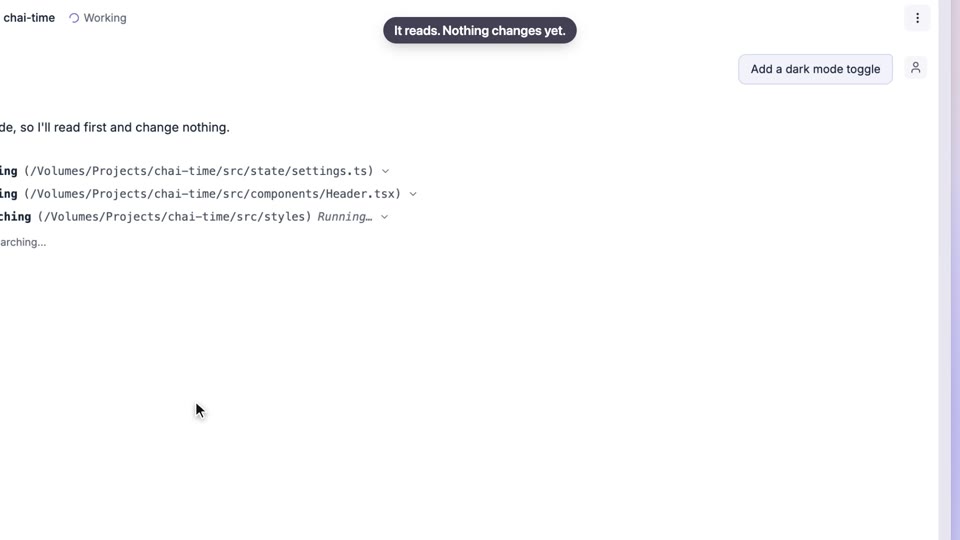
The agent creates files, installs packages and runs commands in your project folder. A permission mode sets whether it asks before each action or works through the task on its own.
- 4
It sees the running app
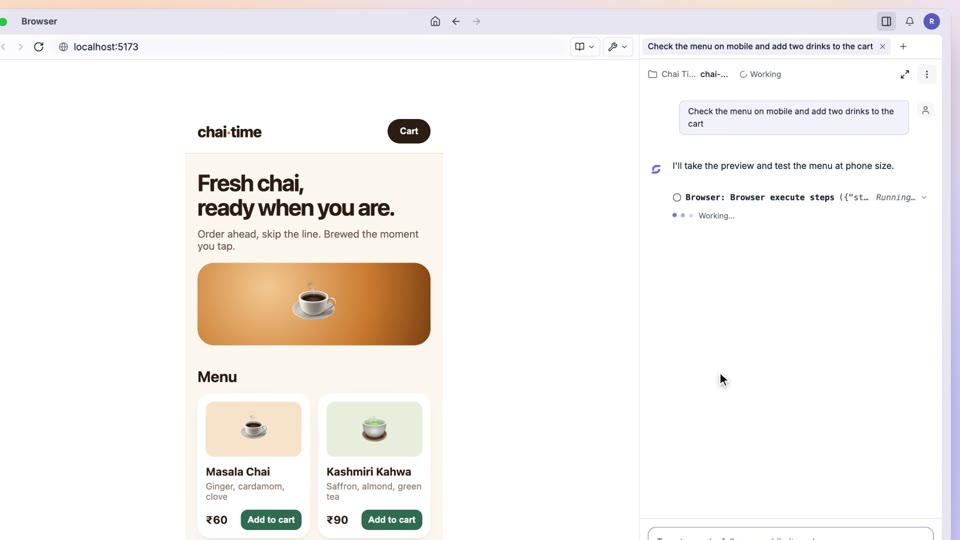
The app opens in Cana's built-in browser, where the agent clicks through it and where you can point at anything wrong and send it back with one button.
- 5
Done means checked
Every task carries a check, such as a test, a build or a page that loads, and only ticks when that check passes. The code stays as plain files in your own folder and Git repository.
Tutorial
Step by step
Before you start
- Cana Desktop installed and signed in
- An empty folder on your computer for the new app
- A short description of the app you want
- 1
Choose a folder
Click the project name at the top of Cana Desktop to switch project, choose Add folder… and pick your empty folder.
You'll see: The folder becomes the current project and the chat panel is ready.
- 2
Ask for a plan first
Open the Permission mode menu under the chat box and choose Research and Plan.
You'll see: The menu now shows Research and Plan, so the agent will plan before it writes code.
- 3
Describe the app
Type your brief in the chat and send it, for example "A café ordering app: a menu with prices, a basket, and an order summary page."
You'll see: The agent starts researching and writing a plan in the chat.
- 4
Review the plan
When Plan ready — review before approving appears, read the tasks. Choose Continue in the same chat to build it, or Ask for changes to adjust it.
You'll see: The agent starts building, and a Tasks list shows each step with its check.
Tip: Open plan shows the full plan as a document.
- 5
Approve its actions
When the agent asks to run a command or change a file, read the request and press Approve or Deny.
You'll see: Approved actions run and the agent carries on; denied ones are skipped and it tries another way.
Tip: Switch Permission mode to Accept Edits to let file changes through without asking each time.
- 6
Open the running app
When the agent says the app is running, open Browser from More tools on the left rail and load the address it gave you.
You'll see: Your app runs in the browser pane, often already open because the agent tested it there.
- 7
Point at what to change
Click DevTools, select the part you want changed in Elements, press Send to Agent and say what you want, such as "Make this button bigger on phones".
You'll see: The agent edits the code, reloads the page and shows you the result.
- 8
Check it is finished
Open the Tasks list and read each task's status.
You'll see: Every task is ticked only after its check passed, such as the build succeeding or the page loading.
Worked example
A café ordering app
You run a small café and want a simple web app where customers pick drinks, see a basket and get an order summary.
You type
Build a café ordering web app: a menu with prices and photos, a basket that updates as you add items, and an order summary page. Keep it simple and mobile-friendly, and test that ordering works.
- 1.Add folder… and pick an empty folder called cafe-app
- 2.Permission mode: Research and Plan
- 3.Send the prompt, then Continue in the same chat when the plan is ready
Result: The agent plans the pages, builds the app, starts it, places a test order in the browser and ticks each task once its check passes.
Troubleshooting
If something doesn't work
- The agent started coding without a plan
- Permission mode was not Research and Plan. Choose it before you send your brief, or ask in the chat for a plan first.
- It keeps stopping to ask me
- In Ask mode every action needs your approval. Accept Edits lets file changes through; Bypass All approves everything, so use it only in a folder you can afford to change.
- The browser shows a blank page
- The app may have stopped. Ask the agent to start the dev server again and tell you the address.
- A task stays unticked
- Its check has not passed yet. Ask the agent what failed; it will fix the cause and run the check again.
For you
Faster software delivery, with human approval and verified results
Teams describe outcomes and Cana does much of the build, while people approve plans and the product verifies each task with real checks. Code stays in your own repositories.
Shorter time to prototype
Ideas reach a working, testable version in days rather than sprints.
Controlled autonomy
Agents act within the permission level your teams choose, and ask before risky actions.
No lock-in
Output is ordinary code in your own Git repositories and pipelines.
What changes for leaders: Higher delivery throughput without giving up review, control or ownership of the code.
Technical details
What it connects to, and the controls you have
- Runs on
- Cana Desktop for macOS and Windows, working in a folder on your computer
- Models
- Choose among leading AI models, or bring your own provider or a local model
- What the agent can do
- Read, search and edit files, use git, run terminal commands, and drive the built-in browser or your own Chrome
- Approvals
- Permission modes Ask, Accept Edits, Research and Plan, and Bypass All, from approving every action to letting the agent run; protected paths are never touched
- Verification
- Tasks close only when their declared check passes (tests, build, page load)
- Your code
- Plain files in your own folder and Git repository; no lock-in to a proprietary format
Why Cana
What you get here
- Plans first, and you approve before it builds
- Sees and drives the running app in a built-in browser
- Tasks close only when a real check passes
- Your choice of leading AI models, your own provider or a local model
- Plain code in your own folder and repository