
Cana Desktop, cana.build
Choose your model
Pick which leading AI model answers each chat, add your own provider keys, or run an open model on your own computer so the work never leaves it.
How it works
The idea in 5 steps
- 1
Models come from three places
Platform models come with your Cana account, Org models are the ones your organisation adds, and Local ones are your own keys or models on your computer. The picker tags each.
- 2
Every chat keeps its own model
Each chat tab remembers its model. A strong model can plan a feature in one tab while a quicker one does a small refactor in another, and switching keeps the history.
- 3
Favourites stay one click away
You can pin up to five models so they sit at the top of the picker.
- 4
Your own provider plugs in
Add a provider with your own key: presets cover leading AI model providers, and compatible options take any endpoint in a common model API format at a base URL you give.
- 5
Or the model runs on your computer
Cana Local downloads an open model sized for your machine. It runs there, works offline, and nothing you send it leaves the computer.
Tutorial
Step by step
Before you start
- Cana Desktop installed and signed in
- Optional: an API key from a model provider you already use
- Optional, for local models: free disk space and memory (Cana Local shows what fits)
- 1
Open the model picker
In a chat, click the model name next to the message box (it reads Select model if none is chosen yet).
You'll see: A list of providers, each tagged Platform, Org or Local, with a search box at the top.
- 2
Find and choose a model
Type part of a name into Search models… and click the model you want.
You'll see: The picker closes and the model name by the message box changes. Only this chat tab uses it.
Tip: Change it mid-conversation whenever you like; the chat history stays.
- 3
Pin your favourites
Hover a model in the picker and click its Pin model button. Repeat for up to five.
You'll see: The model appears in the Pinned strip at the top, with a counter such as 2/5.
- 4
Add your own provider
Click Settings at the foot of the left rail, open LLM Providers and click Add Provider. Choose a Provider preset, then fill in Name and API Key.
You'll see: The form for the provider, with Base URL filled in for presets and empty for a compatible endpoint.
- 5
Check its models and save
Click Probe models to fetch what the key can use, pick the ones you want, optionally Test selected, then Review and Save.
You'll see: The provider is listed under Your providers, and its models appear in the picker tagged Local.
- 6
Download a model to run offline
In Settings, open Cana Local. Under Recommended for this computer, click Choose size on a model, then Download on a size.
You'll see: Download progress at the top, then an Installed badge and the model listed under Your local models.
Tip: The first download also sets up the local model engine, so it takes longer.
- 7
Use the local model in a chat
Open the model picker in a chat, choose the model you downloaded, and send a message.
You'll see: The reply comes from your own computer; the model shows In memory in Cana Local while it is loaded.
Worked example
Summarise a confidential file without it leaving your laptop
You have a contract you must not upload anywhere, and you want a plain summary of its obligations and dates.
You type
Summarise @contract.pdf in plain English: who must do what, by when, and any penalties. List every date as a table.
- 1.Settings, Cana Local: Choose size, then Download a recommended model
- 2.In a new chat, open the model picker and choose that model
- 3.Type the request, using @ to attach the file, and send
Result: A summary and a table of dates, produced by a model running on your own computer, with nothing sent to an outside provider.
Troubleshooting
If something doesn't work
- The picker says no models are available
- No provider is enabled for you yet. Ask your organisation admin to enable one, or add your own in Settings, LLM Providers, or download one in Cana Local.
- Probe models found nothing for my provider
- The key or address is wrong. Step back, check API Key and Base URL (a compatible endpoint needs the full address), then click Probe models again.
- I can't pin another model
- Five is the limit. Click Unpin model on one in Pinned to make room.
- The local model is slow or fails to load
- It may be too large for this computer's memory. In Cana Local, remove it and download a smaller size from Recommended for this computer.
For you
Model choice, data location and keys stay under your control
Cana does not tie the business to a single AI vendor: teams can use platform models, the organisation's own provider accounts, or models that run entirely on company laptops. Keys are encrypted at rest and never shown in plain text.
Vendor flexibility
Move between leading AI models, or to your own provider contracts, without changing how people work.
Data residency options
Run open models on the user's own computer for work that must not leave the device.
Central key management
Organisation provider keys are added by admins and stored encrypted; users never see them.
What changes for leaders: Freedom to choose and change AI providers, with sensitive work kept local where required.
Technical details
What it connects to, and the controls you have
- Model sources
- Platform models from your Cana account, models your organisation adds (Org), and your own or local providers (Local)
- Your own providers
- Presets for leading AI model providers, plus any compatible endpoint in the common model API formats, with a custom base URL
- Local models
- Cana Local recommends open models sized for your computer, downloads them from Hugging Face, and runs them offline; local runtimes on localhost are supported as providers too
- Key storage
- Provider keys on desktop are kept in the macOS Keychain or encrypted with Windows user-account protection, sent through a local proxy, never stored as readable text
- Per chat
- Each chat tab keeps its own model; up to five pinned favourites
- Organisation keys
- Org admins can add the organisation's own AI provider keys on cana.build; they are stored encrypted (AES-256-GCM)
- Visibility
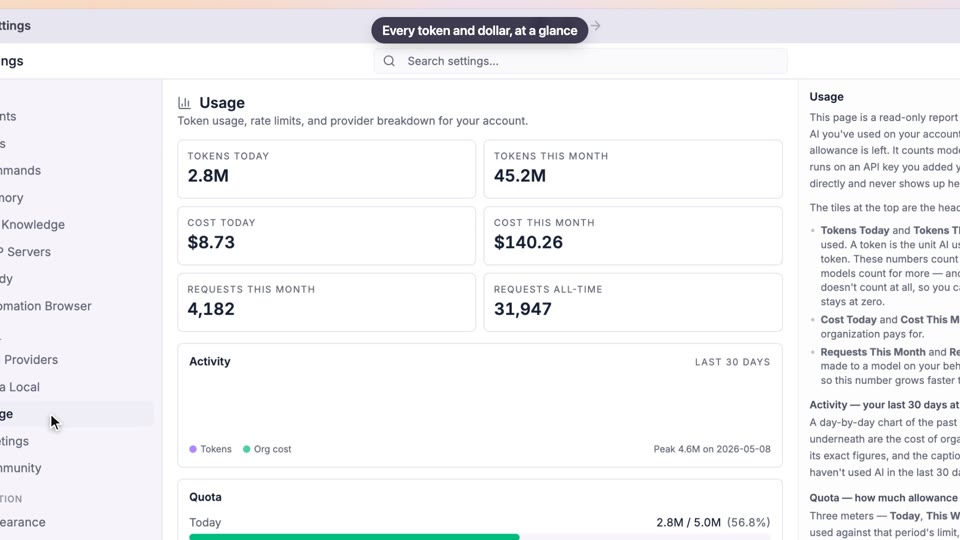
- Usage shows tokens by provider and model, so you can see where activity goes
Why Cana
What you get here
- A different model in every chat tab, switchable mid-conversation
- Bring your own provider keys or any compatible endpoint
- Cana Local runs open models on your own computer, offline
- Desktop keys live in the system keychain or Windows-encrypted storage, never as readable text
Keep exploring
Get started with Cana Desktop
A fast start for every team, with control set from the first click
Organisations, members and roles
Centralised access, encrypted keys and organisation-wide visibility
Permissions and approvals
Human approval by default, and hard limits no setting can override
Build an app from one prompt
Faster software delivery, with human approval and verified results