
cana.build
Studio apps and workflows
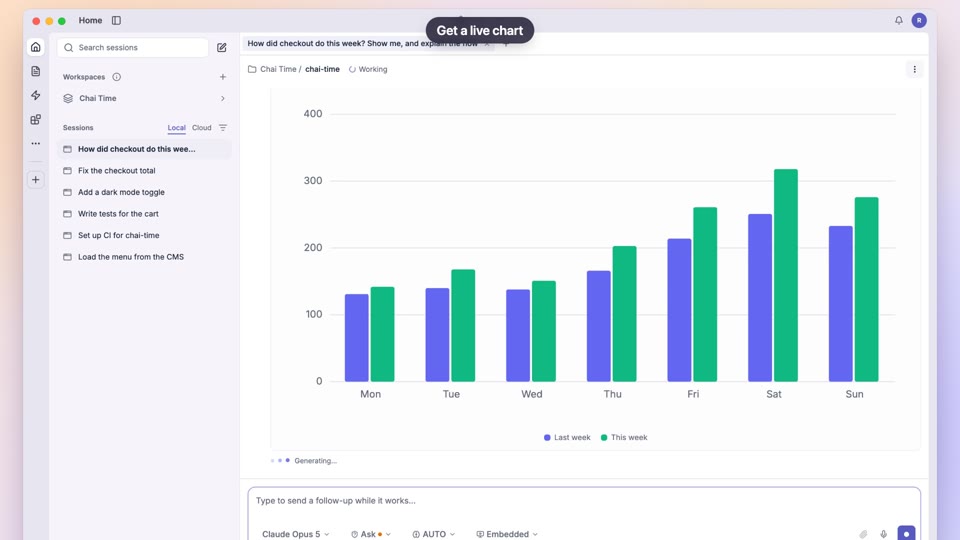
Ask any chat for a page or small app and it lands in Studio with its own data tables, shared with your organisation or kept private, plus workflows that run on a button, schedule, event or webhook.
How it works
The idea in 4 steps
- 1
A chat builds the app
You describe the page or tool you need in any chat. The agent writes the page and saves it to Studio, where it shows as Building until it's ready.
- 2
It gets its own tables
The agent designs typed tables (text, number, money, date, choice, email, user and more) and sets who may read and write each row, so everyone using the app sees the same records.
- 3
Private first, then shared
Every Studio app starts private. Shared with your organisation, members can use it and add rows under each table's rules, but only the owner changes how it works.
- 4
Backend jobs do the routine work
Workflows run on a button, a schedule, a changed row, a connected-app event or a webhook. They are saved switched off, can be test-run safely, and record every run with its cost.
Tutorial
Step by step
Before you start
- A cana.build account
- Optional: the apps a workflow should use connected in Settings, Integrations
- 1
Open Studio and start building
Click All pages under Studio in the sidebar, then click Build in chat.
You'll see: A chat opens. If you have no pages yet, Studio shows No Studio pages yet and an Open a chat button instead.
Tip: Browse Component gallery first for ideas of what a page can show.
- 2
Describe the app and its data
Say what the app is for, the fields it should store and what the page should show, then send.
You'll see: The agent creates the tables and the page, and replies with a link. The page appears in the sidebar under Studio.
Tip: Say who may edit what: "everyone sees all rows, people edit only their own".
- 3
Open the app and try it
Open the page from the sidebar and add a row or two, as a user of the app would.
You'll see: The app view with your data in it. While the agent is still working, a notice says This app is still being built.
- 4
Check its settings and data
Click Settings at the top of the page, then the Data tab to see the tables and rows behind the app.
You'll see: A tab for each table, with its rows and Previous and Next to page through them.
- 5
Add a backend job
Go back to the chat and ask for the automation, for example a weekly summary saved as a row. Ask it to test-run the job first.
You'll see: The agent saves the workflow and reports the test run. Test runs send nothing and keep no table writes.
- 6
Turn the job on
In Settings, open Backend, find the job under Backend jobs and click Turn on. Use Run now to run it once straight away.
You'll see: The button changes to Pause, and a row appears under the job with Started, Result, Trigger and Time.
- 7
Share it with your organisation
In Settings, open General, click Share…, choose Everyone at your organisation, and click Share.
You'll see: The sharing row reads Shared with your organisation, and the app shows the organisation's name on its card in Studio.
Tip: Choose Only me and Make private to take it back.
Worked example
A team lead tracker with a Monday summary
Your team tracks leads in a spreadsheet nobody keeps tidy. A Studio app gives everyone one form and one list, and writes the weekly numbers before the Monday meeting.
You type
Build a lead tracker with company, owner, stage (new, contacted, proposal, won, lost) and deal size. Show totals by stage at the top. Everyone sees all leads; people edit only their own. Every Monday at 9, summarise last week's new leads and save the report.
- 1.Build in chat, paste the request, send
- 2.Open the page from the sidebar and add two test leads
- 3.Settings, Backend: Turn on the Monday job, then Run now once
- 4.Settings, General: Share… with Everyone at your organisation
Result: The team adds leads in one place, totals update as rows change, and each Monday a summary row is waiting, with the run's tokens and time recorded under the job.
Troubleshooting
If something doesn't work
- My page says it is still being built
- The agent is still working on it. Wait for the chat to finish; if it has and the page works, click Mark as ready.
- A backend job never runs
- Workflows are saved switched off. In Settings, Backend, click Turn on. Schedules can't run more often than every 15 minutes.
- A run failed
- Read the Error column under the job. The usual cause is an app that is no longer connected: reconnect it in Settings, Integrations, then click Run now.
- Teammates can't see the app
- New apps are private. Open Settings, General, click Share… and choose Everyone at your organisation.
For you
Turn a project idea into a working app with a real database
Describe the app and a chat builds the page and the tables behind it, so you can focus on what it does. It's a fast way to build tools for your club or a project you can show.
Club sign-ups
"Build an event sign-up page that stores names, emails and dietary needs, and shows a count per event."
Study tracker
A page where you log study hours by subject, with a weekly AI summary saved every Sunday.
Share with your group
Share it with your organisation so teammates can add rows without changing the app.
What changes for students: A real app with stored data, built in an afternoon.
Technical details
What it connects to, and the controls you have
- Where
- Studio on cana.build lists your pages and apps, with Data, a component gallery and an admin view for organisation admins
- Tables
- Up to 30 tables per app and 40 typed columns per table; row rules set who can read (all or own) and write (all, own or owner)
- Triggers
- Button, schedule (every 15 minutes or slower), row change, connected-app event, or a private webhook address
- Steps
- AI steps with structured output, connected-app actions, MCP tools, scripts, agent tasks, table queries and writes, conditions and loops
- Limits per run
- By default 20 steps, 100 items, 300 seconds, 200,000 tokens and 50 app calls; daily budgets of 500,000 tokens per app and 2,000,000 per organisation
- Run history
- Each run records when it started, its result, trigger, tokens, time and any error; test runs are marked as such
- Sharing
- Only you, or everyone in your organisation; members use the app but only the owner changes it
Why Cana
What you get here
- Any chat can build a Studio app, including the tables behind it
- Typed tables with row-level rules for who reads and who writes
- Workflows run on buttons, schedules, row changes, connected-app events and webhooks
- Safe test runs, and a recorded history with cost for every real run
Keep exploring
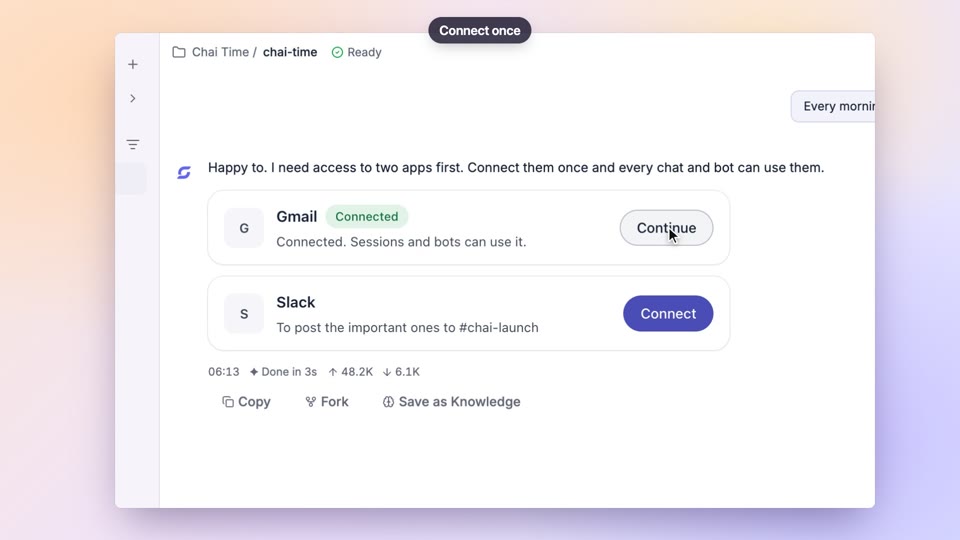
Connected apps and MCP servers
Let an agent read your inbox and calendar, so you don't have to
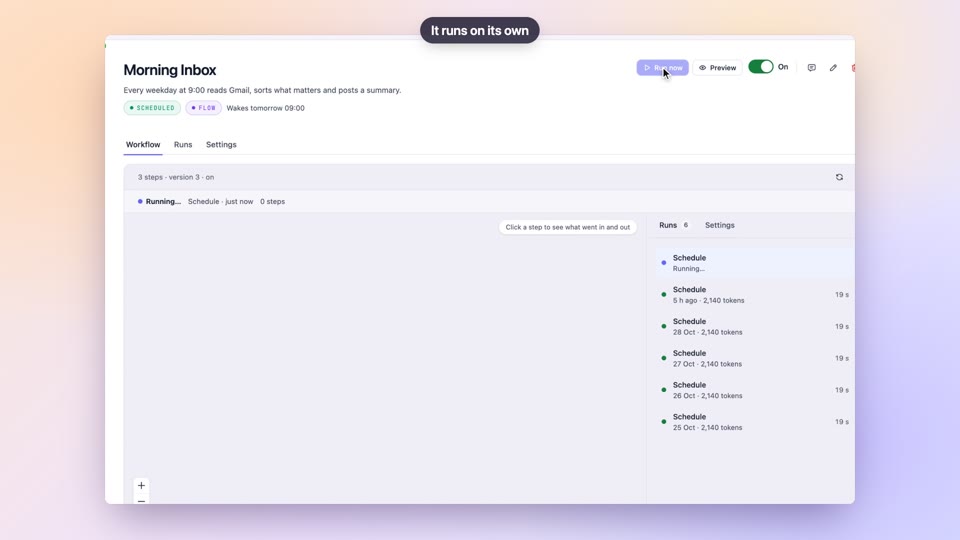
Bots
BetaPut your routine on autopilot and keep your focus for learning
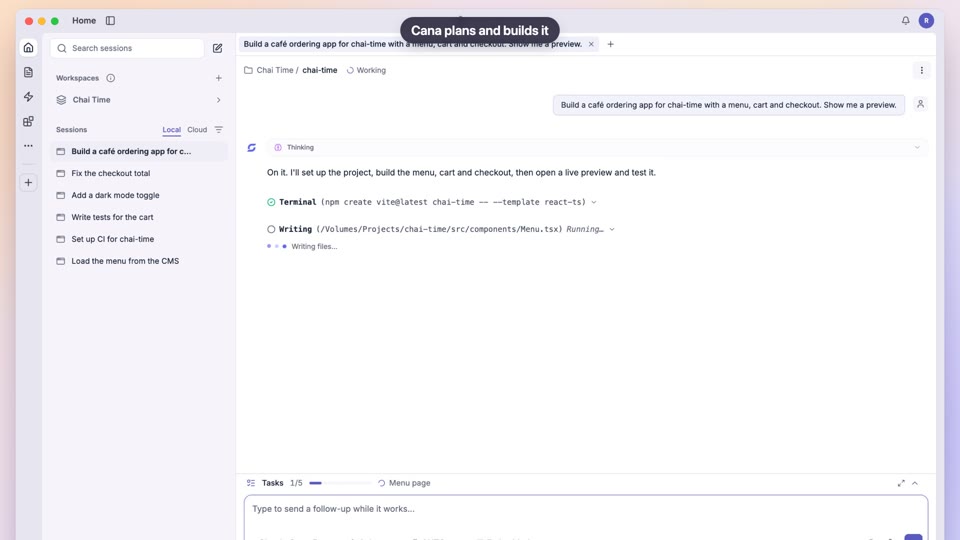
Build an app from one prompt
Build the project you have in mind, and learn how it works as you go
Organisations, members and roles
Run your club or project team as a real organisation