Cana on your phone
Start work from anywhere
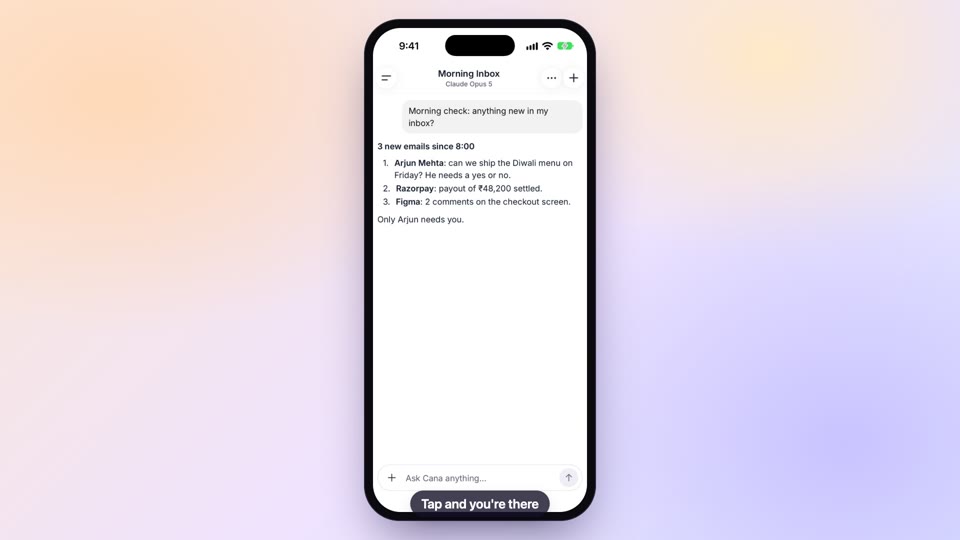
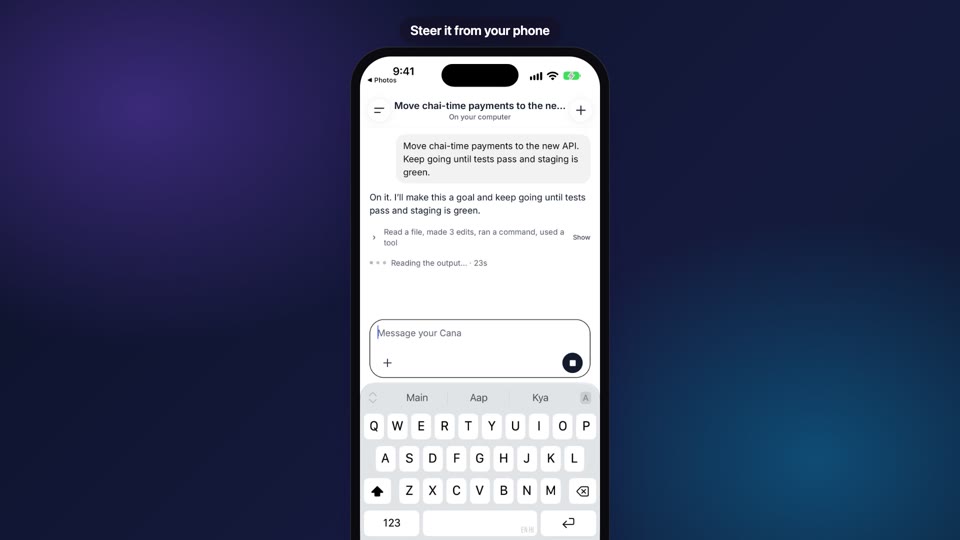
From the Cana app you can start a cloud chat, start a bot, run a bot or a schedule right now, and hand an agent a photo straight from your camera, such as a whiteboard or a bug on a screen.
How it works
The idea in 4 steps
- 1
Choose where the work runs
A new chat first asks where Cana should work: in the cloud, on its own always-on computer, or on your linked computer in one of its folders. Either way the work carries on after you put the phone away.
- 2
Hand it what you are looking at
Snap a whiteboard, a printed page or a bug on another screen, or pick a photo or file you already have, and add a line saying what you want done with it.
- 3
Start a bot for work that repeats
A bot is an agent with a name and a job. You describe the job, choose whether it only works when woken or keeps running, pick a model and start it. A schedule is added by asking the bot in its chat.
- 4
Run it now instead of waiting
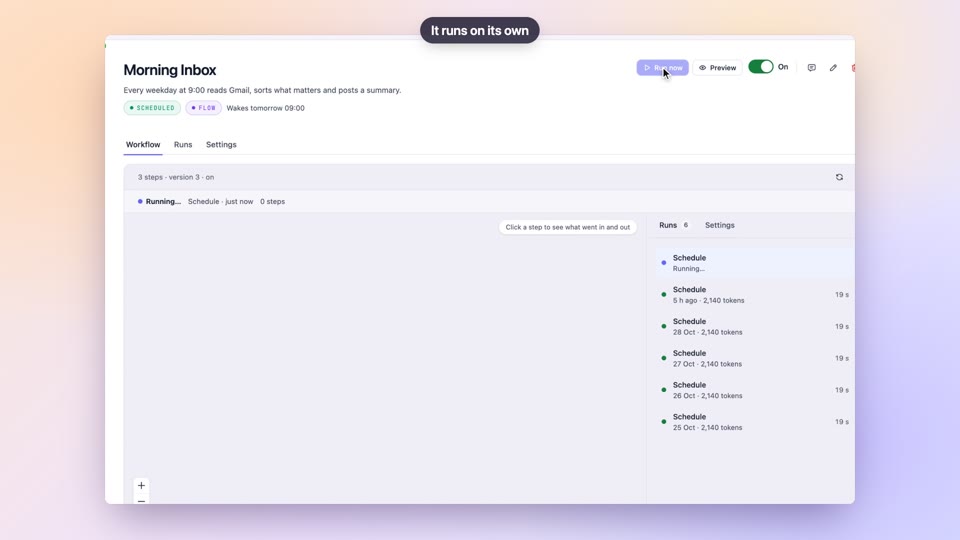
Any bot can be run straight away, paused or resumed, and a schedule has its own run-now button and on/off switch, so you don't wait for the next time it is due.
Tutorial
Step by step
Before you start
- The Cana app signed in on your iPhone or Android phone
- For a chat on your own computer: Cana Desktop open and signed in on it
- Camera access for Cana if you want to take a photo (your phone asks the first time)
- 1
Start a new chat
Open the side menu, make sure Chat is selected and tap New chat.
You'll see: A start screen headed Where should Cana work? with a Cloud row (its own computer, always on) and a row for your computer.
Tip: If your computer is not linked, its row says to open Cana on your Mac or PC and sign in to link it.
- 2
Write your request
Type what you want in the message box. Tap Cloud to work in the cloud, or tap your computer to pick one of its folders.
You'll see: The message box is ready, and the model chip shows which model will answer.
Tip: Tap the model chip to change the model for this chat.
- 3
Take a photo of what you are looking at
Tap Attach a photo or file, choose Take photo, snap the picture and confirm it.
You'll see: The photo appears as a chip above the message box. Other choices are Photo library, Choose file and Paste image.
Tip: You can attach up to 10 files to one message.
- 4
Send it
Add a line such as "Turn this whiteboard into a project plan" and tap Send.
You'll see: Your message and the photo appear in the chat and the agent starts working.
Tip: Chats started on the phone run without stopping to ask for approval, so read your instructions before you send.
- 5
Start a bot
In the side menu, switch to Bots and tap New bot. Fill in Name and What should the bot do?, choose When woken or Always running under How it runs, and check the Model. Tap Start bot.
You'll see: The bot opens in its own chat and begins working.
Tip: To make it run on a timetable, ask the bot in its chat to add a schedule.
- 6
Run it now
Open the bot, tap the details button at the top right, then tap Run now. Tap Pause to stop it waking, and Resume to let it wake again.
You'll see: A run starts straight away. For a schedule, open its page and tap Run now, or use its on/off switch.
Worked example
A whiteboard into a plan before you leave the room
A design session just ended with a full whiteboard, and you want a written plan waiting when you sit down.
- 1.Cana app signed in on your phone
- 2.Chat selected, New chat open and Cloud chosen
- 3.Camera access allowed for Cana
Result: You tap Take photo, type "Turn this whiteboard into a project plan" and tap Send. The cloud chat keeps working while you travel, and the plan is there when you open the chat.
Troubleshooting
If something doesn't work
- My computer is not offered when I start a chat
- It appears only while Cana Desktop is open and signed in on it. Open Cana on your Mac or PC, sign in with the same account and reopen the app.
- Start bot does nothing
- The form needs a Name and something in What should the bot do?. It tells you which one is missing.
- The photo won't attach
- Allow camera or photo access for Cana in your phone's settings, then try Take photo or Photo library again. A message holds at most 10 files.
- I can't find Run now
- Open the bot and tap the details button at the top right. Run now, Pause and Resume are in that sheet.
For you
Turn a bug you just saw into an agent task in under a minute
Bugs show up on a test device, a colleague's screen or a whiteboard sketch, away from your editor. A photo plus one line is enough for an agent to start reproducing and fixing it, so the idea doesn't wait until you're back at your desk.
Photo of the bug
Take a photo of the broken layout on the test tablet and send it with "find and fix this in the checkout page".
Kick off the nightly bot
Tap Run now on the dependency-update bot after a security notice, without waiting for its schedule.
Architecture sketch
Snap the whiteboard after a design session and ask a cloud chat to write it up as a plan.
What changes for developers: Ideas and bug reports become agent work while they're still fresh.
Technical details
What it connects to, and the controls you have
- Where new chats run
- Cloud, on Cana's own always-on computer, or on your linked computer in one of its folders
- Attach
- Photo library, Take photo, Choose file or Paste image; up to 10 attachments a message
- New bot
- Name, what it should do, how it runs (When woken or Always running) and model
- Approvals
- Chats and bots started on the phone run without stopping to ask for approval, so check the instructions before you send
- Run now
- On any bot, and on a schedule's page, alongside Pause / Resume or an on/off switch
- Models
- Choose the model from the chip under the message box, from the same list as the web
Why Cana
What you get here
- Start a cloud chat or a chat on your own computer from the phone's New chat screen
- Take photo, Photo library, Choose file or Paste image into any message
- Start a bot from the phone, and Run now on any bot or schedule
- Cloud chats and bots keep running after you put the phone away