
Cana on your phone, Cana Desktop, cana.build
Your agents, in your pocket
Your agents keep working on a cloud computer or on your own desktop while you're away, and the Cana app on your phone is where you steer them, approve their next step and review what they did.
How it works
The idea in 4 steps
- 1
Give an agent the goal, not every line
Start the work where it suits you: a chat in Cana Desktop on your own computer, a cloud chat, or a bot that wakes on its own. Describe the outcome, for example: "Upgrade the payment service to the new API and keep the tests green."
- 2
Walk away while it keeps working
The agent runs on that computer, not on your phone. A cloud chat or bot has its own cloud computer; a desktop chat runs on your machine. Closing the app on your phone stops nothing.
- 3
Find every agent from one menu
One side menu reaches your cloud chats, the chats running on your own computer, your bots and your team channels, and can narrow to what is working right now.
- 4
Steer, approve and review from the phone
When an agent needs you, a notification opens the exact chat. You approve or deny its request, answer its question, or send a new instruction. When it finishes, you read the result before you're back at a desk.
Tutorial
Step by step
Before you start
- The Cana app signed in on your iPhone or Android phone
- Notifications for Cana allowed in your phone's settings
- Optional: Cana Desktop open on your computer, for chats that run there
- 1
Start the agent on a computer that stays on
Open the side menu, make sure Chat is selected, tap New chat, and under Where should Cana work? tap Cloud. Type the goal and tap Send.
You'll see: The chat opens, your goal appears and the agent starts working on its own computer.
Tip: A cloud chat or a bot keeps running after you close the app.
- 2
Make sure you will hear about it
Open the account menu, tap Notifications and check A chat needs you and A chat failed are on.
You'll see: Each switch saves as you flip it.
Tip: Add A chat finished if you want to hear about every completion.
- 3
Put the phone away
Close the app. The agent carries on without it.
You'll see: Nothing to see now: when the agent needs you or fails, an alert arrives.
- 4
Tap the alert and read the chat
Tap the alert when it arrives.
You'll see: The app opens on that exact chat. A card headed Needs your approval or A question for you is waiting.
- 5
Approve or answer
Tap Approve to allow the action once, Always to allow that tool for the rest of the chat, or Deny to refuse it. For a question, tap an option or type your own answer and tap Send answers.
You'll see: The card shows what you chose and the agent carries on.
Tip: Chats and bots started on the phone run without stopping to ask, so these cards appear in chats started on the web or Cana Desktop.
- 6
Check what is running across your agents
In the side menu tap Desktop to see chats on your computer, then tap Running. Switch to Bots or Walkie for your bots and team channels.
You'll see: Only the agents working right now, with a count on Running.
Tip: The Desktop switch appears only while a computer is linked.
- 7
Review the result
Open the finished chat and read the last message and the changes it made. Type a follow-up in the message box and tap Send if something needs changing.
You'll see: Your instruction appears and the agent picks the work up again.
Worked example
Unblock a refactor on the train
Your agent is upgrading the payment service on your laptop at home and stops to ask permission to run a migration while you commute.
- 1.Chat started in Cana Desktop with approvals on
- 2.A chat needs you switched on in Notifications
- 3.Phone signed in to the same account
Result: You tap the alert, read the command on the Needs your approval card and tap Approve. The run carries on while you are still on the train.
Troubleshooting
If something doesn't work
- The agent stopped when I closed the app
- Agents run on a cloud computer or your own computer, not on the phone. Check the chat for a failure or a question waiting on you, and that Cana Desktop is still open for desktop chats.
- I can't see the Desktop switch
- It appears only while a computer is linked. Open Cana Desktop on your Mac or PC and sign in with the same account.
- I never see Approve, Always or Deny
- Chats and bots started on the phone run without asking. The card appears in chats started on the web or Cana Desktop.
- No alert arrived
- Open Notifications and check the top row is on and A chat needs you is on. Also allow notifications for Cana in your phone's settings.
For you
See your team's agent work and make the call from the phone
When agents do more of the execution, the bottleneck becomes the decisions people make. The phone puts those decisions in front of the right person quickly, with the context in the chat.
Approve a plan
In the team's Walkie channel, approve the agent's plan for the release between two meetings.
Check what's running
Use the Running filter to see which chats are working right now and which have finished.
What changes for managers: Agent work waits less on people, without decisions moving away from them.
Technical details
What it connects to, and the controls you have
- Where agents run
- Cloud chats and bots on their own cloud computers; desktop chats on your own computer with Cana Desktop. The phone directs them and never has to stay open
- In the side menu
- Chat (Cloud and Desktop tabs), Bots and Walkie, plus Documents, Meetings and Artifacts as screens in the app
- What you can do
- Start chats and bots, send instructions and attachments, approve or deny tool requests, answer questions, run bots and schedules now, approve Walkie plans
- Opened from the web
- Usage, Settings and Organisation open their cana.build pages inside the app
- Platforms and sign-in
- iPhone and Android, with your existing Cana account: email and password, Google, Apple or a passkey. Accounts are created on the web
- Updates
- The app updates over the air between store releases
Why Cana
What you get here
- Agents run on cloud computers or your own desktop, so they keep working when the phone is in your pocket
- One side menu reaches cloud chats, chats on your own computer, bots and Walkie channels
- Approve, Always or Deny an agent's request straight from the chat on the phone
- Available for iPhone and Android with your existing Cana account
Keep exploring
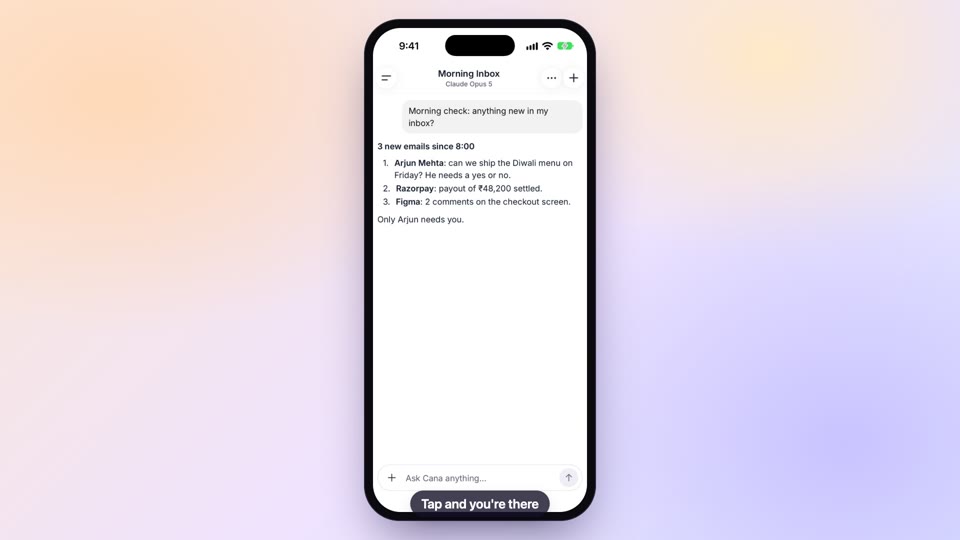
The Cana mobile app
Approve plans and follow your team's channels on the go
Notifications that keep work moving
Hear about failures and approvals without watching dashboards
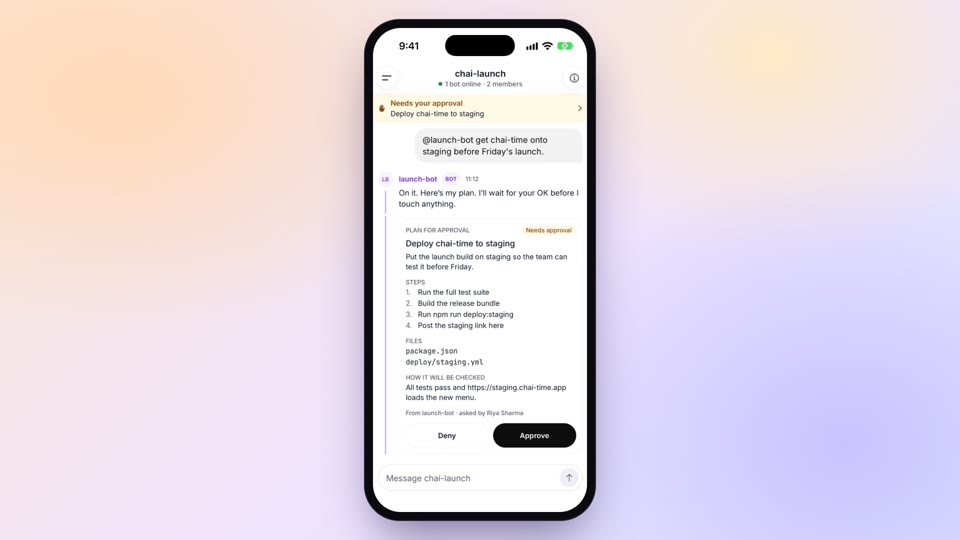
Approve, answer and unblock from anywhere
Approve your team's agent plans before work starts, from anywhere
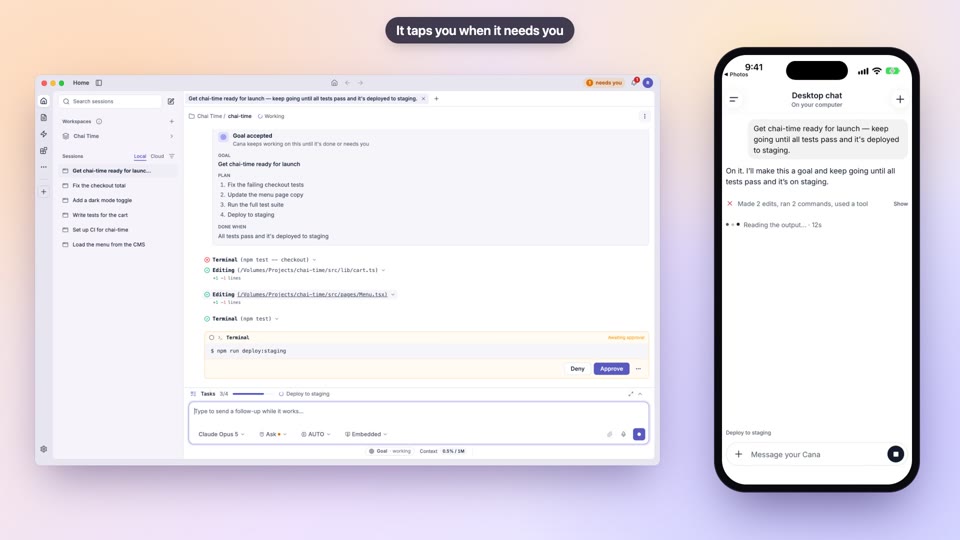
Drive your desktop agent from your phone
Keep work on company machines and still follow it from the phone