
Cana Desktop
Memory, knowledge, skills and commands
Tell Cana once how you like to work and it remembers in every chat; save project knowledge it looks up when needed, and add skills and /commands that shape how the agent works.
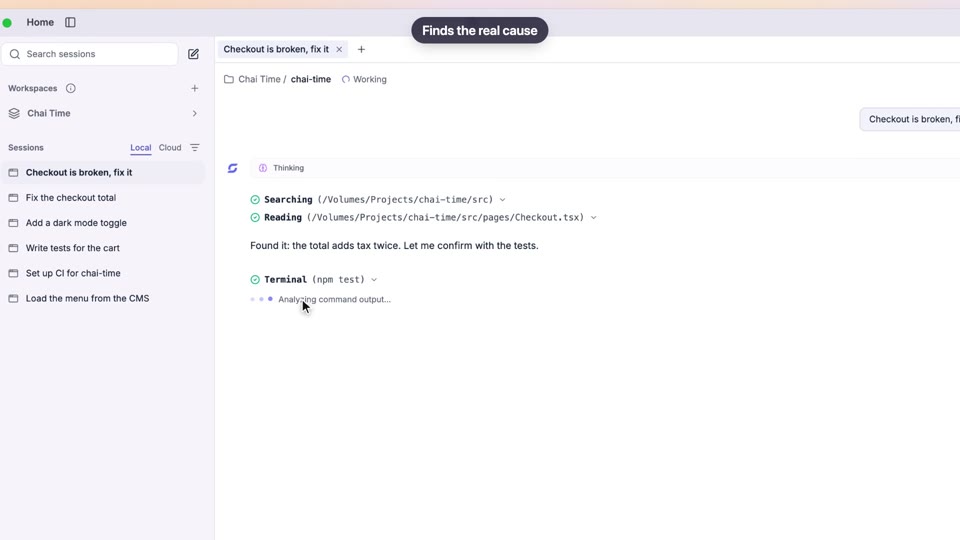
How it works
The idea in 4 steps
- 1
Tell it once
Say "always use pnpm in this repo" or "keep my emails under 120 words". The agent offers to save it as a memory, and from then on it is part of every chat where it applies.
- 2
Memories have a scope
Each memory belongs to this project, your workspace, or everywhere (System). When two disagree the most specific wins: project over workspace over system. Each one can be switched off.
- 3
Knowledge is reference, not rules
Project knowledge records what the agent learned, such as how the deploy works or where the billing logic lives. It is saved as Markdown in your project and looked up when a task needs it.
- 4
Skills and /commands carry your procedures
A skill is a written playbook the agent loads when a task matches it. A /command is a prompt you saved, run by typing its name in any chat.
Tutorial
Step by step
Before you start
- Cana Desktop installed, signed in, with a project folder open
- A repeatable rule you want followed, such as your package manager or writing style
- 1
Tell the agent a rule in chat
In a chat, write the rule as an instruction, for example "From now on, always use pnpm in this repo, never npm." and send it.
You'll see: A card asks Remember this for future sessions? with the rule ready to save.
- 2
Save it
Click Confirm & save on the card. Close it with the X instead if it was a one-off request.
You'll see: The card goes away and the rule now applies to future chats in this project.
- 3
Open your memories
Click Settings at the foot of the left rail, then Memory in the settings list.
You'll see: The Behavioral Memory page, with Project, Workspace and System filters and every saved memory listed.
- 4
Add or change one yourself
Click Add memory. Fill in Title and Instruction, pick a Scope (Project, Workspace or System) and a Type, then click Save memory.
You'll see: The memory appears in the list with its scope and type, and a switch to turn it off.
Tip: Use System for rules about you, such as tone. Use Project for rules about one codebase.
- 5
Ask it to record project knowledge
After the agent has worked something out, ask: "Save what you learned about how deploys work as project knowledge."
You'll see: The agent writes a Markdown file under .cocreate/knowledge in your project and names it in its reply.
- 6
Browse the knowledge
Click Context in the left rail, then Knowledge. Type in Search knowledge… to find an entry.
You'll see: Your knowledge entries listed with a type badge, such as Architecture or Convention.
- 7
Write a skill
In Settings, open Skills and click Add Skill. Fill in Name, Description and Instructions (SKILL.md), choose who sees it, and click Create.
You'll see: The skill is listed under Skills, and the agent loads it when a task matches its description.
- 8
Save a /command
In Settings, open Commands and click Add Command. Enter a Name such as review and a Prompt Template, then click Create.
You'll see: Typing /review in any chat now offers your command and sends its prompt.
Worked example
Teach it your repo's conventions once
Every new chat you tell the agent to use pnpm and Vitest, and to check changes against your review list. Set it up once and it applies everywhere it should.
You type
In this project always use pnpm and Vitest, and named exports only. Remember that. Then save what you know about how this app is deployed as project knowledge.
- 1.Open the project folder in Cana Desktop and start a chat
- 2.Send the request, then click Confirm & save on the memory card
- 3.Check it under Settings, Memory with the Project filter
- 4.Add a review /command in Settings, Commands, Add Command
Result: New chats in this repo use pnpm and Vitest without being told, the deploy notes sit in .cocreate/knowledge for the agent to look up, and /review runs your checklist.
Troubleshooting
If something doesn't work
- The agent ignores a rule I saved
- Open Settings, Memory and check its switch is on and its scope fits: a Project memory applies only in that project. A more specific memory can override a broader one.
- I can't pick Project or Workspace for a memory
- Those scopes need an open project or workspace. Open the project folder first, or choose System to apply the memory everywhere.
- A memory is out of date
- Find it with Search memory… in Settings, Memory, then edit it or delete it. Deleting removes it from future chats only; past chats and knowledge stay as they are.
- My skill never seems to be used
- The agent picks skills by their Description. Make it say plainly what tasks the skill is for, or ask the agent to load the skill by name.
For you
Stop re-explaining your stack in every chat
Memories carry your conventions across chats, scoped to a repo or everywhere. Project knowledge stores what the agent learned about the codebase as Markdown in the repo, and skills and /commands turn your team's procedures into something it follows every time.
Repo conventions
"In this project, use pnpm, Vitest and named exports." Saved as a project memory.
Architecture notes
After a long investigation, have the agent save how auth flows through the services as project knowledge.
/review command
A command that checks the current diff against your checklist: tests, error handling, logging.
What changes for developers: Less repeating yourself, and an agent that works the way your codebase expects.
Technical details
What it connects to, and the controls you have
- Memory scopes
- Project, workspace or System (everywhere); on a conflict the most specific wins: project over workspace over system
- Memory types
- Preference, Instruction or Correction, with an optional conflict key so a narrower memory replaces a broader one
- Memory budget
- Active memories share a 16,000-character budget, filled from the most specific scope first; memories that don't fit are still listed by title
- Reminders
- A memory can be a reminder with an "until" condition, shown as Reminder in Settings and switched off once the work is done
- Project knowledge
- Markdown files under .cocreate/knowledge in your project, looked up by the agent when relevant
- Skills
- Your own skills, project and personal skill folders, and a searchable catalogue of bundled skills, all off until you switch them on
- Sharing
- Skills and commands you write can be kept to yourself or shared with everyone in your organisation
- Site knowledge
- Route and form maps for websites, added in Settings > Site Knowledge, so the browser agent goes straight to the right page
Why Cana
What you get here
- Memories are scoped to a project, a workspace or everywhere, and the most specific one wins
- Every memory is visible in Settings with its own on/off switch
- Project knowledge is plain Markdown in your own project
- Skills and /commands can be shared with your whole organisation
Keep exploring
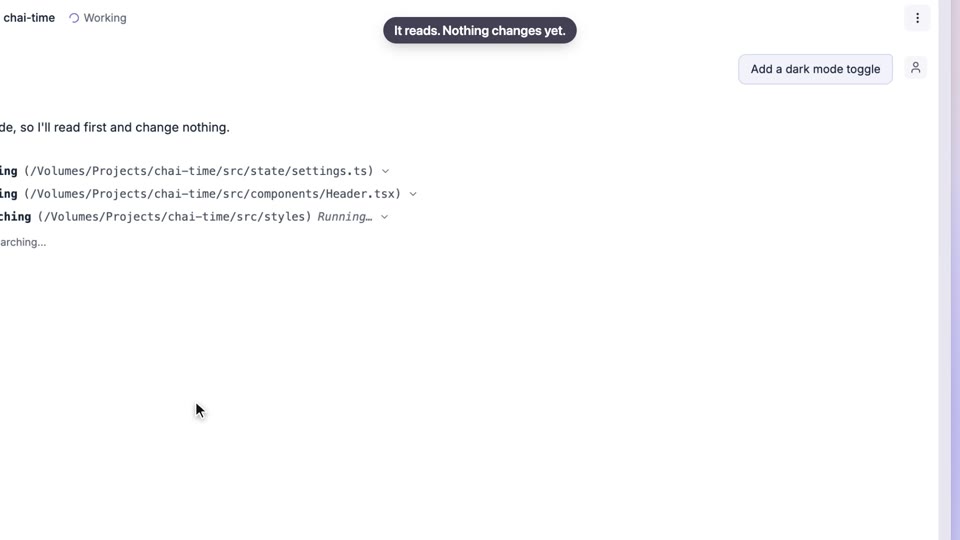
Plan first, then build
Agree the approach before a single file changes
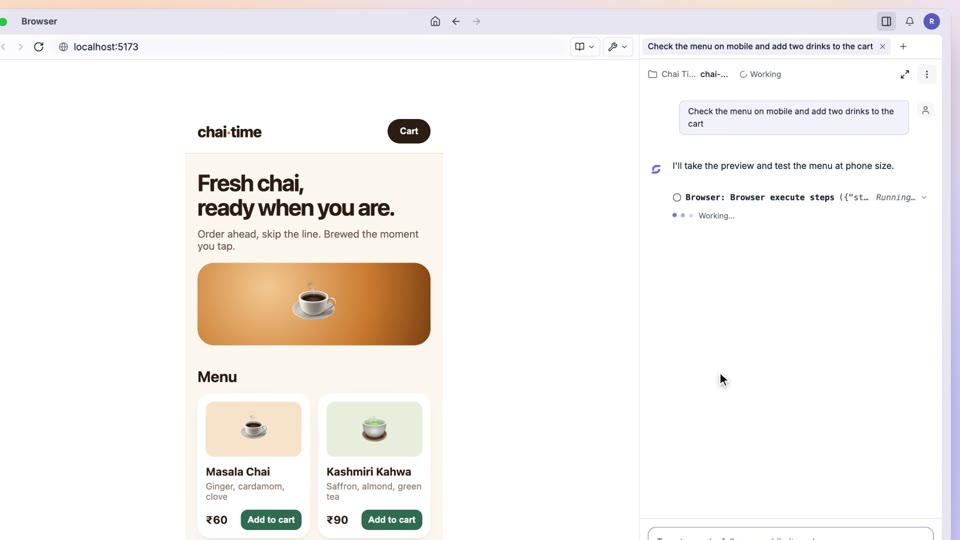
A browser the agent can see and use
Debug from the screen: send the element, error or request to the agent
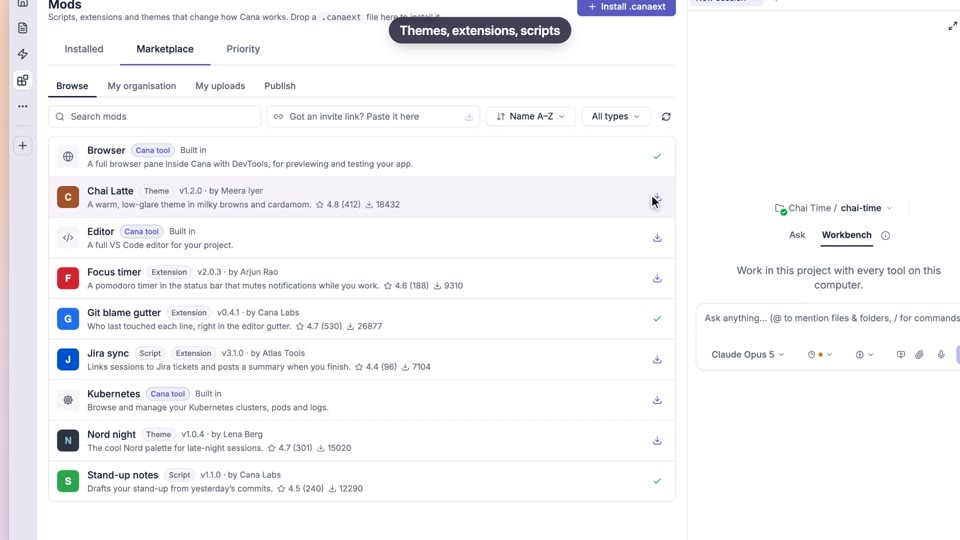
Mods and the mod store
Extend Cana with your own tools, pages and themes
Organisations, members and roles
Shared providers, shared tools, and keys scoped to what you need