Cana on your phone, Cana Desktop
Drive your desktop agent from your phone
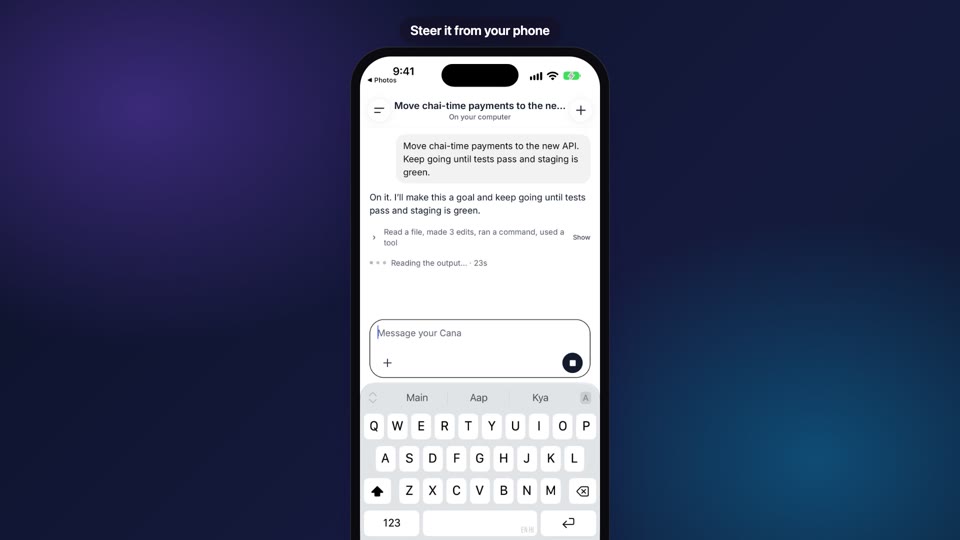
Chats running in Cana Desktop on your own computer show up in the app's Desktop tab, so you can follow them, message them, send them photos and files and hear when they finish, while the work stays on your computer.
How it works
The idea in 4 steps
- 1
Link your computer once
Open Cana Desktop on your Mac or PC and sign in with the same account you use on the phone. The computer is then linked, and the phone's chat list gains a tab for it.
- 2
See what is running on it
That tab lists the chats on your computer, can narrow to what is working right now, and shows every folder Cana Desktop has opened, with its past chats and a button to start a new chat in that folder.
- 3
Steer the chat from the phone
Open a chat and type, as if you were at your desk. The message goes to Cana Desktop and the agent carries on there. You can also answer its questions, approve its requests and stop it.
- 4
Files go straight to your computer
Photos, camera shots and documents you attach are sent directly to Cana Desktop, which hands them to the chat, so they are not stored in the cloud. When the turn ends you are told, and a tap opens that chat.
Tutorial
Step by step
Before you start
- Cana Desktop open and signed in on your Mac or PC, with the same account as the phone
- The Cana app signed in on your iPhone or Android phone
- A chat running in Cana Desktop (or a folder you can start one in)
- 1
Open the chat list
Open the side menu and make sure Chat is selected at the top.
You'll see: A list of chats with a switch between Cloud and Desktop under the search box.
Tip: No Desktop switch? It appears only while a computer is linked. Open Cana Desktop and sign in, then reopen the app.
- 2
Switch to Desktop
Tap Desktop, then tap Running to see only chats that are working right now. Tap All to see every chat.
You'll see: The chats on your computer, with Running showing a count of the busy ones.
Tip: Type in the search box (Search chats) to find a chat by name.
- 3
Open a chat and send a message
Tap a chat, type your next instruction in the message box and tap Send.
You'll see: Your message appears in the chat and the agent on your computer carries on with it.
Tip: While the agent is working, the send button becomes Stop the agent. Tap it to halt the run.
- 4
Attach a photo or file
Tap Attach a photo or file, then choose Photo library, Take photo or Choose file.
You'll see: The file appears as a chip above the message box. Add your text and tap Send.
Tip: You can attach up to 10 files to one message.
- 5
Start a chat in a project folder
Scroll the Desktop list to Desktop projects, find the folder and tap its New chat in button.
You'll see: A new chat opens, working in that folder on your computer.
- 6
Get told when it finishes
Open the account menu, tap Notifications and check Your computer finished is on.
You'll see: When a turn ends you get an alert, and tapping it opens that chat.
Worked example
Fix a crash from the street
You are away from your desk and a test device shows a crash. Your repo is open in Cana Desktop on your laptop at home.
- 1.Cana Desktop open on the laptop with the repo's project
- 2.Your computer finished switched on in Notifications
- 3.Desktop selected in the Chat list on your phone
Result: You tap Take photo to attach a picture of the error, write what to fix and tap Send. The laptop works on it, and you get an alert when it finishes.
Troubleshooting
If something doesn't work
- I don't see a Desktop switch
- It only appears while a computer is linked. Open Cana Desktop on your Mac or PC and sign in with the same account, then reopen the app.
- My chat is not in the Running list
- Running shows only chats that are working right now. Tap All to see idle ones.
- I can't attach a file to a teammate's chat
- A chat a teammate shares with you takes text only. Files go to chats on your own computer.
- No alert when my computer finishes
- Open Notifications and switch on Your computer finished. Make sure the top Notifications row is on.
For you
Your computer keeps working; the phone keeps you in the loop
Some work needs your own computer: local files, installed apps, a signed-in tool. Leave the agent working there and follow along from the phone, adding instructions and documents as they come up.
Add the missing file
Forward the PDF a client just sent to the desktop chat so the agent can include it in the report.
One more instruction
From a meeting, tell the agent to use the new figures before it finishes.
What changes for professionals: Work on your computer continues while you're elsewhere.
Technical details
What it connects to, and the controls you have
- Needs
- Cana Desktop open and signed in on your Mac or PC; the Desktop tab appears only while a computer is linked
- Where the work runs
- On your own computer, with your files and tools; the phone sends messages and receives the replies
- Files
- Photos, camera shots and documents, up to 500 MB per file, sent straight to the computer rather than stored in the cloud
- Attachments
- Up to 10 per message
- Several computers
- Chats and projects are grouped by computer when you have more than one
- Teammates' chats
- A chat a teammate shares with you also appears under Desktop; you can send it text but not files
Why Cana
What you get here
- A Desktop tab lists the chats and projects on your own computer, with a Running filter
- Messages, answers, approvals and stop go from the phone to the chat on your computer
- Photos and files up to 500 MB go straight to the computer, not into the cloud
- "Finished on" your computer arrives when a turn ends and opens that chat