
cana.build, Cana Desktop
Connected apps and MCP servers
Connect your accounts, such as Gmail, Slack, GitHub and Notion, once in Settings so every chat, bot and Twin can work in them on your behalf, and add your own MCP servers too.
How it works
The idea in 5 steps
- 1
Connect once, use everywhere
An app you connect in Settings is available to every chat, bot and Twin you run, on the web and in Cana Desktop. It stays private to your account.
- 2
Each app signs in its own way
You sign in to the app itself in a small window, so Cana never sees your password. You can connect several accounts of the same app, such as a work and a personal inbox.
- 3
Secrets stay out of the agent's hands
Git tokens and AWS roles are stored encrypted. Agents clone and push with your token and get short-lived AWS credentials, without ever seeing the secret itself.
- 4
Your own tools fit in too
Any MCP server can be added by its address, with a static credential or your own OAuth sign-in. Cana checks it and lists the tools it offers before saving.
- 5
Bots can wake on app events
Beyond acting when asked, a bot can be woken by something that happens in a connected app, like a new email or a new GitHub issue. Disconnect, and that access stops at once.
Tutorial
Step by step
Before you start
- A cana.build account
- A sign-in for each app you want to connect
- For Git or AWS: a personal access token, or an AWS role you can create
- 1
Open Integrations
In the sidebar, under Settings, click Integrations.
You'll see: The Integrations page, starting with Connected apps.
- 2
Find the app
Type the app's name, for example Gmail, into the search box under Connected apps.
You'll see: The app's tile, with a Connect button.
- 3
Connect it
Click Connect and sign in to the app in the window that opens. Approve the access it asks for.
You'll see: The window closes and the tile shows Connected.
Tip: If your browser blocks popups, the sign-in opens in this tab and brings you back.
- 4
Add a second account
On a connected app, click Add account and sign in with the other account.
You'll see: The tile's badge changes from Connected to 2 accounts.
- 5
Add Git access
Under Git & AWS connections, click Add connection, choose Git, fill in Label, Host and Personal access token, then click Test & save.
You'll see: The connection listed under Git & AWS connections.
Tip: For AWS, choose AWS (Connector by Colate) and follow its steps to create the role and paste its Role ARN.
- 6
Add your own MCP server
Under Custom MCP servers, click Add MCP connector, enter a Name and MCP server URL, choose Static credential or Custom OAuth, then click Connect & Save.
You'll see: The server listed with the number of tools it offers.
- 7
Put it to work
Open a chat and ask for something in the app, for example: Summarise my unread Gmail from today.
You'll see: The agent uses the app as you and replies with the result.
Worked example
A morning digest from Gmail to Slack
You start every day skimming email and then telling your team what matters. With Gmail and Slack connected, one request does both.
You type
Read my unread Gmail from the last 12 hours, pick the five that need action from me, and post a short list in Slack #team-updates with sender and one line each.
- 1.Integrations: Connect Gmail, then Connect Slack
- 2.Open a chat and send the prompt
- 3.Happy with it? Make it a bot that runs each weekday at 8
Result: A five-line summary appears in #team-updates, posted as you, without you opening either app.
Troubleshooting
If something doesn't work
- The sign-in window didn't open
- Your browser blocked the popup, so Cana opens the sign-in in the same tab. Finish it there; you come back to Integrations with the app shown as Connected.
- An app shows Sign in again
- Its sign-in expired or was revoked. Click Connect on that tile and sign in again; chats and bots pick up the new sign-in.
- My MCP server won't save
- Cana tests the server on Connect & Save. Check the MCP server URL is reachable from the internet and the credential or OAuth details are correct.
- How do I remove access?
- Click Disconnect on the account and confirm. Chats and bots can no longer use it straight away.
For you
Give your agents real access to GitHub, Slack and your own MCP tools
Connect accounts once and every agent can act on them, with no glue code or token juggling. Add your internal MCP server, test it, and its tools are available in chats, bots and Twins; Cana's own MCP endpoint works the other way round.
Issue triage
"List the GitHub issues opened this week without a label, suggest one for each, and apply the ones I approve."
Internal tools for agents
Add your team's MCP server under Custom MCP servers, test it, and let a bot call its deploy-status tool every morning.
Cana from your editor
Point any MCP client at the Cana MCP endpoint, sign in with OAuth, and start or read chats and bots from there.
What changes for developers: Agents that work in your real systems, set up in minutes instead of an integration sprint.
Technical details
What it connects to, and the controls you have
- Catalogue
- More than 1,500 connected apps, including Gmail, Slack, GitHub, Notion and Jira, searchable with your own connections first
- Used by
- Chats, bots and Twins on the web, and agents in Cana Desktop; bots can also wake on events from a connected app
- Sign-in
- Each app is connected through its own sign-in window; several accounts per app are supported
- Git and AWS
- Git tokens for clone and push, and short-lived AWS credentials from your role; secrets are encrypted and never shown to the agent
- MCP servers
- Add any MCP server by address with a static credential or your own OAuth client, and test it to list its tools
- Cana MCP
- Settings > Cana MCP gives other MCP clients access to your chats, bots, apps and Studio pages, by OAuth sign-in or a revocable key
- Ownership
- Connections belong to your account; organisation admins can hide apps for everyone or use the organisation's own app credentials
Why Cana
What you get here
- Connect an account once and every chat, bot and Twin can use it, on the web and in Cana Desktop
- More than 1,500 connected apps, plus any MCP server you add yourself
- Git and AWS secrets are encrypted and never shown to the agent
- Cana's own MCP endpoint lets other tools reach your Cana account
Keep exploring
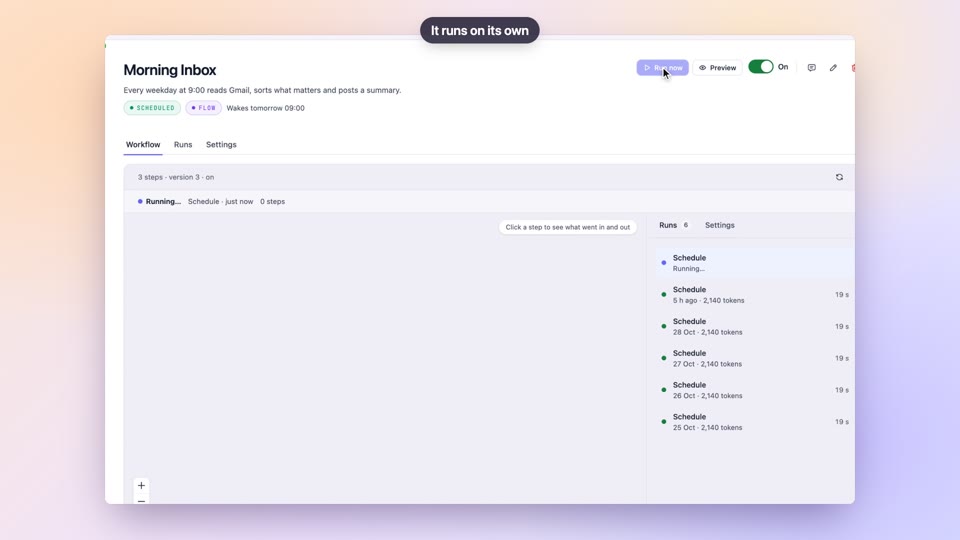
Bots
BetaTurn the chores around your code into bots that run themselves
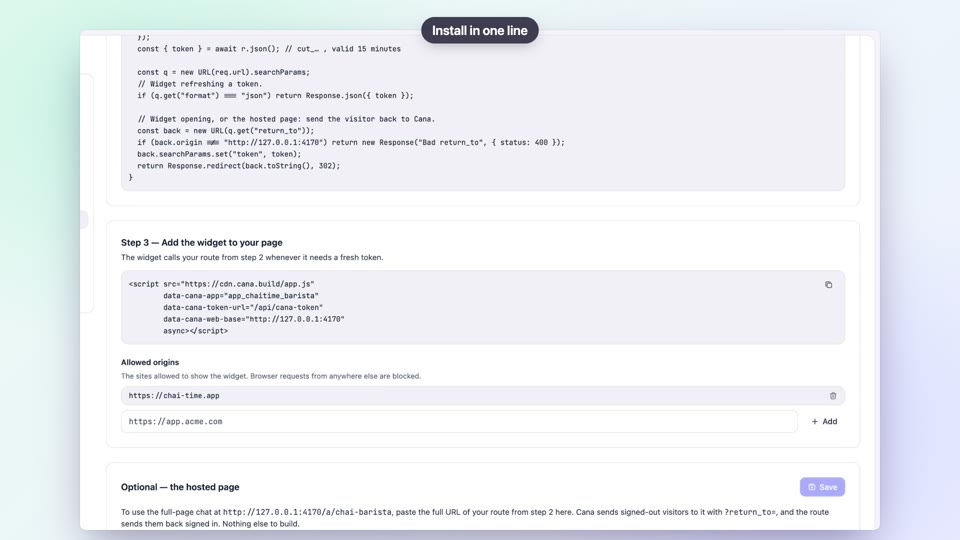
Twins: an agent inside your product
Ship an AI agent in your product with a script tag or an API
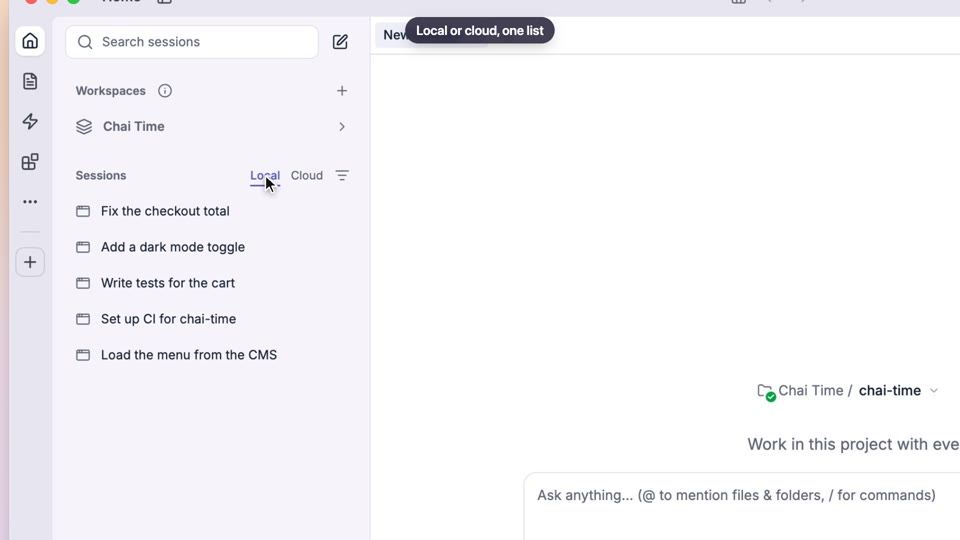
Cloud chats with their own computer
BetaA full agent workspace in the browser, on its own computer
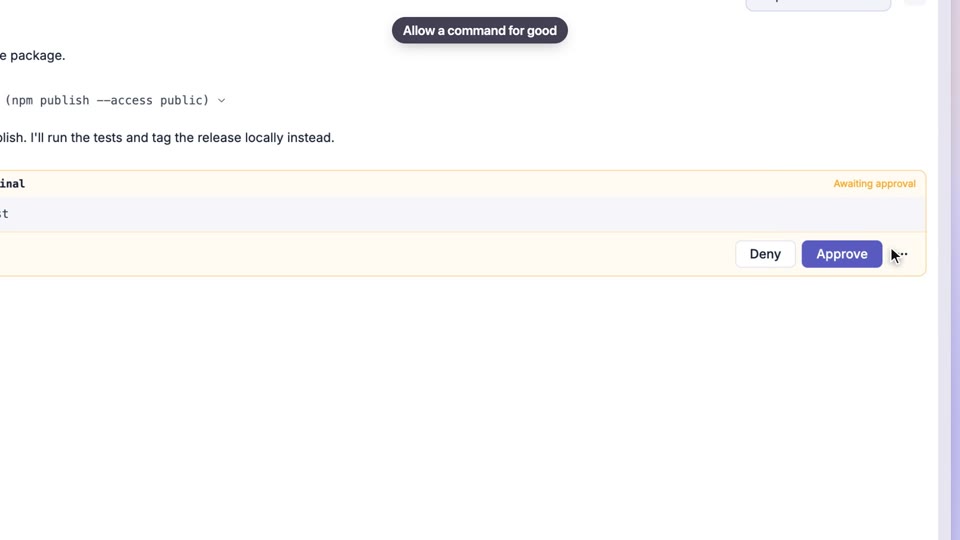
Permissions and approvals
Let the agent move fast on the safe stuff and ask on the rest