
Cana Desktop
A browser the agent can see and use
Cana Desktop has a built-in browser the agent can open, click through and check, with Elements, Console and Network tools, and Cana Companion lets it work in your own Chrome tabs too.
How it works
The idea in 4 steps
- 1
The agent uses the page like a person
Cana Desktop has its own browser. The agent opens pages in it, clicks, types, fills forms, scrolls and reads what is on screen, so it can try your app instead of guessing.
- 2
You point, it gets the details
Developer tools under the page show the elements, console messages and network requests. Anything you select there can be sent to the agent with its full detail, so you never copy errors by hand.
- 3
It fixes, then checks its own work
After changing code the agent reloads the page and looks again, including whether the layout overlaps or overflows, before it reports back.
- 4
Your own Chrome when you need it
Cana Companion is a Chrome extension that pairs with Cana Desktop over a local connection you approve. The agent can then work in your real tabs, signed in as you, and you can chat and approve actions from Chrome's side panel.
Tutorial
Step by step
Before you start
- Cana Desktop installed and signed in
- A web app running on your computer, for example on localhost:3000
- For the Chrome steps: Google Chrome with the Cana Companion extension
- 1
Open the browser
In Cana Desktop, click More tools on the left rail and choose Browser. If it is pinned, it sits on the rail itself.
You'll see: A browser pane opens with an empty address bar that reads Enter URL....
Tip: Not listed? Open Mods, go to Marketplace and add it from the Cana tools type.
- 2
Load your app
Click the Enter URL... bar, type the address of your running app, such as localhost:3000, and press Enter.
You'll see: Your app loads in the pane, just as it would in a normal browser.
- 3
Open the developer tools
Click DevTools in the browser toolbar.
You'll see: A panel opens beside the page with three tabs: Elements, Console and Network.
- 4
Pick the part that looks wrong
In Elements, hover over the page and click the broken part, for example a button that overlaps the footer.
You'll see: The element is selected and its details appear in the Elements panel.
- 5
Send it to the agent
Press Send to Agent, then type what you want in the chat, such as "Fix this overlap on small screens", and send.
You'll see: The element goes into the chat with your message, and the agent starts editing the code.
Tip: Console and Network have the same Send to Agent button for an error or a failed request.
- 6
Pair Cana Companion with Chrome
In Chrome, open the Cana Companion popup and press Pair with Cana Desktop. Back in Cana, approve the Pair with Cana Companion? request.
You'll see: Once approved, Chrome appears as ready in Cana's Browser mode menu.
- 7
Move the agent into Chrome
In Cana, open the Browser mode menu and choose Chrome instead of Embedded.
You'll see: The agent's next browser commands run in your real Chrome tabs, signed in as you.
Tip: Choose Embedded again to bring it back to Cana's own browser pane.
Worked example
Fix a broken sign-up page
Your sign-up form posts but nothing happens, and the console shows a red error. You want it fixed and proven to work without copying the error anywhere.
You type
Fix this error, then sign up as a new test user and tell me what you saw.
- 1.Open Browser and load localhost:3000/signup
- 2.Click DevTools, open Console and select the red error
- 3.Press Send to Agent and send the prompt
Result: The agent fixes the handler, reloads the page, signs up as a test user in the browser and reports that the account was created, with what it checked.
Troubleshooting
If something doesn't work
- Browser is not in the More tools menu
- It is a Cana tool you add once. Open Mods, then Marketplace, set the type filter to Cana tools and add Browser.
- The page stays blank
- Your app may not be running. Start it in a terminal, or ask the agent to start the dev server, then load the address again.
- Chrome says "Not connected" in the Browser mode menu
- Cana Companion is not paired yet. Use Install & connect in that menu, or press Pair with Cana Desktop in the Companion and approve the request in Cana.
- The agent sent nothing about my selection
- Select an element, a console message or a request row first, then press Send to Agent. Each tab sends only what is selected in it.
For you
Click what looks wrong and learn why it broke
Instead of describing a bug in words, send the broken part of the page straight to the agent. You see the fix and can ask what caused it, which is a fast way to learn how web pages really work.
Layout puzzles
Pick the button that overlaps the footer in Elements and ask the agent to fix it and explain the CSS.
Read the console
Send a red console error and ask what it means before letting the agent fix it.
Test your project like a user
Have the agent sign up and use every page of your portfolio site, and list anything that fails.
What changes for students: Working pages and a better understanding of the browser tools professionals use.
Technical details
What it connects to, and the controls you have
- Built-in browser tools
- Elements, Console and Network tabs, each with a Send to Agent button
- What the agent can do
- Open and navigate pages, click, type, fill forms, scroll, read content, take screenshots, audit layout and watch pages for changes
- Browser targets
- Embedded (Cana's own browser pane) or Chrome through Cana Companion, chosen in the Browser mode menu
- Where to find it
- Browser is a Cana tool: open it from More tools on the left rail (or pin it), and add it from Mods, Marketplace if it is missing
- Pairing
- Started from the Companion's Pair button and approved in Cana Desktop, or by typing a one-time token shown in Cana's Settings
- Connection
- Companion talks to Cana Desktop over a local connection on your computer; web pages and other extensions are refused, and the pairing token stays in local storage and can be revoked
- Site knowledge
- Route and form maps for a site can be added in Settings so the agent goes straight to the right page
Why Cana
What you get here
- The agent drives, reads and checks pages itself, so it verifies its own fixes
- Elements, Console and Network each send their selection to the agent in one click
- One toggle moves the agent between the built-in browser and your own Chrome
- Cana Companion pairs over a local connection that you approve, and can be disconnected at any time
Keep exploring
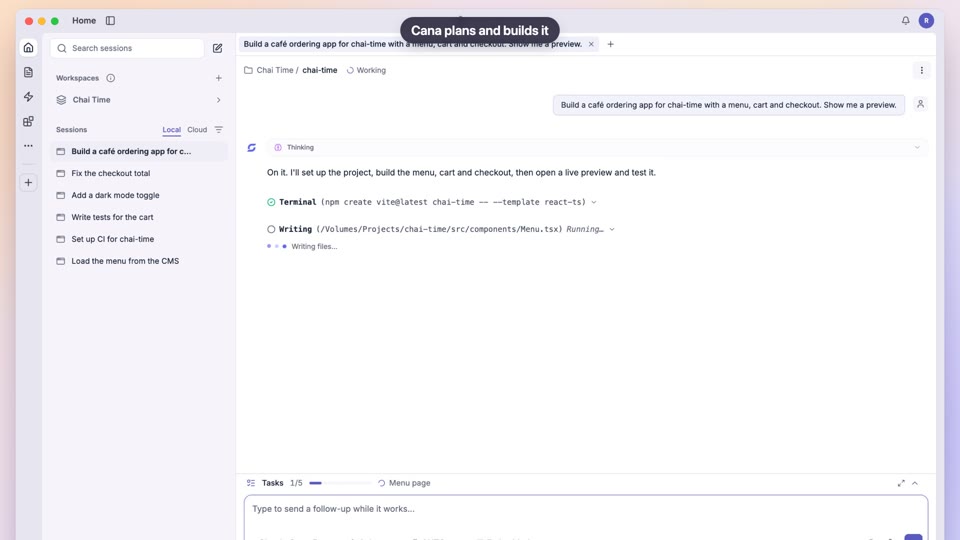
Build an app from one prompt
Build the project you have in mind, and learn how it works as you go
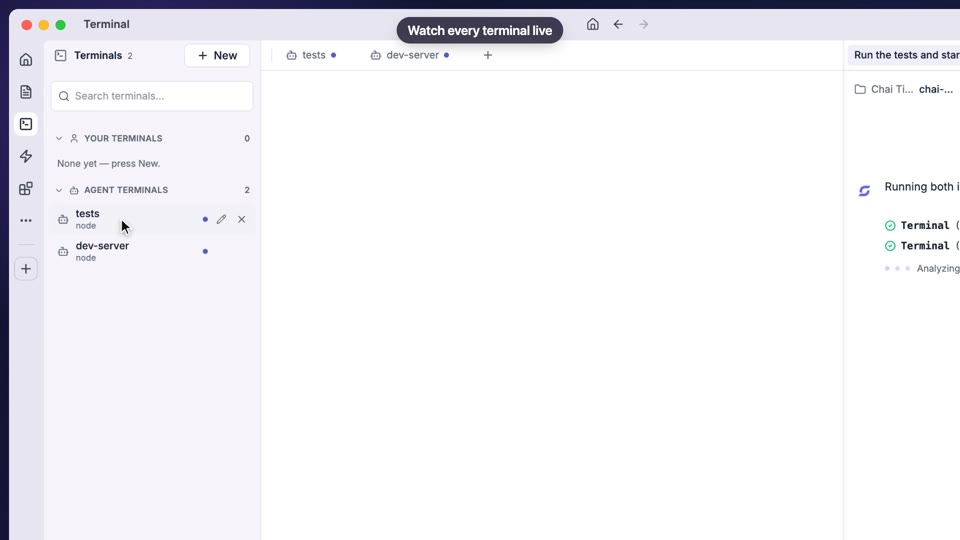
Code, terminal and approvals
Watch real code and commands happen, and stay in charge
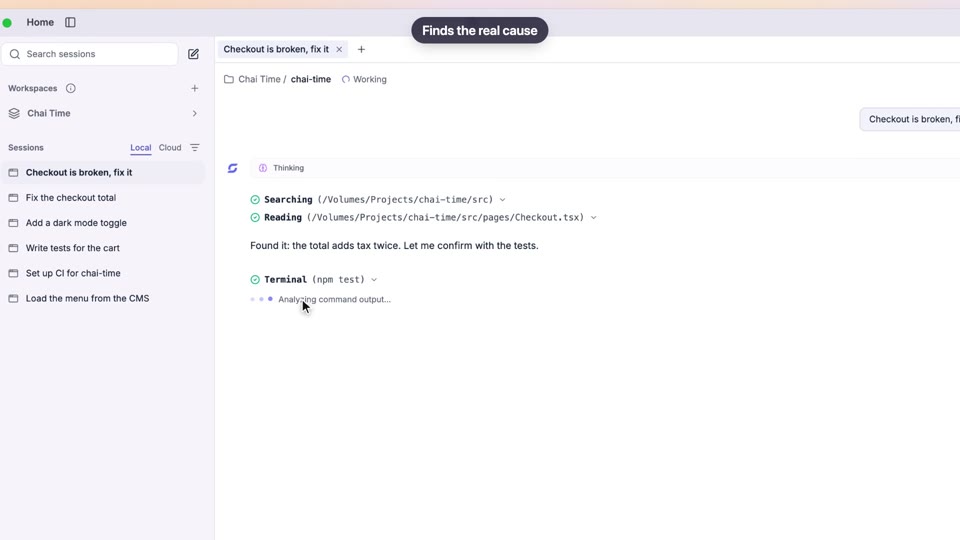
Memory, knowledge, skills and commands
An agent that remembers how you like to learn
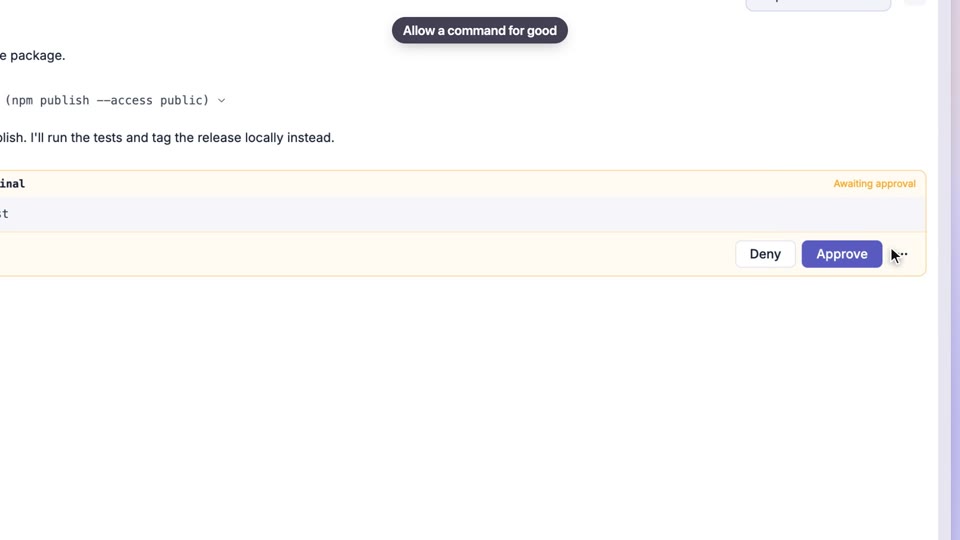
Permissions and approvals
Watch every step the agent takes and learn from what it asks