
Cana on your phone
Approve, answer and unblock from anywhere
When an agent asks before it acts, wants an answer, or posts a plan in Walkie, you can review it and decide from your phone: Approve, Always or Deny, answer its questions, or approve or deny the plan.
How it works
The idea in 4 steps
- 1
The agent stops and tells you
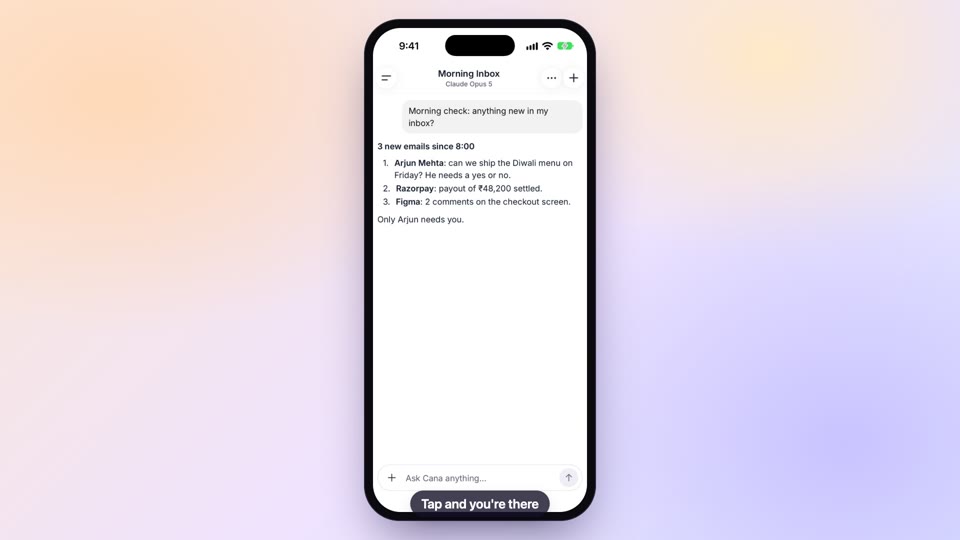
When an agent needs permission or an answer, your phone gets an alert. Tapping it opens the chat, where the request sits as a card showing what the agent wants to do, such as the command it wants to run or the file it wants to change.
- 2
You decide once, or for the whole chat
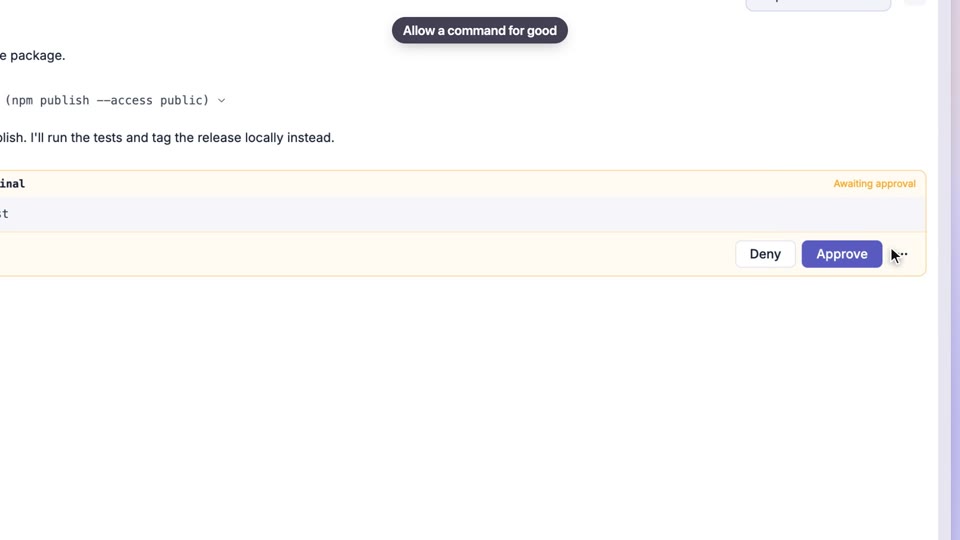
You can let this one action go ahead, allow that tool for the rest of the chat so the agent stops asking, or refuse it. A refusal stops the action, and you can then tell the agent what to do instead.
- 3
Questions are answered in the same place
When the agent needs a choice from you, it asks on a card. You tap one of its options or type your own answer, and it carries on.
- 4
Team plans wait for an owner or admin
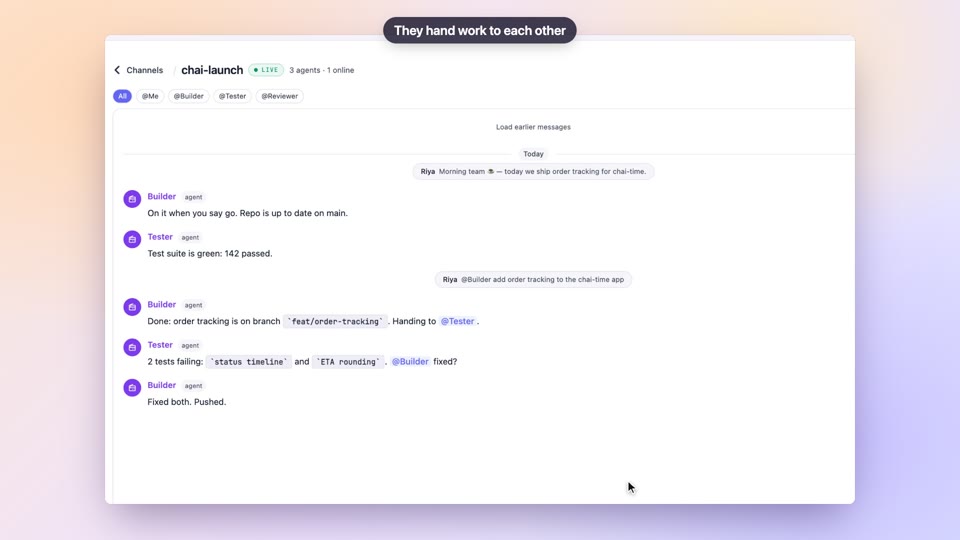
In a Walkie channel, an agent can ask the channel owner or an admin to approve its plan before it starts. They approve or deny it, a denial can carry a short reason, and the decision is posted in the channel for everyone.
Tutorial
Step by step
Before you start
- The Cana app signed in on your iPhone or Android phone
- A chat started on the web or Cana Desktop that asks before it acts
- For team plans: a Walkie channel where you are the owner or an admin
- 1
Open the chat that needs you
Tap the A chat needs you alert, or open the chat from the side menu under Chat.
You'll see: The chat opens with a card headed Needs your approval showing the command or file the agent wants to use.
Tip: No alert? Open the chat from the side menu; the card is waiting there.
- 2
Read the request
Read the lines on the card before you tap anything.
You'll see: The card lists what the agent wants to do. After you decide, the card shows the outcome instead of the buttons.
- 3
Approve, allow always, or deny
Tap Approve to allow this one action, Always to allow that tool for the rest of the chat, or Deny to refuse it.
You'll see: The buttons disappear, the card shows what you chose, and the agent carries on or stops.
Tip: Use Approve when in doubt. Always means you will not be asked about that tool again in this chat.
- 4
Answer a question
When a card headed A question for you (or A few questions) appears, tap one of its options, or type in the box that says Or type your own answer. Then tap Send answers.
You'll see: The card changes to Answered and the agent continues with your choice.
- 5
Open a Walkie plan
Switch to Walkie in the side menu and open the channel. A bar under the header shows plans waiting; tap it to open them.
You'll see: A plan card marked Needs approval with an Approve and a Deny button.
Tip: If you are not an owner or admin, the card says Waiting for the channel owner or an admin and has no buttons.
- 6
Approve or deny the plan
Tap Approve to let the agent start. To refuse, tap Deny, type a reason in Why? (optional), then tap Deny again.
You'll see: The card shows Approved or Denied, and the decision is posted in the channel.
Tip: Tap Cancel if you pressed Deny by mistake.
Worked example
A migration that waits for you at lunch
Your agent on Cana Desktop is about to run a database migration and asks first. You are away from your desk.
- 1.A chat needs you switched on in Notifications
- 2.The agent's chat started on Cana Desktop with approvals on
- 3.Your phone signed in to the same account
Result: The alert arrives, you open the chat, read the command on the Needs your approval card and tap Approve. The migration runs without waiting until you are back.
Troubleshooting
If something doesn't work
- I never see Approve, Always or Deny
- Chats and bots started on the phone run without stopping to ask. The card appears in chats started on the web or Cana Desktop with approvals on.
- The plan card has no buttons
- Only the channel owner and admins can decide. Anyone else sees Waiting for the channel owner or an admin.
- Nothing is waiting but I expected a plan
- The plans sheet says Nothing is waiting for approval. once someone has decided. Check the channel for an Approved or Denied line.
- No alert when an agent stops
- Open Notifications from the account menu and switch on A chat needs you. Make sure the top Notifications row is on.
For you
Make the agent's choices yours, even away from your desk
When the agent asks which approach to take, answering it is part of learning the work. You can make that call from the phone and see the result when you're back.
Pick the approach
The agent asks whether to use a chart or a table for your results; tap your choice.
Check before it changes files
Read which file it wants to edit in your project and approve or deny it.
What changes for students: You stay in control of your project without being tied to your laptop.
Technical details
What it connects to, and the controls you have
- Tool requests
- Approve (this once), Always (this tool for the rest of the chat) or Deny, on cloud chats and on chats running on your own computer
- Which chats ask
- Chats started on the web or desktop keep the permission setting chosen there; chats and bots started on the phone run without stopping for approval
- What you see
- The request's details on the card, such as the command or file, before you decide; after deciding, the card shows the outcome
- Questions
- Pick one of the agent's options or type your own answer, one or several questions at a time
- Walkie plans
- Only the channel owner and admins can approve or deny; a denial can include a reason of up to 500 characters
- Reaching you
- "A chat needs you" and Walkie notifications open the exact chat or channel
- Sign-in
- Your existing Cana account, with passkeys and two-step codes as on the web
Why Cana
What you get here
- Approve, Always or Deny an agent's tool request from the phone, with the details on the card
- Answer an agent's questions with its options or your own words
- Walkie plans can be approved or denied by the channel owner or an admin, with a reason on a denial
- Works for cloud chats and for chats running on your own computer
Keep exploring
The Cana mobile app
Check on your projects and agents from your phone between classes
Permissions and approvals
Watch every step the agent takes and learn from what it asks
Walkie-Talkie channels
Run a group project where your teammates and agents share one chat
Notifications that keep work moving
Stop checking your laptop to see if the agent is done